
Browse the manual
Accept online payments
Set up Stripe, collect an issued invoice and return money through a linked credit note.
On this page
The customer pays. Pepper records confirmed money. A return from checkout is not proof of payment. Pepper checks Stripe before changing the invoice balance.
Where: The owner connects Stripe in Business settings > Online payments. Staff open an invoice or credit note and select Activity > Online payments.
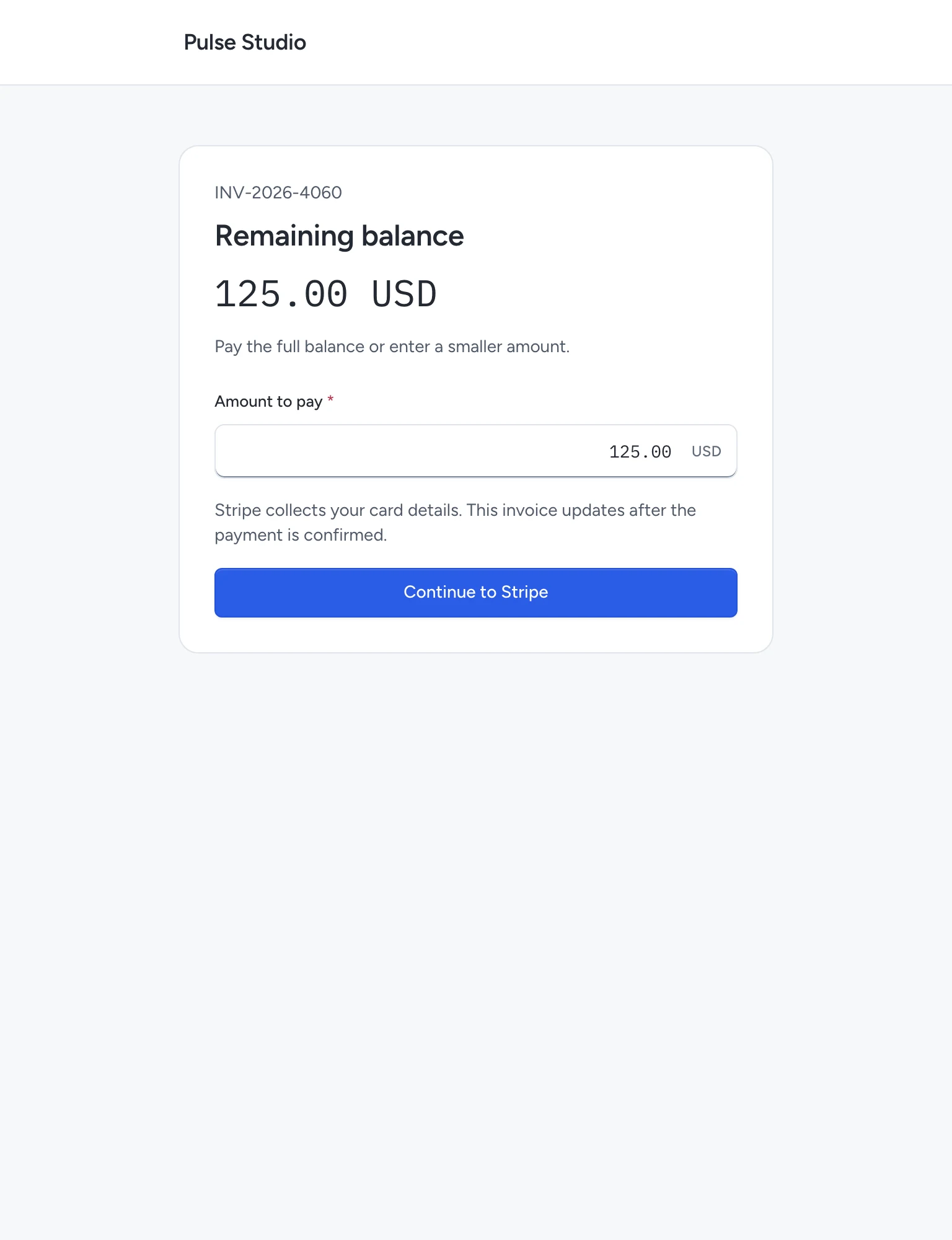
Example with fictional data. Card details are entered on Stripe.
Connect your business
Only the active installation owner can configure the connection. You need your own Stripe merchant account, a public HTTPS application address and the hosting scheduler. Stripe account eligibility and processing fees apply separately.
- Open Online payments and keep Mode set to Test.
- Copy the Webhook endpoint shown on this page. It is available before you save credentials.
- In the matching Stripe test account, create a webhook event destination for Your account. Choose Snapshot payloads and API version 2025-02-24.acacia.
- Use Pepper's endpoint address. Subscribe to
checkout.session.completed,checkout.session.expired,checkout.session.async_payment_succeeded,checkout.session.async_payment_failed,refund.created,refund.updatedandrefund.failed. - Copy that destination's signing secret into Webhook signing secret. Enter the matching Stripe secret API key in Stripe secret key.
- Enable Accept online payments and save. Pepper checks the account before accepting the configuration.
- On a separate test installation, issue a test invoice and complete a test payment. Confirm its result in Pepper and Stripe. Test a partial refund too.
- When your merchant account and test results are ready, select Live and save the matching live API key and live webhook signing secret. Use a public HTTPS address.
Stripe documents API keys and webhook setup. Do not put keys in an invoice, public page or support message.
Saved keys are not shown again. Leave their fields blank to keep them in the same mode. Switching mode requires the new mode's keys. A changed configuration affects new attempts; existing attempts keep their original account and mode.
Turning Accept online payments off stops new payments. Pepper continues to check existing operations. Retain access to their Stripe account and credentials until they finish. Revoking an old key at Stripe can prevent those checks.
The public demo has no merchant account and collects no money. Its card-payment records are labelled examples.
Send an invoice payment link
- Prepare an ordinary invoice. Review its customer, currency, tax and total.
- Issue it. Drafts, quotes, pro-formas and cancelled invoices cannot start a payment.
- Open Activity > Online payments > Open payment page, or send the invoice email.
- The customer pays the displayed balance or enters a smaller amount and selects Continue to Stripe.
- Pepper records the incoming payment after Stripe confirms it. The invoice shows the remaining balance.
The link grants access to the invoice's business name, number, balance and payment page. Share it with the intended recipient. It does not grant access to other records.
For example, a €240.00 invoice can take a €60.00 deposit and keep €180.00 due. A US$125.00 invoice can take US$45.00 and keep US$80.00 due. Pepper does not convert currencies.
Newly issued PDFs retain the payment link they had at issue. Earlier issued originals stay unchanged. An invoice email can offer the current link without replacing its original PDF.
If Stripe rejects an amount before creating checkout, the payment page keeps the amount and explains whether it must be larger or smaller. Correct it and select Continue to Stripe again. Pepper records no payment for the rejected request. A connection failure is different: check the existing attempt before paying again.
The first adapter accepts EUR, USD, GBP, CAD, AUD, NZD, CHF and JPY. JPY uses whole yen. The maximum amount has eight minor-unit digits: 999,999.99 for a two-decimal currency, or 99,999,999 JPY. Stripe's currency and minimum-charge rules also apply. Other invoice currencies remain available for payments received outside Pepper.
Collect a booking deposit or ticket price
A platform booking reserves the time or places before payment. Confirmation does not mean paid, and Pepper does not release a booking automatically when its invoice stays unpaid.
- Open a confirmed or completed booking.
- Select Prepare invoice draft and choose the authorised customer and dates.
- Review the accepted price, tax and details, then issue the invoice yourself.
- Send its payment link. The customer can enter a deposit or the full ticket amount.
- Check the invoice's payment history when following up the booking.
For two US$28.00 places, the draft starts at US$56.00 before any tax changes made during staff review. Invoice issuing remains a staff action. Instant paid booking checkout and automatic invoice issuing are not included.
Customer-workspace bookings cannot use the platform merchant account. Their event registrations remain free. Workspace plans do not collect subscription payments.
Refund through a credit note
You need current invoice-management permission and access to both the credit note and its source invoice.
- Prepare and issue a credit note linked to the paid invoice.
- Open its Activity > Online payments panel and select Refund through Stripe.
- Choose the original payment and enter the amount. It must fit the remaining credit and the original payment's unrefunded amount.
- Select Confirm refund. Stripe returns the money to the original payment method.
- Check the result. Pepper records the outgoing refund only after Stripe confirms success.
A pending refund reserves its credit. That amount cannot also be refunded by hand or through another provider attempt. A failed refund releases the reservation and records no money out. If Stripe rejects the refund request before creating it, Pepper shows the reason and releases the reserved credit. Correct the amount or check the payment setup before selecting Refund through Stripe again. A timeout or unclear response keeps the reservation until the original attempt is resolved.
The incoming payment remains in history. Provider-confirmed payments and refunds cannot use Reverse; a local reversal would not move money at Stripe.
Provider fees appear separately. A US$1.25 fee does not reduce a €60.00 invoice payment. Keep each currency separate when matching the Stripe payout. If a provider fee's display scale is not supported, Pepper shows its exact provider minor units and currency. This is not automatic bank reconciliation.
Check an uncertain result
Open the invoice or credit note's Online payments panel. Read the state before attempting another payment or refund.
| State | What to do |
|---|---|
| Prepared or pending | Select Check payment status. If checkout is still open, the customer can continue it. Do not start a second payment elsewhere without checking Stripe. |
| Provider unavailable | Check the connection and try again. This result does not prove failure. |
| Failed | Pepper recorded no payment or refund for this attempt. Read the reason. Correct a rejected amount on the payment page, or review the refund details before trying again. For other failures, check the reason at Stripe. |
| Expired | Stripe confirmed that checkout expired. The customer can prepare a new payment. |
| Confirmed | Check the updated balance. A partial payment leaves the rest due. |
| Needs review | Inspect Stripe and the invoice history before making a correction. The money may have moved after someone changed the balance. |
If creation remains unconfirmed for 23 hours, Pepper stops automatic creation retries. In Activity, copy the Attempt reference and find it in the Stripe session's client_reference_id or payment/refund metadata pepper_attempt. Enter the matching Checkout session ID (cs_…) or refund ID (re_…) in Stripe session or refund ID, then select Find and check transaction. Pepper verifies the identity and amount before linking it.
If the record cannot be found, keep the attempt for review and investigate with Stripe. Do not invent a success, delete the attempt or make another charge to test it. If confirmed money conflicts with a changed balance, review both histories with the person responsible for the accounts and make the appropriate ordinary credit or payment correction. Pepper does not decide that correction for you.
Webhooks, the customer's return page and the scheduler use the same confirmation check. The scheduler still checks pending attempts when webhooks cannot arrive. Installation health > Online payments points to delayed operations, connection setup or HTTPS problems. Health is not proof that a particular payment succeeded.
Keep full backups and the application key. Restore retains payment identities and encrypted credentials; it does not submit settled transactions again. Investigate operations at Stripe before using a restored database that predates them.
Data sent and limits
Stripe receives the amount, currency and opaque invoice and attempt references. Customers enter their card details on Stripe. Pepper stores no card number.
Agents can read permitted payment state and prepare an attempt for human use. They cannot connect Stripe, enter card details, start a charge or refund, or recover an uncertain provider record. Read the agent payment tools.
This workflow does not provide subscriptions, disputes, automatic payout matching or customer-workspace payment collection. Refunds made directly in Stripe are not imported as credit-note refunds by this workflow; reconcile them before making another refund in Pepper.
Need help with the product?
Contact support