
Browse the manual
Manage a project
Set up fixed-price, hourly or mixed projects, plan tasks, approve milestones and follow budgets and invoices.
On this page
For: owners and staff who plan and bill customer work. What you need: an active customer. Creating a project and billing milestones need Manage invoices. Project settings need Manage projects.
A project connects tasks, recorded time, agreed milestones and invoices. Choose how to bill the work. You can keep an internal task outside a project and attach it later.
1. Create a project
- Open Projects. On a phone, open More first if the link is not visible.
- Choose New project.
- Enter the Title and choose the Customer.
- Choose the Currency and Billing mode.
- Choose Create project.
You can start from a customer record or create a project from a won deal. A new project from a deal keeps its customer and source link. Quote lines do not become work until you choose Import quote lines on the project. Review the count, choose tasks or milestones and confirm. Milestones need an agreed scope first. You can import the lines once. After that, the project shows how and when you imported them. Add any further work by hand.
| Billing mode | What you can bill |
|---|---|
| Fixed price | Approved milestones. You can record non-billable time for costs and planning |
| Hourly | Billable time from tasks or the project |
| Milestones and time | Approved milestones and billable time in one draft |
The customer picker lists up to 1,000 active customers in name order. The customer and currency stay fixed after creation. Create another project if either is wrong.
The Open and Closed views keep the project history separate from current work. Search by project or customer. Select 25, 50 or 100 rows per page. Open a title to see the project.
See who is involved
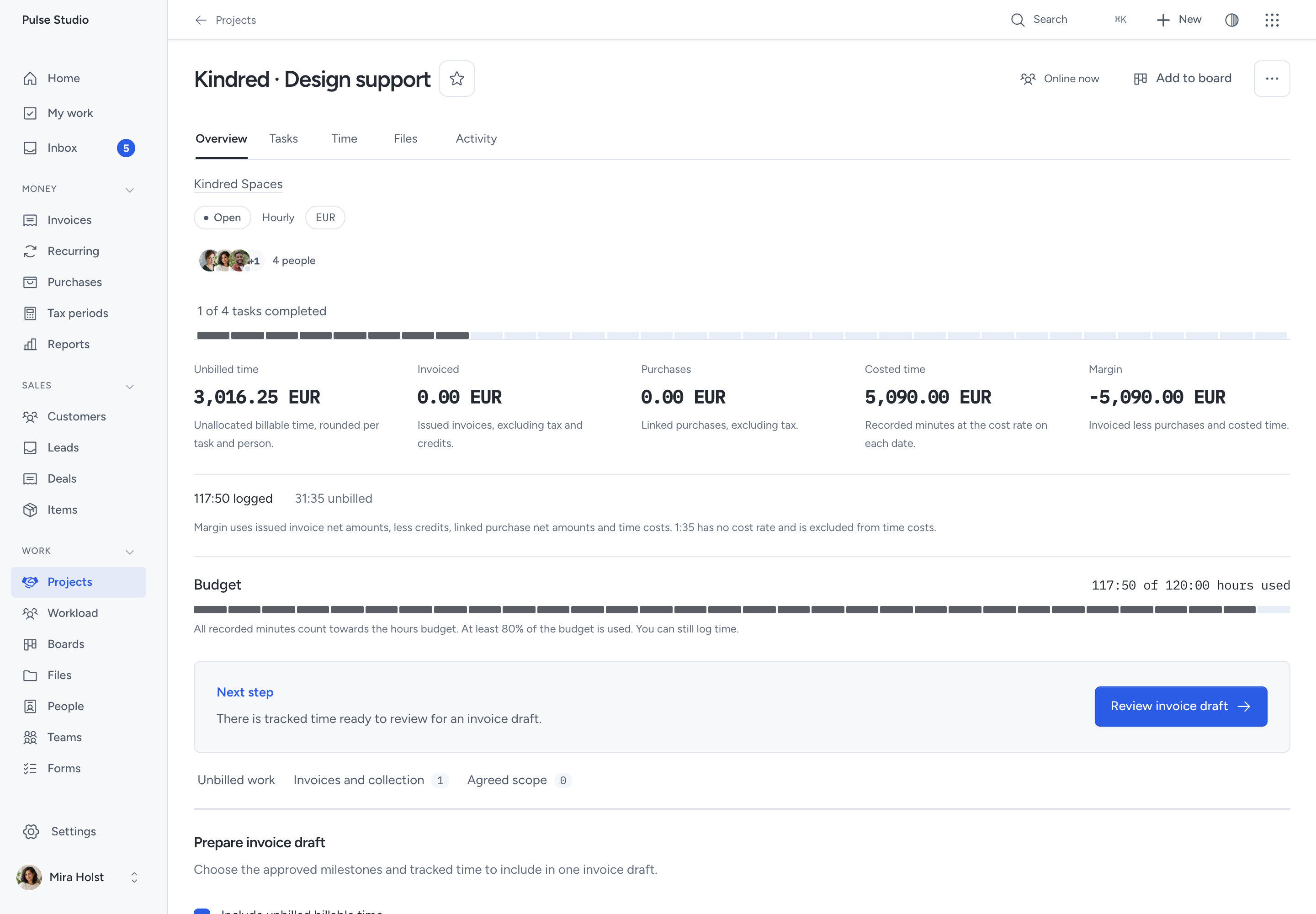
The project list and Overview show People involved when there are visible connections. Select the avatars to see each name and why the person appears. The list combines task assignees, active members of assigned teams, and people with recorded time. Each person appears once.
Your access determines which connections appear. Creating or editing the project alone does not add someone. The list describes involvement; it does not grant access or make someone a project manager.
Read the project
Use Overview for progress, budgets and billing. Use Tasks, Time, Files and Activity for the work behind the figures. Your role and record access determine which facts and actions you see.
Use Add to board in the header to place the project on an existing board. Linked cards appears below the project when you can open a linked card. To create a board for this project, open Overview and choose More > Create project board in the header. The ordinary board creator keeps the project link for you; the new board appears under Boards on the project. See Boards for templates, members and visibility.
Task progress counts completed tasks. Next step opens the work that needs attention, such as an approval, time ready to bill or an unpaid invoice. It does not approve work or issue an invoice.
| Figure | Basis |
|---|---|
| Unbilled time | Unallocated billable minutes with a rate, rounded per task, person and rate using the project increment |
| Invoiced | Issued invoice amounts excluding tax and credits |
| Purchases | Linked purchase amounts excluding tax |
| Costed time | Recorded minutes at the person's cost rate on each entry date |
| Margin | Invoiced less purchases and costed time |
Minutes without a billing rate appear as needing a rate. Time without a cost rate does not enter the cost total; the page states how much time lacks a cost. Draft invoices do not count as issued revenue. Each currency keeps its own totals. A margin is a calculation from these records, not a statement that money has arrived.
Open a figure to inspect its permitted records. Reports > Unbilled time groups time by project, customer or person. Reports > Project margin compares projects. Each report offers Export CSV.
Set rates, budgets and statuses
- Open Project settings on Overview.
- Choose the billing mode, billing increment and default grouping.
- Set the project hourly rate in the project's currency, if needed.
- Choose Hours budget or Money budget and enter its limit.
- Choose Save.
A new project starts with the increment from Settings > Work: 6, 15, 30 or 60 minutes. The app rounds grouped invoice lines up to that increment. Stored minutes stay exact. See Bill tracked time for an example.
The first invoice allocation fixes the billing mode, even if you later delete that draft. The first task fixes the task prefix. A prefix contains two to five letters or digits. Task numbers increase without reusing an earlier key.
An hours budget counts all recorded minutes. A money budget counts issued net invoices plus unbilled time. Warnings start at 80% and 100%. You can continue to log time after reaching the budget.
Under Statuses, rename or reorder the project statuses and add up to 12 in total. Keep at least two statuses and the existing completed status. Move open tasks out of a status before removing it. Status changes appear on the task's stage path and board.
2. Record the agreement
- Open Record agreed scope.
- Enter Scope text.
- Enter a Customer approval reference, such as “Acme email, 4 October 2026”.
- Select I confirm the customer agreed to this version outside this platform.
- Click Record agreed scope.
This records your confirmation. It does not ask the customer to sign or approve inside Pepper. Keep the agreement evidence outside the app. The reference can contain up to 500 characters; the scope can contain up to 20,000.
Record a new version when the agreement changes. Earlier text stays in the history. Existing milestones retain their original scope version. A later agreement does not change their prices.
3. Add and approve the work
- Open Add milestone.
- Enter its Title.
- Choose its Agreed scope version.
- Enter Price excluding tax in your number format.
- Choose a tax rate, or leave No tax.
- Optional: set a Due date for the work. It is separate from the invoice due date.
- Click Add milestone.
- When you finish the work, click Mark completed.
- Click Approve for billing.
- Review the confirmation.
- Click Approve for billing to confirm.
The milestone starts as Planned. Approval is a staff decision that the completed work can be billed. It does not create an invoice.
Each milestone freezes its price and tax rate when you add it. Later tax-setting changes do not change that work. The invoice uses quantity 1 for each selected milestone.
| Example without tax | Price | Invoice total |
|---|---|---|
| Northwind design for Globex GmbH | 1,250.01 EUR | 1,250.01 EUR |
| Northwind design for Acme Hardware | 650.00 USD | 650.00 USD |
| Design in Japanese yen | 45,000 JPY | 45,000 JPY |
| Design in Bahraini dinars | 100.125 BHD | 100.125 BHD |
Use at most the currency's decimal places: 2 for EUR and USD, 0 for JPY, and 3 for BHD. The app calculates and saves exact totals. It does not convert currencies or combine their balances.
Milestone state and invoice state are separate. The billing sequence is:
| Stage | Next step |
|---|---|
| Planned work | Mark completed records that the work is finished |
| Completed work | Staff confirm Approve for billing |
| Approved work | Review the selected work. Prepare invoice draft saves a draft and reserves its milestones |
| Invoice draft | Review and issue the invoice |
| Issued invoice | Record received payments. Resolve credits and refunds on the invoice when needed |
| Completed or approved work, not allocated | Return to planned returns the milestone to Planned |
Correct a milestone
Before billing, use Return to planned to correct its completion or approval state. Use Withdraw milestone for a wrong price, tax rate or scope. Confirm the withdrawal, then add a corrected milestone. The old record stays visible.
An allocated milestone cannot change state or be withdrawn. Delete its unissued draft first to release it. A withdrawn milestone cannot be restored.
4. Review and prepare the invoice
Select approved milestones under Unbilled work, then choose Review invoice draft. For hourly or mixed work, use Bill tracked time to select a period, people and grouping and review the combined draft.
Preparation reserves the source work once and opens an invoice draft. It issues, sends and settles nothing. Source-linked drafts cannot be edited or duplicated. Delete an unissued draft to release its sources and prepare another selection. Issuing, crediting or cancelling an invoice keeps those sources allocated.
A draft can contain up to 1,000 milestone lines. Split a selection that exceeds the supported total. The invoice uses the project's customer and currency.
5. Issue and collect
Review the saved draft and follow Review and issue. Send it as a separate action. Record payment after receiving money.
Invoices and collection shows each permitted invoice's state, total, paid, credited, refunded and balance due amounts. Open the invoice for delivery or credit-note corrections. Credits and cancellation do not release work for another invoice.
Link purchases
Choose the project on a purchase. Costs lists the purchases you can read, with their supplier, date and gross amount. The margin calculation uses their net amounts. Linking a purchase does not bill that cost to the customer.
6. Close or reopen
Choose Close project after completing or archiving open tasks, stopping timers, billing all billable time and settling each linked invoice. Each milestone must be withdrawn or approved and allocated. A draft, cancelled or unpaid invoice prevents closure.
Closing prevents new work and invoice preparation. Financial corrections on existing invoices remain available. Choose Reopen project to resume work.
Access and recovery
| Person | Work and money access |
|---|---|
| Owner or admin | Manage all projects, tasks, time, settings and budgets |
| Employee | Tasks they created or that are assigned to them or their active teams; their own time. Project access follows their work scope |
| Accountant | Unbilled and margin reports with financial-summary permission; no task access by default |
| Guest | Tasks on an explicitly granted project and their own time; no rates, costs or margin |
Custom roles follow their permissions. Manage projects permits changes to other people's time and access to workload. View financial summaries controls money figures. Individual cost rates need Manage people. Each invoice keeps its own access rules.
If a save reports a changed record, reload, review the current values and retry. Field errors keep your input. If access changes, ask the owner to check your role, assignment or guest grant. Removing an assignment removes task access unless you created the task or have another qualifying assignment.
Updates and backups preserve tasks, time, allocations and history. Use the update and backup procedures for your installation.
Ask the customer for a decision
The project's Customer decisions panel links its proof sets and job pages. Staff with project access can create a proof set. A project manager can also create a job page and set its stages.
Use proofs and approvals for exact file choices and version-bound approval. Use job progress for stage updates, typed questions and collection or delivery choices. Each page belongs to the project's customer and explicitly invited contacts. An email code alone grants no access.
Closing a project stops new customer decisions. Existing versions, answers and stage history remain. Job page stages do not move tasks, issue invoices or accept a linked quote.
Need help with the product?
Contact support