
Browse the manual
Products and stock
Configure variants, receive and count stock, inspect movements and manage requested stock alerts.
On this page
For: people who manage the catalogue and fulfil sales. Where: Items, then Open product in the item's actions.
The catalogue holds services, physical goods and digital goods. Existing items keep their saved prices and document lines.
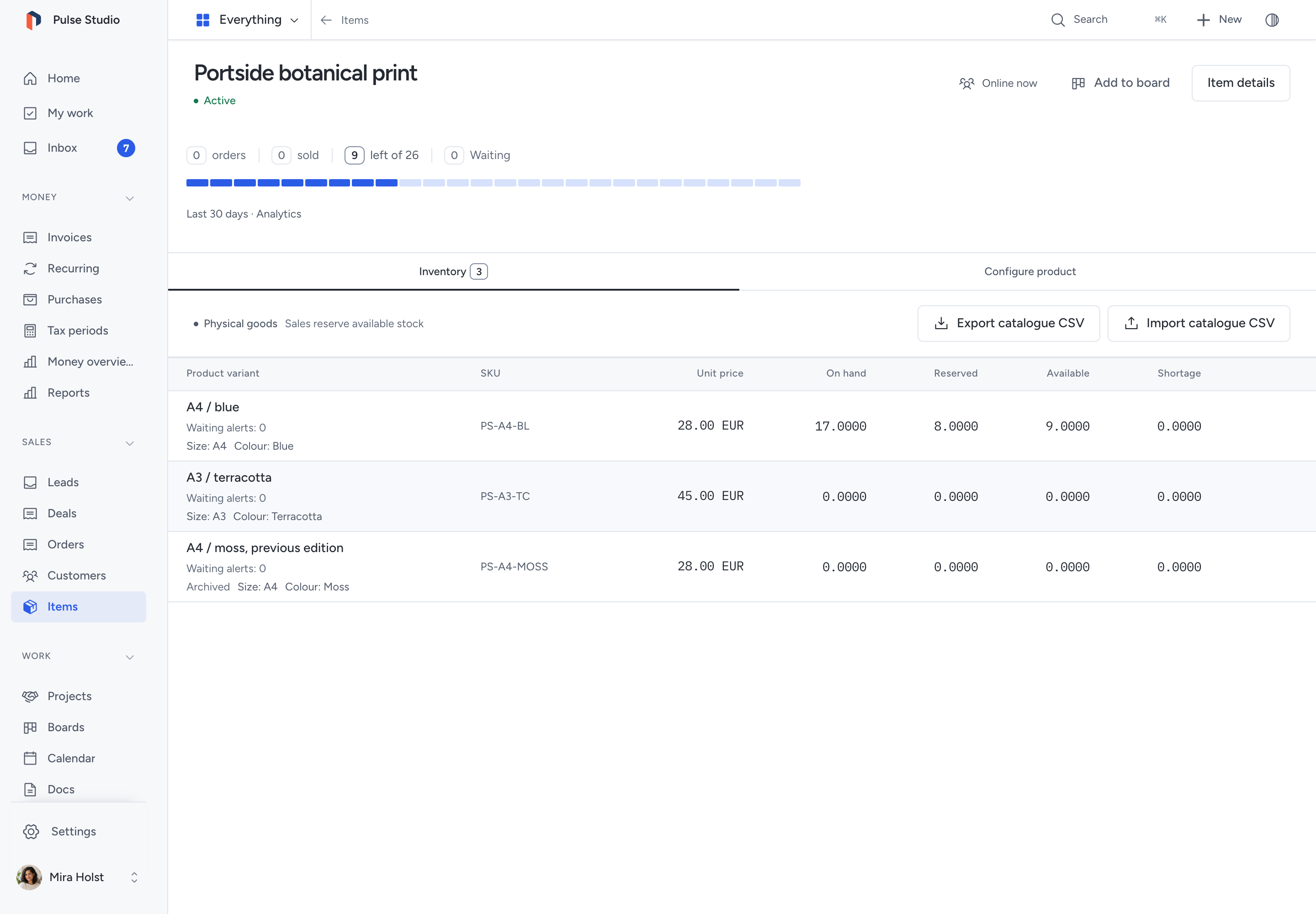
Configure a product
- Create an item with its currency and tax basis.
- Open Product and stock from the item form, or Open product from its row.
- Choose Configure product.
- Select Product kind.
- For physical goods, enable Track stock when you need quantities and reservations.
- Click Add variant. Enter a name, SKU and price.
- Add an optional barcode and named options, such as Colour and Size.
- For physical goods, enter whole grams and a Low-stock threshold.
- Click Save product.
A product supports up to 100 variants. Each variant supports 6 named options. A variant SKU must be unique in this catalogue. Letter case does not distinguish SKUs; accents do.
Prices use the item's fixed currency and tax basis. Enter money in your number format. Quantities use digits, a dot and up to 4 decimal places, such as 1.2500.
Item details opens the name, description, base price and tax settings. A saved item cannot change currency.
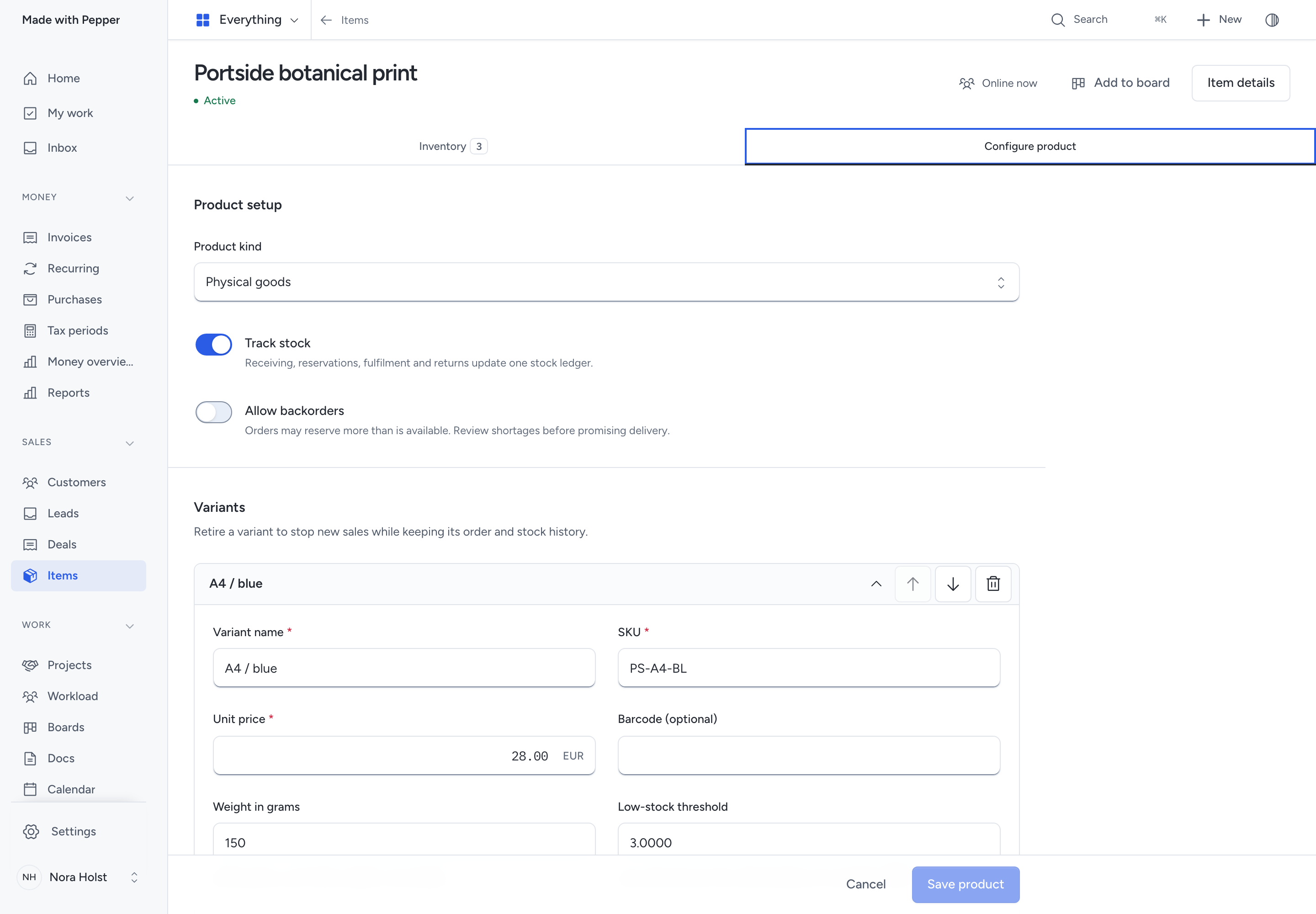
Images and digital files
Under Product images, use Choose an image to search Files. Enter an Image description for each selection. You can order up to 12 images.
Choose Digital goods to attach a Digital delivery file to each variant. Pepper pins the selected file version. Updating the file does not replace that selection.
You need Files access to select or change a file. Private board access still applies.
If any saved image is outside your access, the complete image list stays read-only. You can still save other product fields. Pepper keeps the saved images and protected digital file selections.
Catalogue export omits image references when you cannot edit the complete selection. It also omits digital file references outside your access.
A quote or invoice keeps its saved variant description and price. Retiring a variant or changing the catalogue does not rewrite an existing document.
Receive, adjust or count
You need permission to manage items. Stock history remains available to people who can view items.
- Open Inventory.
- Choose Record stock movement from the variant's actions.
- Select Receive stock, Adjust stock or Record a count.
- Enter the quantity. For an adjustment, choose whether to add or remove it.
- To link receiving to a purchase, select Purchase if the field is available.
- Enter the reason.
- Click Review stock change.
- Check the variant, quantity, direction and consequence.
- Click Record stock change.
The Purchase picker appears only when your role can view purchases. It shows only records you may open. Receiving does not change or pay the purchase.
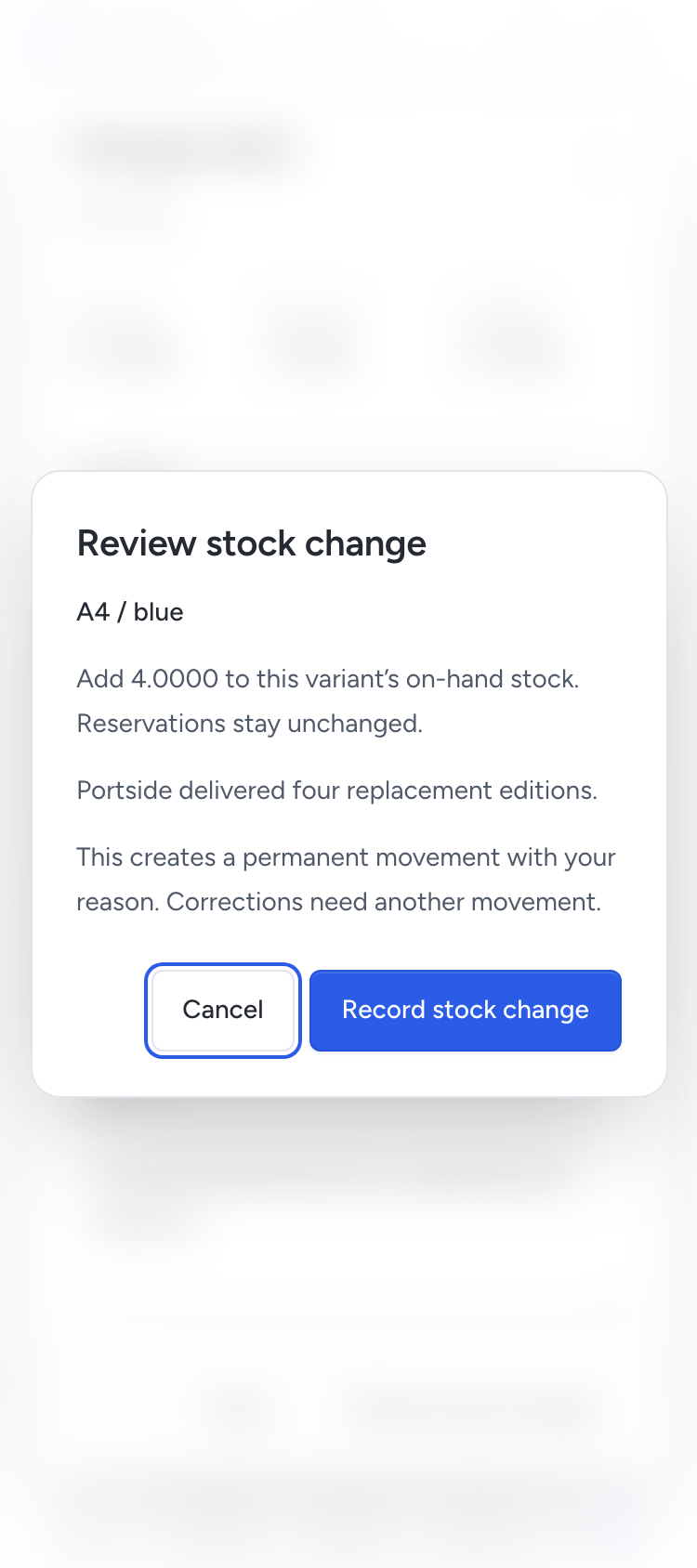
Receiving adds goods. An adjustment adds or removes the stated amount. A count sets on-hand stock to the amount you counted.
Every operation adds a movement with its actor, reason and source. Pepper keeps earlier movements. Correct a mistake with another reasoned adjustment or count.
A physical count can reveal a shortage against existing reservations. It does not cancel those reservations or permit shipment of missing goods.
| Quantity | Meaning |
|---|---|
| On hand | Physical quantity recorded by movements |
| Reserved | Quantity held for sales, awaiting fulfilment or release |
| Available | On hand minus reserved, with a minimum of 0 |
| Shortage | Reservations that exceed on-hand stock |
View stock movements opens the history. Load older movements reads another page. Source links appear only when you may open that record.
Low stock and backorders
Owners receive one low-stock inbox notification when available stock reaches the threshold. Stock rising above the threshold permits a later notification.
Browser push follows each person's notification settings and browser permission. A stock movement does not claim that a notification reached a device.
Only the business owner can change Allow backorders. Enabling it permits reservations that exceed available stock. It does not add physical goods.
Pepper refuses overselling when backorders are off. Review shortages before promising a delivery date.
Retire a variant
Turn off Active for a variant, or remove it from the proposed configuration. Save the product.
Pepper keeps the retired identity and its history. New public selections cannot use it. Archived products close their waiting stock alerts.
Changing the product kind or turning stock tracking off requires empty on-hand stock and reservations. Clear digital file selections before changing a digital product's kind.
Catalogue CSV
Export catalogue CSV exports up to 1,000 catalogue rows. It requires data-export permission. The existing item-list CSV remains available for basic item templates.
The catalogue CSV includes product details, ordered variants, options, active states, prices, image references and exact stock quantities. Permitted digital file references also appear.
- Export a fresh catalogue CSV.
- Keep the header and identifiers. Change the intended cells.
- Choose Import catalogue CSV on the product screen.
- Select a UTF-8 CSV of up to 2 MiB (2,097,152 bytes) and 1,000 rows.
- Inspect the preview and confirm the import.
Use 0 or 1 for boolean cells. Use decimal prices without grouping. Preserve JSON syntax in option and image cells.
Leave product and variant identifiers empty to create new records. A new SKU must remain unique. Existing records require their exported version and stock fingerprint.
An invalid row or intervening stock movement refuses the complete import. Export again before reviewing new counts. Pepper appends count differences and preserves reservations.
CSV contains references, not file bytes or complete history. Use full export and import to recover the complete installation.
Requested stock alerts
A published price list or shop offers an alert for an unavailable, tracked physical variant.
A visitor verifies their email with a one-time code and accepts the displayed notice.
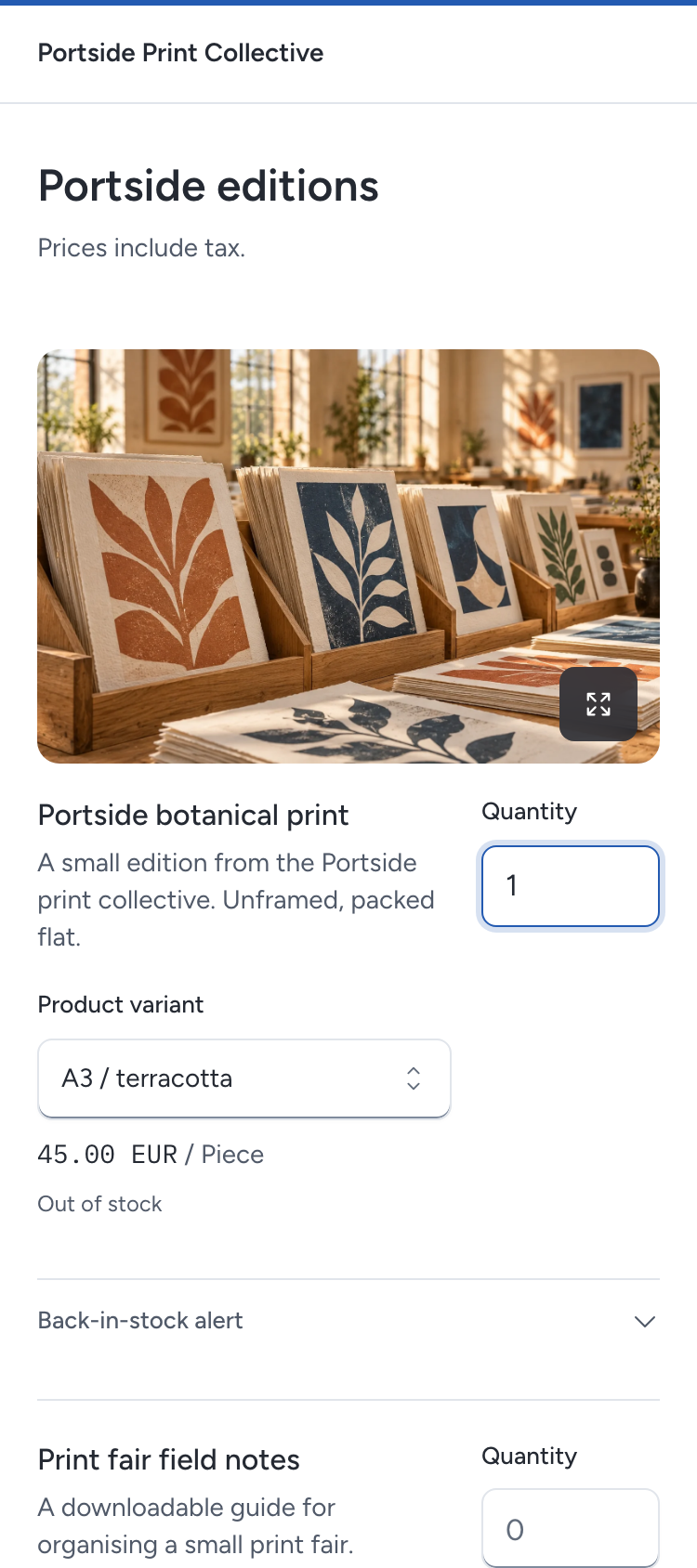
The request covers one back-in-stock email. It creates no marketing subscription or customer account. Waiting consent expires after 180 days.
The acceptance receipt includes Withdraw this alert. The visitor can repeat their verified request to recover that link while the alert waits.
When stock becomes available, Pepper queues the notice. Before sending, it rechecks consent, publication, the product and current stock.
Successful handoff closes the alert. Availability can change after the email; the alert reserves no stock.
Owners can open View stock alert history to inspect consent and delivery separately. Owners see exact Waiting alerts counts beside each variant. These counts contain no email addresses.
A known temporary failure can offer a reviewed retry. An unknown handoff cannot be retried for that consent. Pepper never labels it as sent.
Withdrawal, expiry and product closure stop future delivery. They cannot recall mail already handed to the mail server.
Only the business owner can use an alert's personal-data lookup, report and erasure controls.
- Open View stock alert history from the variant's actions.
- Expand Data requests.
- Enter the full verified email address or exact alert identifier.
- Click Find records, then open the matching alert.
- Choose Download data to save its consent and delivery report as JSON.
If lookup fails, Pepper keeps your input. Retry Find records. An empty result means no matching alert is available.
Closing an alert removes its email and withdrawal secrets. A privacy lookup key and source facts remain for 365 days after closure.
Erasure withdraws the alert and removes those remaining personal fields. Pepper keeps minimal consent and actual delivery outcomes.
- On the report, click Review personal fields.
- Read which fields will change and which evidence Pepper keeps.
- Check the confirmation, then click Erase personal fields.
If the review fails, retry Review personal fields. Pepper does not erase personal fields until you confirm a successful review.
Recover an interrupted change
A validation error keeps your input and names the affected fields. Correct those fields and review again.
A stale record or denied access keeps your product or stock input. Load current asks before replacing unsaved changes.
If the outcome is unknown, Retry saved request sends the same request and reference. It cannot append the same stock movement twice.
If saving succeeded but refreshing failed, Pepper says the change was saved. Load current records before making another change.
Agents
Catalogue reads and staff operations use the same rules through MCP and /api/v1. Stock changes, imports, exports and backorder policy require the relevant permissions.
Each sensitive operation needs its own human approval. Private-data lookup, export, erasure and deliberate alert retry each require separate approval.
See the tool catalogue for connection setup and discovery. No model provider is required.
Pepper uses one stock location. Warehouse routing, manufacturing, batch tracking, carrier integrations and automatic tax determination are outside this feature.
Need help with the product?
Contact support