
Browse the manual
Take and manage bookings
Set availability, publish a booking widget, manage changes and prepare an invoice draft from confirmed or completed work.
On this page
A booking reserves a time or place and creates an enquiry linked to the visitor. Set the schedule first, then publish a widget for the service.
See the booking journeys, including member recovery, staff records, free registration and priced platform events.
Where: Work > Bookings, or Booking settings in business settings. The widget library also links to Bookings through Records.
Choose what visitors book
Each service uses one booking type. You cannot change its type after saving.
| Type | What it reserves | Price basis |
|---|---|---|
| Appointments | One staff member for a service duration | Price per appointment |
| Resource bookings | One room, item or other resource between arrival and departure | Price per night, with optional seasonal prices |
| Capacity reservations | A party's places in a shared pool during a time slot | Price per person |
| Event bookings | Places in a dated session | Free registration or price per person on the platform; free in customer workspaces |
For example, a consultation can cost €80.00 per appointment. A workshop table can cost US$35.50 per person; two people pay US$71.00.
Pepper shows the currency beside the amount. It does not convert currencies. A booking confirmation reserves capacity; it is not proof of payment.
Platform bookings can use a staff-issued linked invoice for deposits and paid event tickets. Instant paid booking checkout is not included. Explain the payment arrangement in the booking policy.
Check permission and hosting
Platform booking managers configure services and schedules. Staff with booking follow-up permission see and manage only their assigned bookings.
A customer-workspace owner needs the matching booking type in the workspace plan to configure it. Reading accepted bookings also requires the plan's contacts feature.
Customer counter staff cannot manage bookings. A platform administrator needs explicit membership to open another business's workspace.
Only the business owner can connect outside calendars. Preparing a platform invoice also requires invoice permission and access to the selected customer.
Set up email delivery and the hosting scheduler before publication. The scheduler sends queued messages, reminders and waitlist offers, and refreshes calendar feeds.
Add a schedule
A schedule holds staff hours, a resource's availability, shared capacity or event sessions. Services using the same schedule share its capacity.
- Open Booking settings.
- Under Schedules, select Add schedule.
- Choose the schedule type.
- Choose the staff member, or name the resource, capacity pool or event.
- For capacity or events, enter Places available at one time.
- Choose available days for resources, opening periods for staff or capacity, or dated sessions for events.
- Save the schedule.
For staff and capacity, a day without opening periods is closed. Use separate periods for a lunch break.
For resources, Available days controls which weekdays a stay can occupy. Every occupied date must be open, including departure and preparation time.
Check-in and check-out times belong to the booking service. A departure at midnight does not occupy the next date.
Sessions on one schedule cannot overlap. Use separate schedules for simultaneous events with separate capacity.
Times use the business timezone shown in the editor. If clocks repeat an event time, choose its first or second occurrence.
A time skipped by a spring clock change cannot be saved. Choose an existing local time.
To close dates, use Add closed dates. Choose the whole business or one schedule, then enter the first closed date and reopening date.
Closing dates does not cancel existing bookings. Open each affected booking and arrange the change with its visitor.
Create and publish a service
- Select Add booking service in Booking settings.
- Enter the name, description and booking type.
- Select its staff or resource schedules.
- Enter the price and currency, or keep event registration free.
- Set the duration, advance booking window and minimum notice.
- Set the visitor change deadline and reminder interval.
- Write the policy visitors must accept.
- Add any booking questions needed to prepare the work.
- Enable Accept new bookings when the service is ready.
- Save, then select Create booking widget.
- Configure the widget and publish it from Publish & share.
Name and email are already included. Custom questions can include private file uploads; avoid collecting information you do not need.
A money question records an answer in its selected currency. For example, a visitor can enter BHD125.375 without changing the booking price.
Preparation time and daily cut-off holds occasional timing options. Preparation minutes before and after a booking also need free capacity.
Leave the reminder interval blank to disable reminders. Leave the daily cut-off blank to allow same-day bookings within the other limits.
For resources, set check-in and check-out times. Seasonal price ranges include their first date and exclude their end date.
Seasonal ranges cannot overlap. Other nights use the base price, and departure is not charged as another night.
Use the widget guide to share a page address, embed the widget inline or open it from a button. Named placements add links and printable QR codes.
What a visitor does
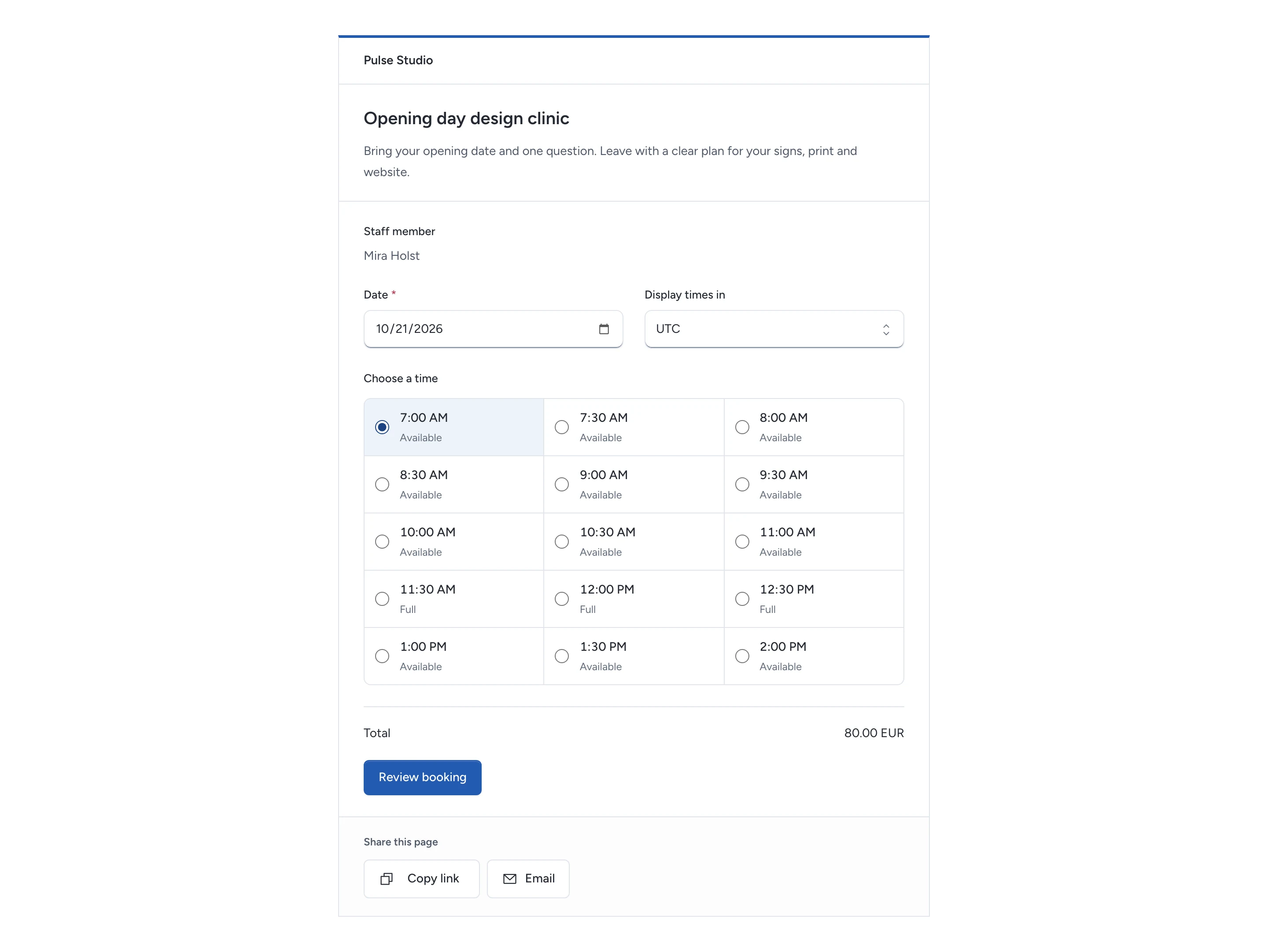
Example with fictional data. The visitor chooses a time before reviewing the policy.
For appointments, group places and events, choose the date and time in one timezone. The widget starts with your browser's timezone. Use Display times in to search for another city or timezone. After you choose a time, changing the timezone keeps your selection and updates its displayed date and time. When clocks go back, the repeated times show different UTC offsets.
For nightly resources, arrival and departure dates use the business timezone shown beside the date field.
- Choose the time or dates and, where applicable, the number of people.
- Select Review booking.
- Check the amount, currency, time and policy.
- Enter contact details and answer the booking questions.
- Accept the policy and select Confirm booking.
Only the confirmed server result reserves the place. If another visitor takes the last place first, choose another time or join the waitlist.
If terms change, refresh availability and review them again. Entered contact details and answers remain available for correction.
If confirmation fails without a clear outcome, retry the same request. Do not start a separate booking to resolve an uncertain response.
A failed availability check shows an error and retry action. It does not mean that every time is full.
Open, change or cancel a saved booking
The confirmation email links to the business's saved bookings. Visitors enter their email address and use the one-time code sent to that inbox.
No password or SMS is required. Access is limited to that email address within that business.
- Open Your bookings and choose the booking.
- Select Change booking time or Cancel booking.
- Review the replacement time or enter the cancellation reason.
- Confirm the change.
The existing time remains reserved until the replacement is confirmed. Rescheduling retains accepted price rules; a changed nightly total requires another price review.
After the visitor change deadline, contact the business. Staff can arrange the change from the saved record.
A closed widget does not remove saved bookings. Visitors can still read or cancel them under the accepted policy.
A new time needs current availability and an active booking service. Ending a customer plan does not authorise new reservations.
Use a waitlist
A full time can offer Join waitlist when the service enables it. Verify the email address before joining.
Joining is not a booking. Pepper offers freed capacity to the first waiting party that fits, and holds it for 30 minutes.
The email states the acceptance deadline. Open Your waitlist, review the offered place and accept it to create a booking.
An expired or declined offer releases its hold. Joining again creates a new queue entry; a previous place in the queue is not restored.
Follow up the work
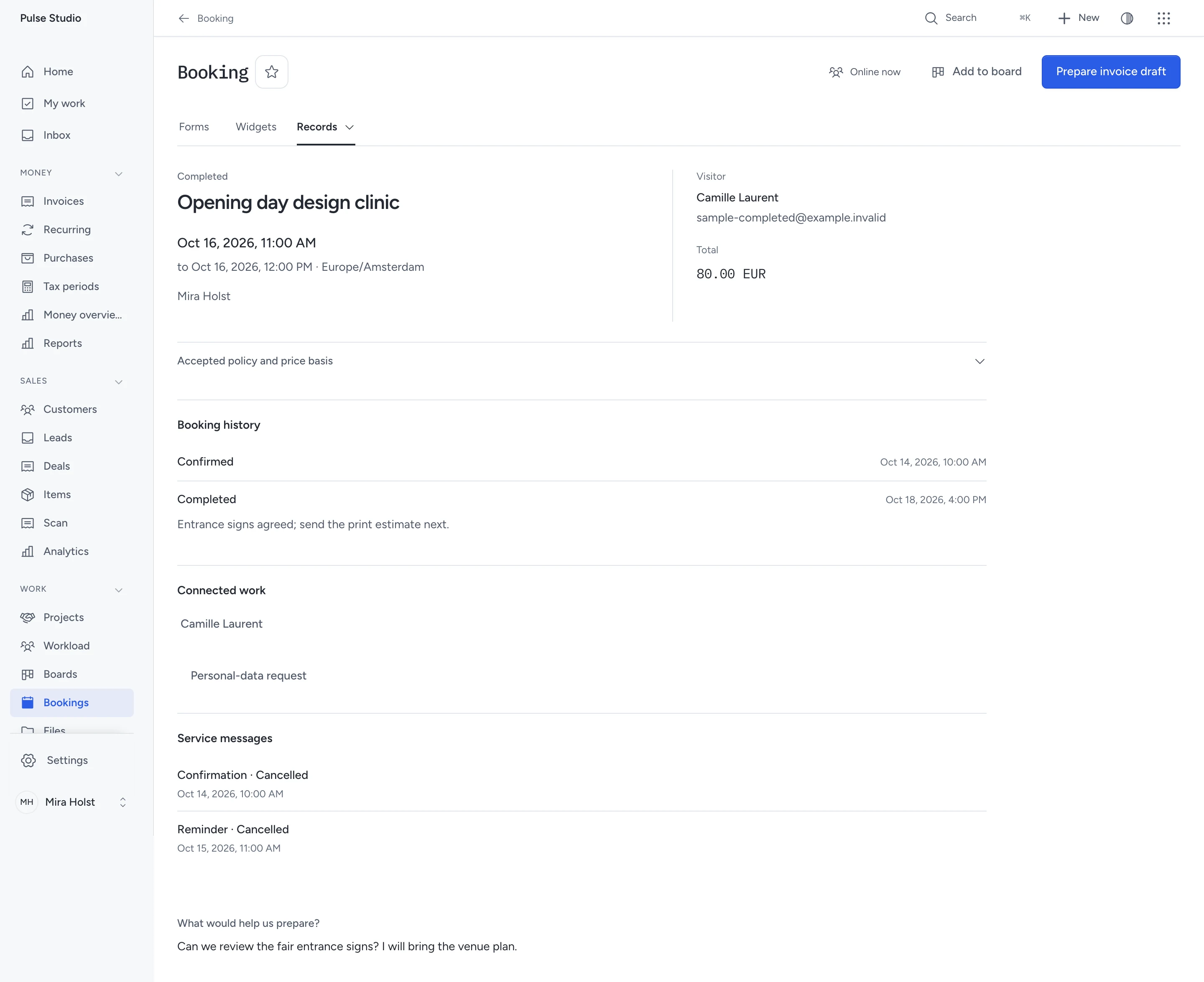
Example with fictional data. Completion records attendance. Confirmed bookings can also prepare an invoice draft.
The bookings calendar shows records your role permits. Open a booking for its visitor, accepted terms, history, connected enquiry and service messages.
After the booking ends, select Mark completed or Mark no-show. These actions record attendance; they do not record a payment.
For confirmed or completed platform work, select Prepare invoice draft. Choose an authorised customer and the invoice dates.
Pepper creates one ordinary draft from the accepted booking price. Review tax and details in the invoice editor before issuing it.
Customer-workspace bookings do not issue platform invoices. Read invoice drafts for the separate billing workflow.
A platform booking can link to a board card. Each viewer still needs access to the booking to see its current details.
Connect an outside calendar
A private ICS subscription can block busy time for the whole business or one schedule. Pepper imports busy intervals, not event titles.
You can connect up to 20 calendars per business.
- Obtain an HTTPS subscription address from your calendar provider.
- Open Booking settings > Outside calendars.
- Select Connect calendar.
- Enter the name and private ICS address.
- Choose the affected schedule and refresh interval.
- Choose whether a failed or stale feed should pause affected bookings.
- Save the connection.
Intervals are 15, 30, 60 or 240 minutes. A very recent outside event may not be visible before the next refresh.
Saved addresses are not displayed again. Leave the address blank when editing to keep it, or enter a replacement.
By default, a failed feed keeps bookings open using the last known busy times. A feed is stale after two refresh intervals without success.
The owner receives a message when a feed needs attention and another when it recovers. Check Outside calendars and Installation health.
Use Check again to queue a refresh. Reload the page after the scheduler runs to see the result.
If the address is refused, use a public HTTPS subscription without embedded sign-in credentials or a custom port. Redirects and private network addresses are unsupported.
Disconnecting a calendar removes its busy-time restrictions for new bookings. Existing bookings keep their times.
Understand messages, reports and personal data
A confirmed booking and a delivered email are separate results. Service messages shows queued, sent, failed or uncertain delivery.
An uncertain message may already have arrived. Check the delivery outcome before Retry message, because retrying can send a duplicate.
Analytics separates bookings, cancellations, no-shows and accepted waitlist offers. Bookings are not revenue or evidence of attendance.
Fill rate compares booked capacity with recorded availability in the same unit. Missing observations, restricted access or source filters can make the percentage unavailable.
A listing can link to an appointment widget for a viewing or test drive, or a resource widget for rental dates. Listing reports keep actual bookings separate from earlier staff confirmations.
Use the connected enquiry's Personal-data request for an authorised report or erasure review. Erasure clears personal answers and messages while retaining the booking's time, state and accepted price basis.
Attachments have their own retention review. Full backups preserve booking relationships, files and encrypted connection data.
Compare the channels that bring requests
In Widgets, find the published widget, open Publish & share, then open Track this link (UTM) to add optional tracking labels. Choose a preset, edit its labels and click Use these labels. Generate a newsletter or WhatsApp link, website code or printed QR asset from that kit. Follow the campaign steps.
Choose Analytics from the widget’s overflow or right-click menu. Review its primary result and compare campaigns or share channels. Open an exact result to read the permitted records and decide what to do next. Page requests and browser loads do not count unique people. Bookings and requests do not prove a payment.
Need help with the product?
Contact support