
Browse the manual
Request and keep electronic signatures
Send a fixed copy of a Doc or quote for signing, then keep the signed PDF and consent record.
On this page
For: people who send proposals, contracts or quotes for signature.
Send one fixed copy for signing. Pepper keeps the original PDF, the signed PDF and a record of each person's consent.
You need a saved Doc or a sent, unexpired quote, and working email delivery. Uploaded PDFs are not signature sources.
For a Doc, you need permission to read, edit and share it, including its linked content. For a quote, you need permission to read and manage it. The person who creates the request sends it.
Prepare the copy
- Open the Doc or quote.
- For a Doc, open Details and choose Signatures. For a quote, open More actions and choose Signatures.
- Choose New signature request.
The back arrow on the signature list returns to the same Doc or quote. Existing requests stay in the list.
Pepper freezes the current copy. Later source edits do not change it. A request can contain up to 100 original pages.
Choose signers and fields
- Choose Add signer.
- Enter the person's Name, Email and Role key.
- Add any other signers, up to 20 in total.
- Use the arrow buttons to put them in signing order.
- Set Link expires (UTC) within the next 90 days.
- Choose Add field.
- Choose its role, type and page.
- Click a blank place on the PDF to position its top-left corner.
- Adjust Left (%), Top (%), Width (%) and Height (%) if needed.
- Choose Save draft.
A role key connects a person to their fields. For example, use buyer for the customer and witness for another signer. Each key and email address must be unique within the request.
Every signer needs a required Typed signature field. You can also add initials, dates, text and checkboxes, up to 200 fields. All fields must fit inside their page and have room for their values. The percentage controls let you place fields using the keyboard.
To repeat a field, choose Copy through page, then Copy to pages. The copies keep the role and position.
To reuse a layout, enter a Template name and choose Save template. Templates are private and contain fields and role keys only. Applying a template replaces the draft's fields; check its roles and pages before saving.
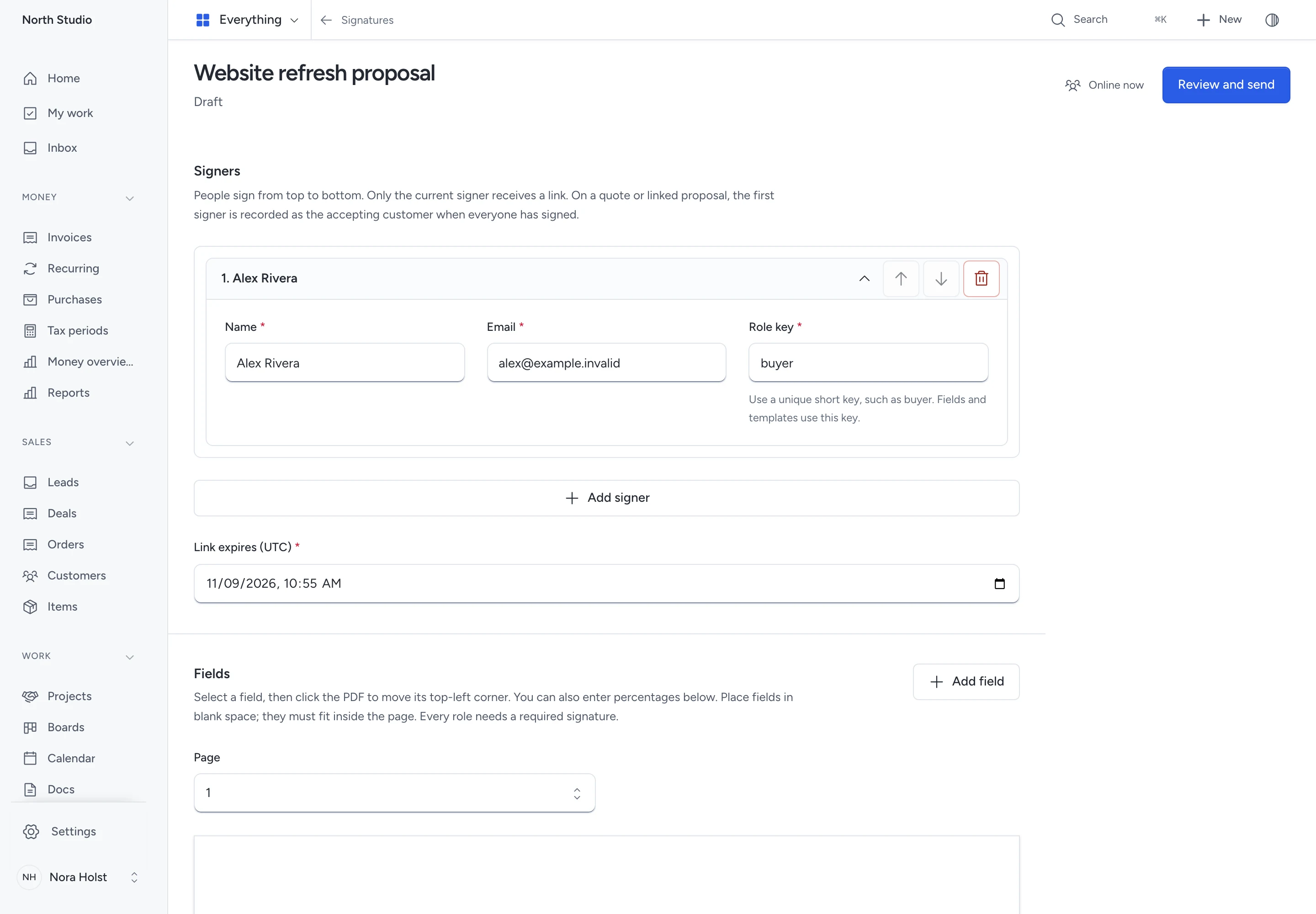
Review and send
- Choose Review and send.
- Open the PDF and check its content.
- Check the names, email addresses, order and expiry.
- Choose Send request.
If a field is too small, Pepper keeps the request as a draft and sends no email. Follow the error to its Width (%) or Height (%) control, enlarge it, save the draft and review it again. Leave room for the signer’s full name and other expected answers.
Only the first signer receives an email. Each following signer receives theirs after the preceding person signs. Fields and recipients cannot change after sending.
A private invitation lets anyone holding it view the frozen PDF. Share it only with its intended recipient. Signing also requires access to that person's configured email address.
Sign a document
- Open the invitation and review the PDF.
- Choose Send code.
- Enter the emailed code and choose Verify code.
- Complete your fields.
- Read and select the consent statement.
- Choose Sign document, review your values, then confirm.
Codes expire after 10 minutes. Email verification lasts 30 minutes. Five incorrect codes lock verification for 15 minutes. A signer needs no Pepper account.
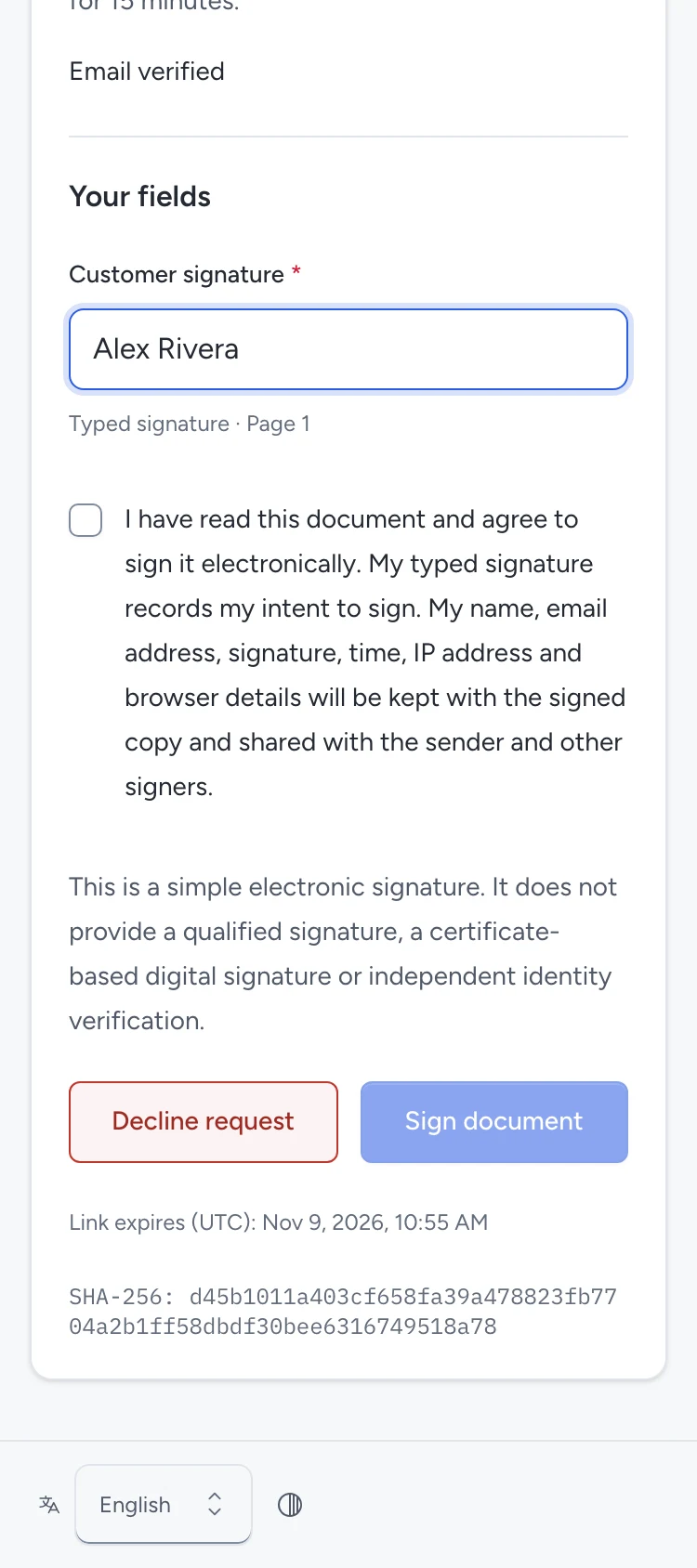
Decline request closes the request for everyone. The sender must create a new request to continue.
For a quote or a proposal linked to one quote, the last signature accepts that quote once. Pepper records the first signer as the accepting customer. An already accepted, expired or cancelled quote prevents completion; no partial final signature is saved.
Keep the signed copy
When everyone has signed, choose Download signed PDF. It contains the original pages, the completed fields and an evidence record.
The record includes consent text and version, names, emails, UTC times, IP addresses, browser details and signing events. The sender and other signers can read it. The PDF also carries the original file's SHA-256 fingerprint.
Pepper verifies stored fingerprints on download. It refuses a missing or changed file instead of producing a replacement. Staff with current source access can retrieve retained copies. A signer's download link works only until expiry.
Recover or stop a request
| What happened | What to do |
|---|---|
| The invitation email failed or the link needs replacing | Choose Reissue link for the current signer. The old link and verification stop working. |
| A code is incorrect or expired | Check the latest email or choose Send another code. |
| Verification expired | Verify the email again before signing. |
| A value does not fit its field | Shorten it, or ask the sender for a new request with a larger field. |
| The content, signer or expiry must change after sending | Choose Void request, then create a new request. |
| The sender lost source access | Restore their permitted access or ask an authorized person to create a new request. |
Voiding, declining or expiry stops further signing. Existing signatures and original files stay in the retained record.
Signature level
Pepper records a simple electronic signature with email confirmation and explicit consent. It does not provide a qualified signature, certificate-based digital signature or independent identity verification. It makes no promise of legal validity for every document or jurisdiction.
Staff and signers can use their own AI clients through the signature tools. The same permissions, email verification and consent apply.
Need help with the product?
Contact support