
Browse the manual
Share a file through a widget
Publish a chosen file version, optionally collect an email and count file deliveries.
On this page
For: a platform file manager, or a customer workspace owner whose plan includes downloads.
Where: Work > Widgets > New widget > Download.
Choose and publish the file
- Enter a name and description, up to 600 characters.
- Choose a permitted file from Files. In a customer workspace, use Choose file or drop a PDF or text file, up to 5 MB, into its upload control.
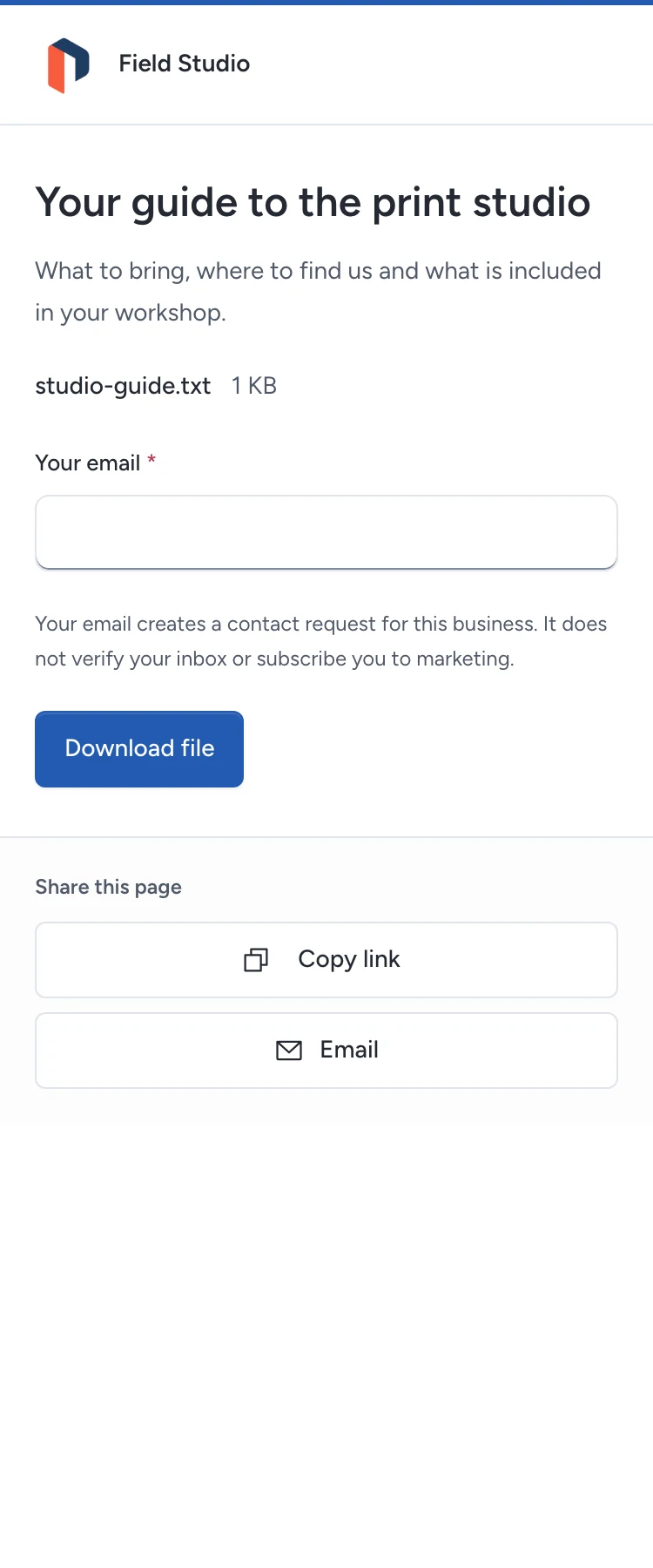
- Turn on Ask for an email before download if you need a contact enquiry.
- Save. Check the file name and description in Live preview. Open Publish & share and publish it.
The widget uses the file version you chose. Saving a newer version in Files does not replace the published bytes. Select the file again to use its newest version, then save and publish the widget again.
The file must pass the same disclosure rules as a Files share. A file you cannot read or share is unavailable. Issued document originals cannot enter this download flow.
What the visitor receives
An ungated visitor chooses Download file. A gated visitor first enters an email address. Pepper creates or links a lead before it delivers the file. The email is a contact enquiry; it does not verify the inbox or subscribe the visitor to marketing.
The browser requests a download link valid for five minutes and then requests the bytes. Pepper checks the widget, file and selected version again. The success message appears after the browser receives the file. A repeated delivery attempt with the same ticket does not create another delivery count.
If an email is invalid, correct it in the same form. If content changed or a request failed, choose Try again to reload the current widget. A closed widget shows its unavailable state.
Stop access and read the count
Unpublish the widget to stop new downloads and outstanding tickets. Removing the file or making it unavailable also stops delivery. A full restore preserves the file and recorded deliveries but closes old download tickets.
Analytics counts accepted file deliveries. It does not prove that someone opened or read the file. The gated lead appears in Sales or the workspace’s collected contacts, within the viewer’s permissions.
See Files for file access and retention, and Publish a widget for website, QR and measurement controls.
Need help with the product?
Contact support