
Browse the manual
Plan events and follow work dates
Put personal and shared events beside task dates, deadlines, bookings and follow-ups. Exchange ICS files and manage private feeds.
On this page
For: owners and staff planning meetings and following dates from their work. What you need: Calendar access and permission to open each source record.
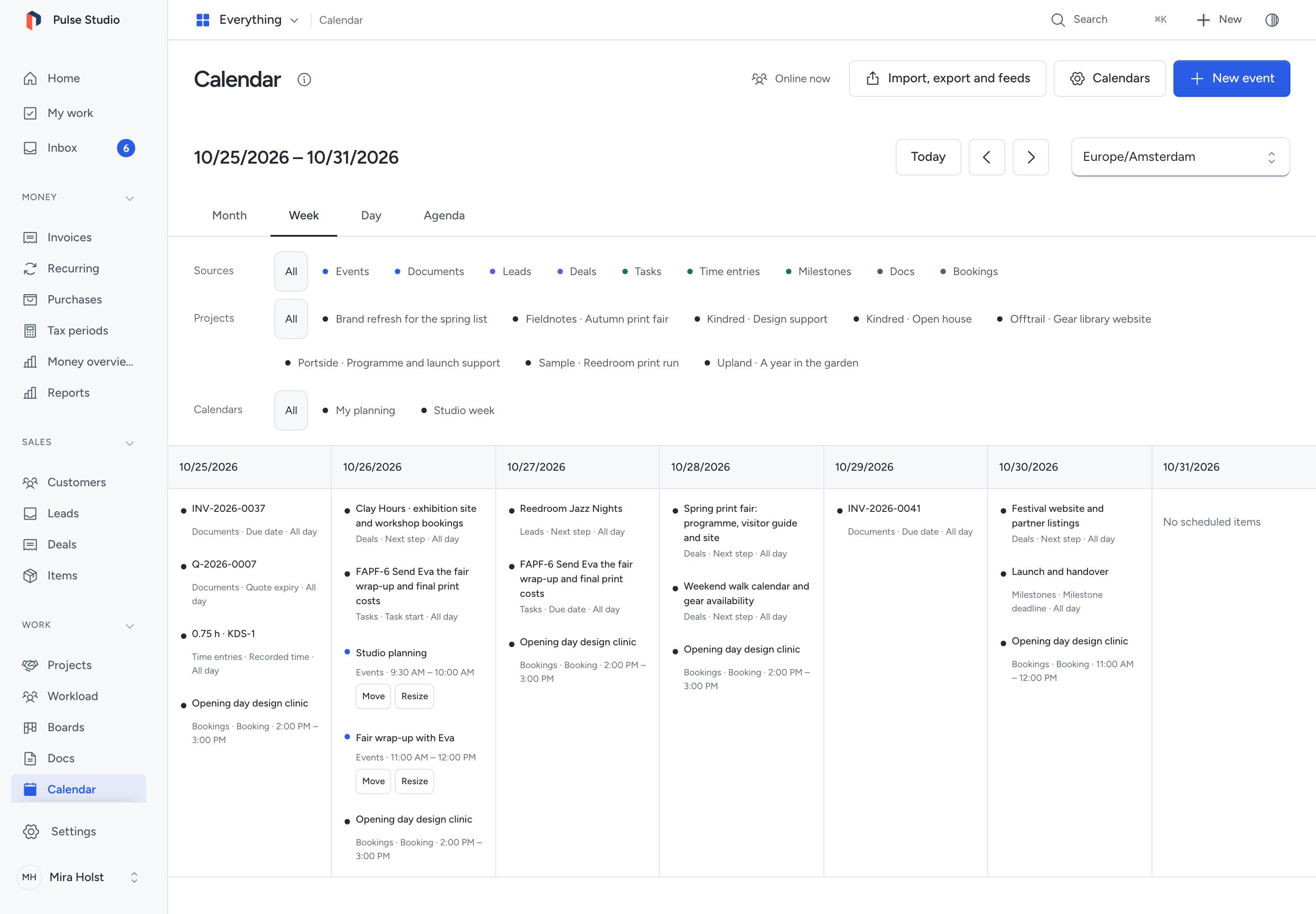
Open Calendar in the Work menu to see your events beside dates from permitted records. Create a personal calendar for private events. Share a calendar when selected colleagues need to read its events.
Saving an event sends no invitation. Sending needs a separate review and confirmation.
Check your access
| Permission | What it allows |
|---|---|
| Use personal calendars and read shared calendars | Create and edit your personal calendars; read calendars shared with you; use permitted work dates |
| Create and manage owned shared calendars | Create shared calendars and change their events and readers as their owner |
Guests cannot use Calendar. A calendar's owner edits its events. Shared people and teams receive read access, even when they can manage their own calendars.
Personal calendars stay private to their owner. An administrator does not gain access to their contents. Shared readers also need Calendar permission and current team membership where applicable.
If an event links to a business record, readers need current access to that record too. Filters, board cards and mentions grant no extra access.
Choose the period and work to show
- Open Calendar.
- Choose Month, Week, Day or Agenda.
- Use Previous period or Next period to move through dates.
- Choose Today to return to the current date.
- Select Sources, Projects or Calendars to narrow the view.
- Choose All within a group to clear that group's selection.
- Select the time zone above the calendar to change how timed events appear.
Each source has a name and a colored dot. Color never replaces the source name. The Agenda view lists 7 days. Its arrows move 7 days. Week ranges and the first column in Month follow Settings > Localization > Week start. Your interface language does not change that business choice.
On a phone, all 4 choices show a readable list for their selected period. At tablet widths, Week also uses a list.
Filters change what you see. They never enable an app or grant access. A notice says when more items exist. Narrow the period or filters before treating the view as complete.
Open a date from another record
Choose a source item's title to open its record. Change the date there if your role permits it. These entries are read-only in Calendar.
| Source | Dates shown |
|---|---|
| Tasks | Start and due dates |
| Project milestones | Deadline |
| Recorded time | Time-entry date |
| Invoices | Due date |
| Quotes | Expiry date |
| Sales leads and deals | Next step; expected close for deals |
| Bookings | The booking interval |
| Docs | Next review date |
Only available apps contribute their registered dates. Each record's current access applies before its title or date appears. No newsletter or campaign schedule contributes dates.
An invoice due date stays a date. A booking keeps its exact time. Calendar neither recalculates an invoice nor creates or cancels a booking.
Create a personal or shared calendar
- Choose Calendars.
- Select New calendar when the calendar selector appears.
- Enter a Calendar name, up to 120 characters.
- Choose Personal or, with permission, Shared under Visibility.
- For a shared calendar, select its People and Teams.
- Choose Save calendar.
To change an owned calendar, select it in Manage calendars. Update its name, visibility or readers, then choose Save calendar.
Each shared calendar accepts up to 100 people and 100 teams. Calendar choices show up to 100 permitted calendars.
Changing Shared to Personal removes its readers. Only you can read it afterward.
Create an event
- Choose New event.
- Select an owned Calendar.
- Enter the Event title, up to 240 characters.
- Enter Starts and Ends.
- Choose the Event time zone.
- Add a Location or Description when needed.
- Choose Save event.
The form starts at 09:00–10:00 on the selected date, in the view's time zone. Check those values before saving.
Location allows up to 500 characters. Description allows up to 10,000 characters in this form.
Keep times and dates clear
Event time zone controls the event's local clock and repetitions. The time-zone selector above the calendar controls the view.
For example, Northwind Studio can schedule 09:00 in Europe/Amsterdam. A colleague viewing America/New_York sees the same instant in that zone.
An event's details name both zones. Changing the view zone does not move the event.
For a date-only event, select All day. Ends is the first date outside the event. For 25 October alone, enter 25 October as the start and 26 October as the end.
All-day dates never shift when you change the view zone. For a multi-day event, enter the day after its final included day as Ends.
Repeat an event
- Under Repeat, choose Daily, Weekly, Monthly or Yearly.
- Set Repeat every from 1 to 366 periods.
- For weekly repetition, select On these days when needed.
- Under End repetition, choose no end, an occurrence count or a final date.
- For a count, enter 1–5,000 under Number of occurrences.
- For a date, enter the Last included date.
- Choose Save event.
The final date includes an occurrence starting on that date. Each repetition starts from the original local clock and calendar rule.
| Original date or time | Repetition rule |
|---|---|
| The month's final day | Each following month's final day |
| 30 January | 28 February in a non-leap year, then 30 March |
| 29 February, repeated yearly | 28 February in non-leap years; 29 February in leap years |
| A local start skipped by daylight saving | Advance by the missing interval and keep the event's duration |
| A local time that occurs twice | Use the earlier instant |
A later repetition returns to its original local clock. A daylight-saving adjustment does not move the series anchor.
Edit, move or cancel
Open an event's title. Choose Edit event, or Edit series for a repeating event. Change the fields and choose Save event.
For one repetition, open that occurrence and choose Edit this occurrence. Change its title or timing, then save. The rest of the series keeps its schedule.
Choose Move or Resize beside an editable event for ordinary date and time fields. These controls work with a keyboard or touch. For repetitions, they change that occurrence alone.
On wider calendar grids, drag an event to move it to another day. Drag its Resize control to change its end. A refused change restores the saved schedule.
If a newer version exists, choose Reload latest. Review the saved event and your retained input before trying again. If a response is uncertain, retry the same request before changing its input.
| Action | Result |
|---|---|
| Cancel event | Stop showing a single event; keep its stored history |
| Cancel this occurrence | Skip that repetition; keep the rest of the series |
| Cancel series | Stop showing the repeating event; keep its stored history |
| Archive calendar in Manage calendars | Stop showing its events and remove them from feeds; keep stored history |
Each cancellation and archive asks for confirmation. Cancelling sends no cancellation email. Tell attendees through your chosen channel when their plans change.
Add attendees and review invitations
Set up email delivery before sending invitations.
- Open the event for editing.
- Open Attendees and reminders.
- Select permitted Internal people, Customer contacts or Leads.
- Choose Save event.
- Reopen the event and choose Review invitations.
- Check every recipient, address, sender, event detail and repetition.
- Choose Send invitations.
- Confirm Send invitations in the dialog.
- Read the result for each recipient.
An event accepts up to 100 attendees. An attendee selection grants no Calendar or record access.
The invitation review expires after 15 minutes. A changed event, address, version or access requires a fresh review. Imported attendee addresses cannot become invitation recipients by themselves.
Queued and an uncertain result do not confirm that the mail transport accepted a message. A successful transport result does not prove inbox receipt.
Refresh the invitation review page to check the recorded outcome after queued delivery. It keeps the known result and does not send again.
An uncertain attempt may have reached the recipient. Check before requesting another attempt, which can send a duplicate. Pepper does not retry that uncertain invitation automatically.
An authorized connected client can request Retry invitation delivery for a failed or uncertain attempt. You must review its recipient, content, previous attempts and duplicate warning before approving it. See Calendar tools.
Receive reminders in Inbox
- Edit the event and open Attendees and reminders.
- Enter Reminder offsets as minutes before the start, separated by commas.
- Choose Save event.
- Check Inbox when a reminder becomes due.
For example, 15, 60, 1440 requests reminders 15 minutes, 1 hour and 1 day before the event. Use up to 5 distinct whole numbers from 0 to 40,320 minutes. Zero means the start time. Leave the field empty for no reminders.
Reminders go to the calendar owner and selected internal attendees who can still read the event. They follow current notification preferences. Customer contacts and leads do not receive these inbox reminders.
All-day reminders count from midnight in the event's time zone. The hosting scheduler processes them through Pepper's ordinary notification system.
A delayed scheduler can catch up due reminders from the previous 24 hours, including a zero-offset reminder. It rechecks the current event and recipient before delivery. A cancelled or moved occurrence, changed version or lost access stops an outdated reminder.
Repeated processing does not create another inbox reminder for the same original occurrence, offset and person. Reminders never change the source record. If reminders stop, check Installation health.
Import an ICS file
ICS is the calendar-file format used by many calendar apps. Import adds or updates events in one calendar you own.
- Choose Import, export and feeds.
- Open Import an ICS file.
- Select the destination Calendar.
- Choose Choose ICS file, or drop one
.icsfile in the field. - Choose Import events.
- Check the saved events in Calendar.
The file can contain up to 500 event series and 2,097,152 bytes. Names, descriptions, locations, supported time zones, all-day dates and supported recurrence exceptions stay with the events.
Pepper checks the whole file before saving. Invalid, unsafe or unsupported content refuses the complete import. Correct or split the file, then retry. No partial set remains.
Import keeps each event's UID, the file's stable event identifier, within the selected calendar. Reimporting unchanged content creates no duplicate. Changed content with the same UID updates that imported event and replaces its imported exceptions. Another calendar remains separate.
Import sends no email and accepts no invitation. External attendee addresses remain data only. Remote content and attachments never run or load through the import.
Download the selected view
- Select the period, view and filters to export.
- Choose Import, export and feeds.
- Choose Download ICS file.
The file includes only permitted items selected by that period and those filters. A selected repeating event includes its complete series, so repetitions can extend outside the selected period.
If the view has more items than Pepper can return, narrow it before exporting. Export refuses an incomplete selection. A downloaded file is a copy; later revocation cannot remove it from another app.
Create and revoke a private feed
Anyone holding a private feed address can read what your current access permits through that feed. Keep the address private.
- Select the source, project and calendar filters you want.
- Choose Import, export and feeds.
- Under Subscription feeds, choose Create private feed.
- Copy Private feed address before closing the dialog.
- Add that subscription address in your other calendar app.
The address appears once. Pepper stores its secret as a hash and cannot show the address again. If you lose it or miss the response, revoke that feed and create another.
The feed keeps the chosen filters and the view's selected time zone. It selects items from 31 days before today to 335 days after today in that zone. The final date is excluded. Selected repeating events include their complete series.
You can keep up to 100 active feeds. Revoke an unused feed before creating another when you reach that limit.
Each request checks your active account, Calendar access and current record access. It discloses no event while your account is inactive or Calendar is unavailable.
If you lose access to a selected calendar or project, Pepper hides that feed's filter details. Its original selection stays in force. You can still choose Revoke feed.
Ordinary account deactivation makes the feed unavailable while you remain inactive. Offboarding, losing Calendar permission or choosing Revoke feed permanently withdraws its address. Restoring permissions does not revive a revoked address.
To revoke a feed, choose Revoke feed beside it and confirm. Create a new feed when needed. Your other calendar app controls when it refreshes or removes a previously fetched copy.
Calendar exchanges ICS files and subscription feeds. It does not provide CalDAV or synchronize changes with an outside calendar provider. Booking busy-time feeds have a separate setup.
Hand over a shared calendar
Use offboarding to select Shared calendars for an active successor. The successor needs both Calendar permissions.
Handover changes shared-calendar ownership and keeps its events and history. Readers still need their own current access. Personal calendars stay private and do not move to the successor.
Offboarding permanently revokes every feed the departing person created. Reactivation does not restore those addresses. An authorized successor can create a new feed from their own permitted view.
Need help with the product?
Contact support