
Browse the manual
Serve offers and stamp cards
Publish an offer, let visitors save it with an email code and confirm each visit at the counter.
On this page
See the offer and stamp-card journeys, from the visitor’s inbox code to staff confirmation and member history.
Screenshots use fictional example records.
For: owners configuring offers and staff serving customers at a counter.
Before you start: enable email delivery and give each cashier individual access. Customer workspaces also need the relevant plan features.
Scan the visitor's live code, check the terms, then confirm. Showing or scanning a code never redeems an offer by itself.
Publish the offer
- Open Widgets and create a voucher, deal, coupon or stamp card.
- Enter the title and What the customer gets.
- Under What to check at the counter, write the check staff must make.
- If needed, add dates, limits and a photo.
- Check Live preview and save.
- Open Publish & share and publish the widget.
- Create a placement for each counter, flyer or website link.
For example, Canal Coffee offers one regular coffee with a slice of cake. Its counter rule tells staff to check the cake purchase.
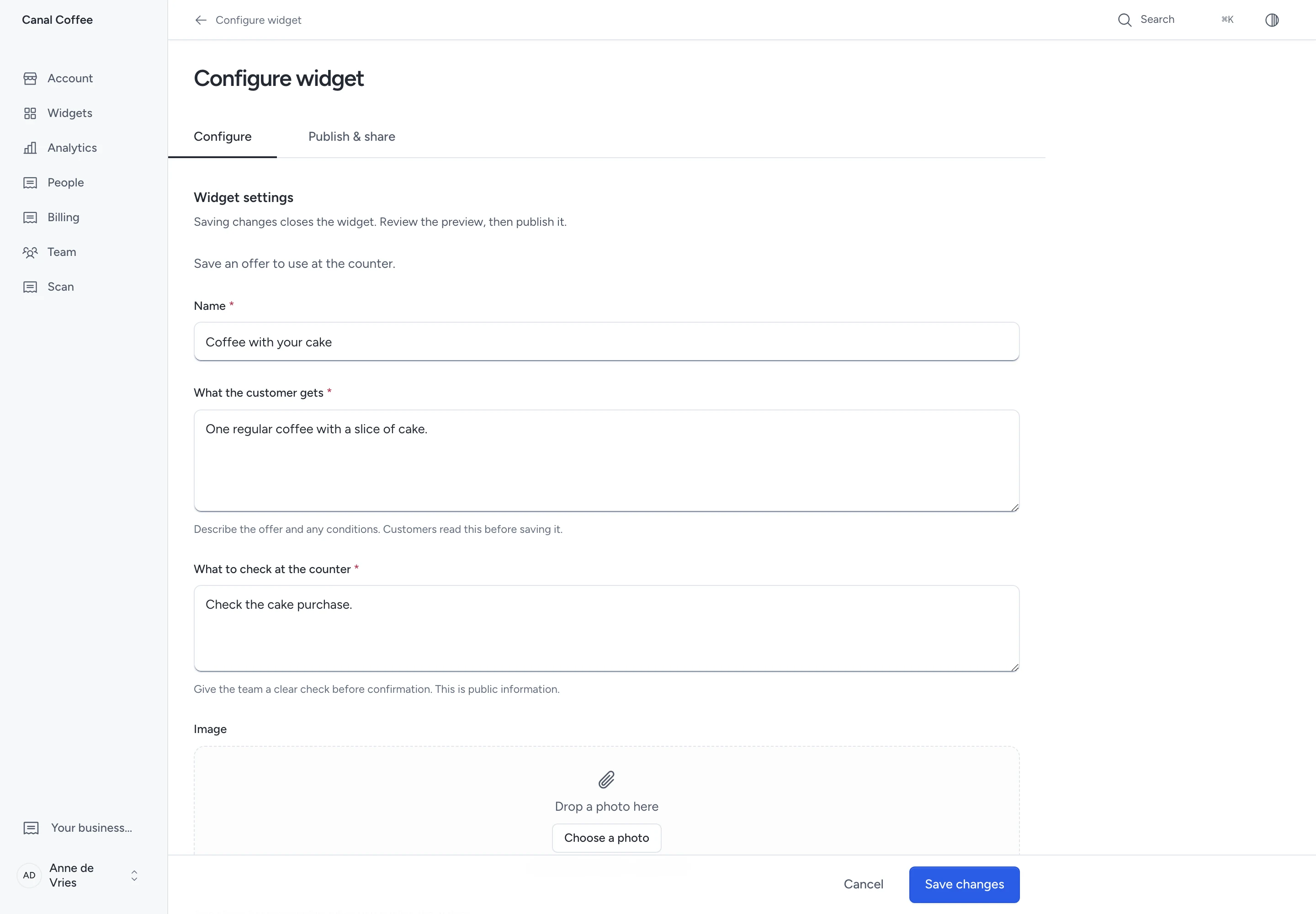
The terms and counter rule are public. Do not put private staff instructions or personal information there.
Vouchers, deals and coupons let a visitor save an offer for later use. They do not collect a payment.
Set a stamp reward
For a stamp card, also set these fields:
| Field | Meaning |
|---|---|
| Stamps for a reward | From 2 to 100 stamps |
| Minutes between stamps | Minimum wait between visits; 1440 means once a day, 0 means no waiting period |
| Reward name | The reward visitors see |
| Reward terms | What the completed card earns and how to use it |
| Days to use the reward | Time from earning the reward to its expiry |
Completing a card creates its reward. The next accepted stamp starts the next cycle. A retry cannot create a second reward.
Set dates and availability
Dates use the business timezone. The end date includes that entire day.
Leave the start blank to make the offer available when published. Leave the end blank for no end date.
Total available limits accepted offers or cards. Leave it blank for no quantity limit.
Limit per member includes previous claims or cards, even after expiry. A visitor cannot hold two open copies of the same stamp card.
Show how many are left applies when you set a quantity. The server checks availability again before accepting a claim.
Choose a JPEG, PNG or WebP photo up to 5 MB. The photo becomes public with the widget; other uploaded files stay private.
Let visitors save it
The visitor opens the widget, reads the terms and accepts them. Pepper asks for an email code when verification is needed.
After verification, the visitor returns to the same offer. They can show its live code or choose Open my offers and cards.
Their saved terms stay with the offer. Later edits do not rewrite an accepted promise.
Email verification gives access to that visitor's offers in that business. It never gives access to the staff counter or billing.
The email address does not subscribe the visitor to marketing. Anonymous views remain separate from verified offer records.
Confirm a counter visit
- Sign in with your own staff account.
- Open Scan if it does not open for you.
- Ask the visitor to show their live offer or card page.
- Click Open camera and scan the code.
- Check the displayed offer and counter rule.
- Click Confirm redemption or Add one stamp.
- Wait for the recorded confirmation before serving another visit.
If the camera cannot open, permit camera access or enter the visitor's displayed code. Click Check code.
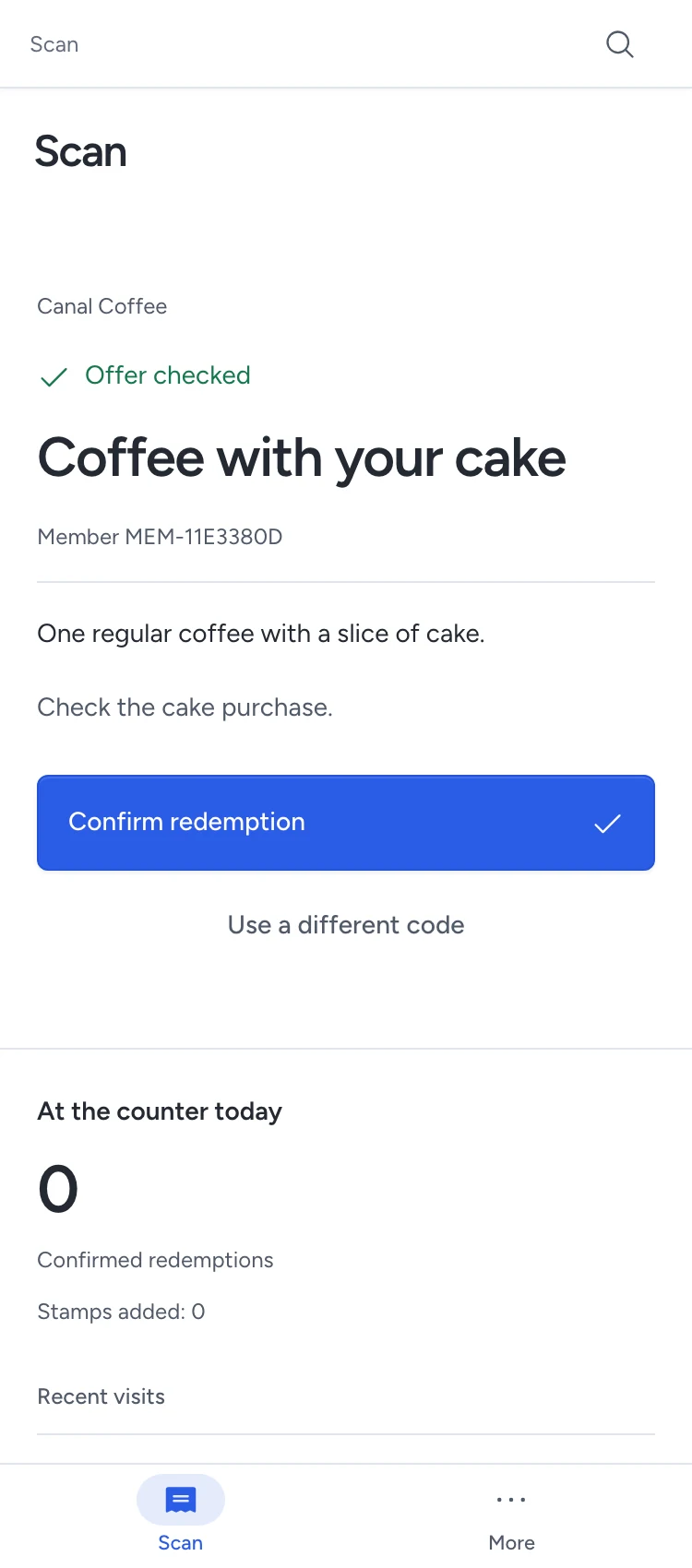
The code refreshes every 30 seconds. A screenshot may have expired or already been used; ask for the live page.
Staff can act only for their business and authorised widgets. A visitor's email or contact record is not needed at the counter.
Recover without serving twice
| Message or condition | What to do |
|---|---|
| Code expired | Ask the visitor to show the new code |
| Code not recognised | Ask them to open their live offer or card |
| Code already used | Check recent visits before trying again |
| Offer or card changed | Ask the visitor to refresh their page |
| Next stamp not available yet | Wait for the stated interval |
| Confirmation has not arrived | Retry the same visit to check its result |
| Counter access unavailable | Contact the owner; another sign-in or email code cannot bypass the restriction |
A retry checks the same visit. Do not start a different redemption to resolve an uncertain confirmation.
If today’s totals or visits cannot refresh, click Retry beside that message. This reloads the history without repeating the counter action.
A confirmed receipt remains valid while the history is unavailable. Wait for refreshed totals before reconciling your tally.
Recent visits shows confirmed work. Keep a paper tally during your first live trial and reconcile it with Pepper each day.
Correct a mistake
- Open the confirmed visit in Recent visits.
- Choose Correct this visit.
- Enter the reason without personal information.
- Click Confirm correction.
- Check the result before continuing.
The original action remains in the history. The correction records its actor and reason.
If a stamp earned a reward that was then redeemed, correct the reward redemption first. Then correct the stamp.
Removing a qualifying stamp cancels its unused reward. The history keeps both facts.
Read the business's records
Platform offer managers can open Widgets > Records and choose Saved offers, Stamp cards or Counter records. Open a record to read its terms, dated history and corrections.
Choose Widgets above any list to return to the library. Use Records to switch lists without returning first.
Customer workspace owners open their account's records from Analytics. Counter staff use Recent visits on Scan.
Return to saved offers
Visitors use their confirmation link to open Your offers and cards. They verify the same email address to read their own records.
They can show a code, inspect their history, or open past offers and cards. Used and expired offers remain distinguishable from available ones.
Leave this membership closes open offers, rewards and cards and signs the visitor out on every device.
The business retains past service records for its stated retention period. Leaving does not grant staff access or erase issued billing originals.
Compare placements
Open Analytics to compare confirmed redemptions and stamp progress.
A window with 71 redemptions may produce more visits than a messaging link with a higher redemption rate. Check both the count and its basis.
Use named placements for printed materials. You can change a placement's destination while keeping its original printed code.
Explore the sample records
Fresh setup can include First print on us, Bring a neighbour, Print fair welcome and Print room regulars. All four start unpublished and disabled.
Three fictional members show an expired voucher, a redeemed offer and open stamp cards. One card has five of six stamps; an older card is closed. These members have no sign-in address, visitor session or queued email.
Create your own widget before serving customers. Sample history is not evidence of a real visit or a person's consent.
Compare the channels that bring requests
In Widgets, find the published widget, open Publish & share, then open Track this link (UTM) to add optional tracking labels. Choose a preset, edit its labels and click Use these labels. Generate a newsletter or WhatsApp link, website code or printed QR asset from that kit. Follow the campaign steps.
Choose Analytics from the widget’s overflow or right-click menu. Review its primary result and compare campaigns or share channels. Open an exact result to read the permitted records and decide what to do next. Page requests and browser loads do not count unique people. Bookings and requests do not prove a payment.
Need help with the product?
Contact support