
Browse the manual
Publish menus and receive catering requests
Choose catalogue items, enter menu details, set serving hours and follow up on catering requests.
On this page
Publish a menu from your catalogue, then let visitors ask about catering with their chosen items and date.
For: an item manager in the Platform, or an authorised Business account with this widget in its plan.
Where: Work > Widgets, or Widgets in your Business account. First create your catalogue items. In a Business account, use Manage prices from the widget editor.
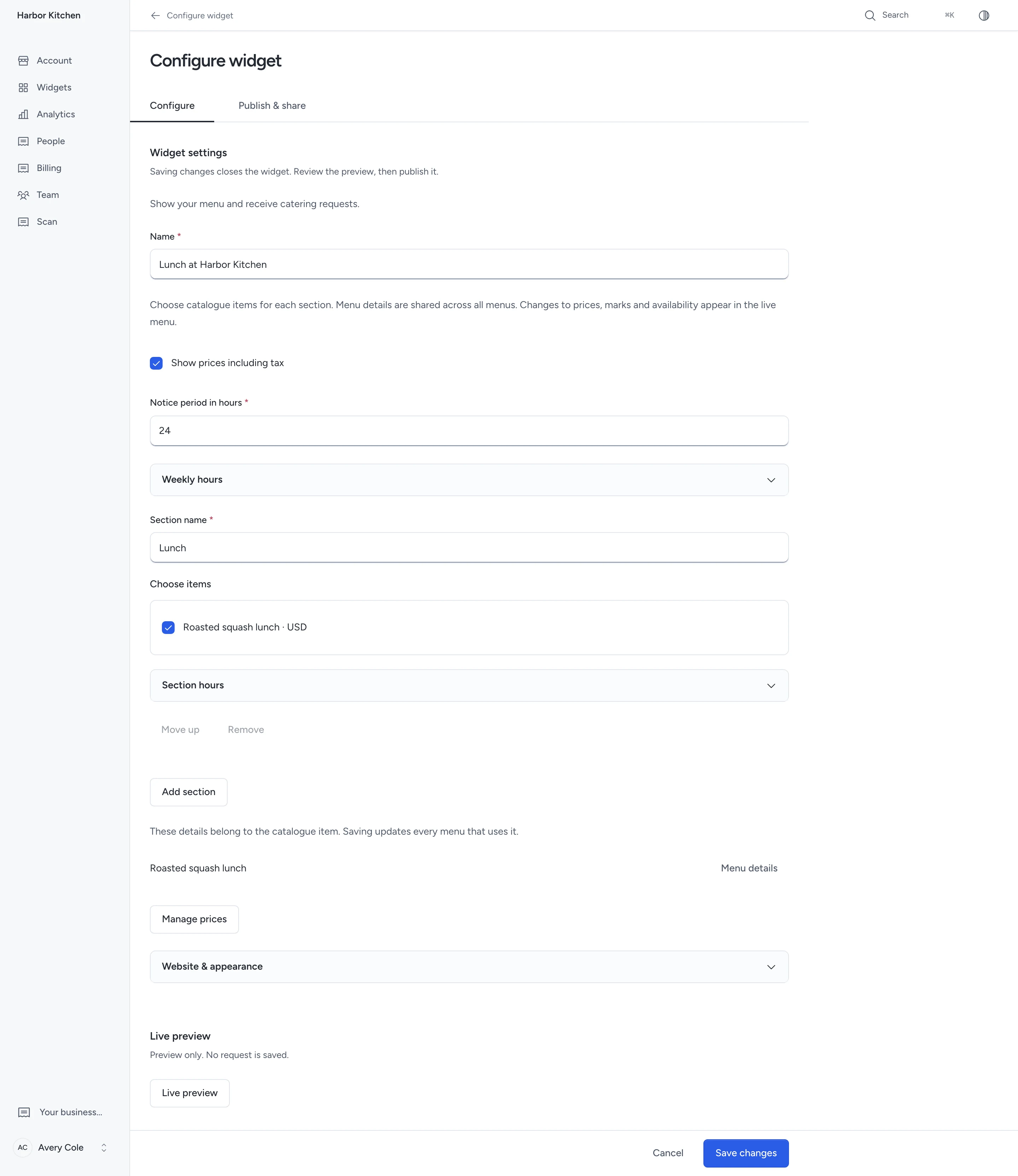
Create a menu
- Click New widget.
- Choose Menu and catering.
- Enter the widget name.
- Enter a Section name, such as Coffee or Lunch.
- Select the section's items.
- Use Add section for another group.
- Choose Show prices including tax.
- Set Notice period in hours for catering requests. The default is 24 hours.
- Click Live preview.
- Click Save changes.
- Open Publish & share and click Publish widget.
A menu has up to 30 sections and 100 distinct items. Each item can appear in more than one section. Set up to 56 weekly intervals per menu or section.
Each item keeps its catalogue currency. A visitor chooses items in one currency for each request. Pepper does not convert prices.
Archiving an item, its category or its tax rate removes it from the public selection. Existing requests keep their saved details.
Enter shared menu details
Click Menu details beside an item in the menu editor. These details belong to the item and apply to every menu using it.
- Choose Available, Sold out or Unavailable.
- Select the allergens the business declares from the 14 listed groups.
- Enter dietary marks, one per line.
- Under Names and descriptions in other languages, enter your own language variants.
- Under Photo, select a permitted Files image or upload one. Enter its alternative text.
- Click Save.
Use up to 10 dietary marks of 60 characters each. Each item can have one name and description per supported language.
Pepper shows the business's allergen and dietary information. It does not check ingredients, detect allergens or verify dietary claims.
Without allergen marks, the visitor sees Ask us about allergens. An empty list never means allergen-free.
Product controls use the selected language. Your item name and description use your matching language variant, or the original catalogue text.
Allergen selections stay the same across languages. Pepper does not generate or translate your own dietary claims.
Open Change history to read who changed the details, when they changed them, and the previous values.
If someone saves first, reopen the item's details and review their changes before saving yours.
Set serving hours
Open Weekly hours for the whole menu, or Section hours for one section. Times use the business timezone shown beside the controls.
Leave hours empty for all hours. Each interval ends on the same day; use 24:00 for midnight. Split an overnight interval across two days.
The public page states whether the menu and each section are open. Visitors can inspect Other menus and their hours.
Sold-out and unavailable items remain visible with their status, but visitors cannot select them for catering.
Catalogue prices and shared menu details apply on the next load. An open menu refreshes each minute. Section changes require saving and publishing again.
Receive a catering request
The visitor selects quantities, a Date and time, the Number of people, and any Dietary needs and questions.
They click Show estimate, check the total, then supply their name and email and click Send request.
The date must meet your notice period and the menu's serving hours. Selected items must also fit their section hours.
Pepper refuses missing or repeated daylight-saving times. The visitor must choose another time. A refusal keeps their entries.
The estimate includes tax. A price, availability or menu-detail change stops submission until the visitor reviews a refreshed estimate.
The accepted request keeps the items, prices, marks, date, timezone, headcount and dietary notes. Later changes do not rewrite that snapshot.
Open Widgets > Records > Requests in the Platform. A Business account opens its own enquiries through People.
The request links to a lead. In the Platform, qualify the lead and prepare a quote.
Quote preparation uses current catalogue prices and availability. Review the difference from the requested value. It creates a draft and sends nothing.
A catering request confirms no order, reservation or payment. Business accounts have no access to the Platform's quote and invoice workflow.
Share the menu and replace printed copies
Use Page address for a direct link. Choose an inline or button presentation for your website under Publish & share.
Open Reusable links & QR codes and follow Make a placement and print it for a named table-card placement and the shared QR kit.
The public menu's Download menu PDF produces a dated menu with the published items, prices, marks and a QR link to the live page.
The PDF uses the selected language and supports right-to-left text. Check every page before printing, including long descriptions and unavailable items.
After changing a price, availability or allergen information, download a new PDF and replace the old prints.
A QR card that links to the same live address can remain in use. Replace it when its destination changes or closes.
Use Menu and choice results to read counted views, exact requests, headcount and requested values by currency.

Need help with the product?
Contact support