
Browse the manual
Publish updates and offer topic subscriptions
Schedule business posts, show temporary notices and email verified subscribers once per post.
On this page
For: a person with Manage content, or a customer workspace owner whose plan includes Updates.
Where: Work > Widgets > New widget > Updates.
An update has a topic and a publication period. Visitors can verify their email and subscribe to topics they choose.
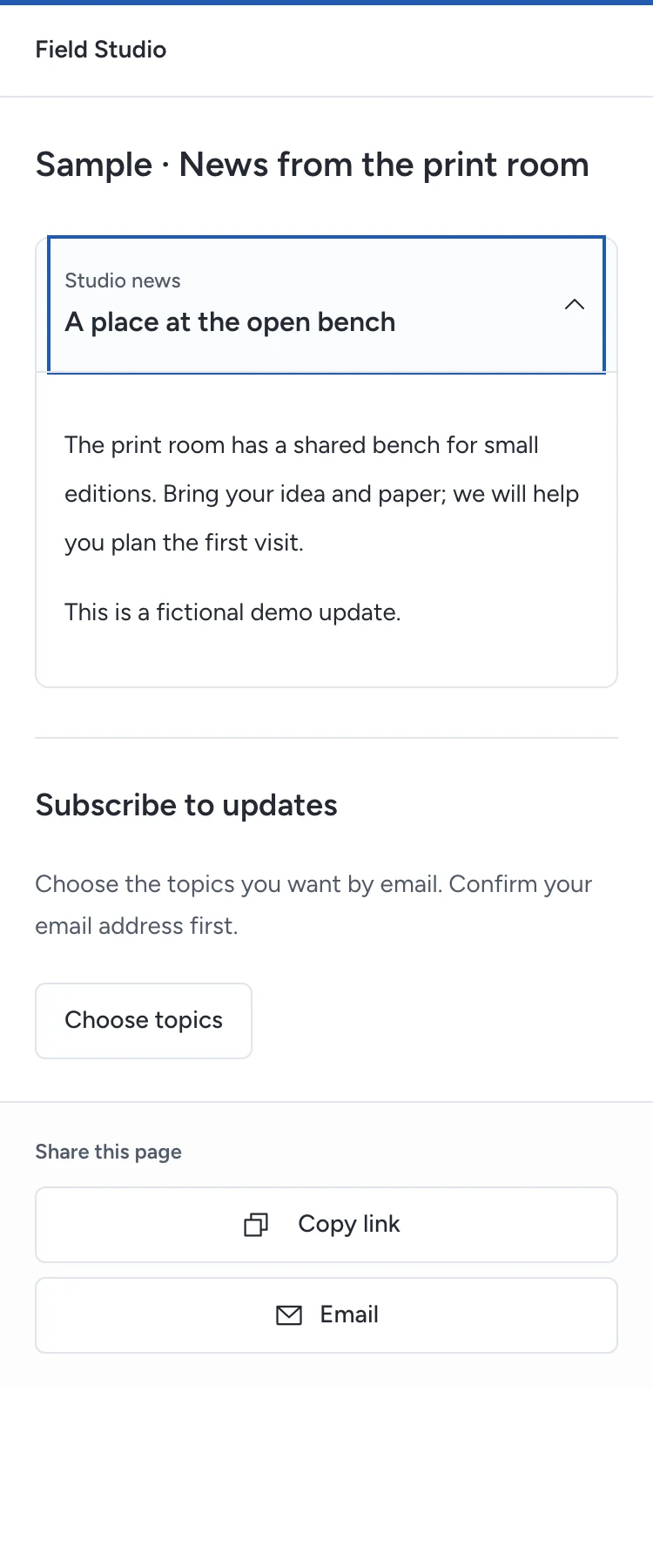
Write and schedule a post
- Enter the widget name and title.
- Choose Add post. Enter Post title, Post text and Topic.
- Set Publish from in the business time zone shown above the posts.
- Set Publish until, or leave it empty to keep the post available.
- Select Show this notice on my other public widgets if the post should also appear there.
- Write Subscription consent. State what you will email and that the visitor can unsubscribe.
- Save, preview and publish the widget.
You can keep up to 100 posts. Use headings, lists, emphasis and HTTPS links in their text. Raw HTML and outside media do not render.
A daylight-saving change can skip or repeat a local time. If Pepper refuses that time, choose one that occurs once.
The public widget shows current posts, newest first. A scheduled post appears from its start and disappears at its end. Notices use the same period.
Closing a notice dismisses it for that page load. It writes no browser storage; reloading the page can show it again.
Editing closes the widget until you publish again. Check the dates before republishing an old post.
Let visitors subscribe
- The visitor chooses Choose topics.
- They enter their email and verify the code sent to that inbox.
- They select their topics and accept your subscription statement.
- They choose Subscribe to updates.
Pepper stores the topic, consent statement, source version and time. An email code alone creates no subscription.
Subscribers receive eligible new posts in their topics. A visitor who subscribes after a post starts does not receive that older post. Editing or republishing the same post does not email it again.
Check delivery and stop a subscription
Configure email and the scheduler before using subscriptions. See email setup and scheduled tasks.
Records and requests shows active subscriptions per topic and email states. Email queued means the scheduler has work to do. Accepted by the mail transport does not prove inbox delivery.
A failed attempt is not a sent message. An unknown outcome gets no automatic retry, because the provider may already have accepted it.
Each update email includes an unsubscribe link. The visitor confirms withdrawal for that topic; no sign-in is required. The saved subscription receipt also contains that link.
Withdrawal cancels pending messages. A message already being sent may still arrive. Resubscribing records new consent and does not resend a post already queued for that address.
Use the privacy lookup to find consent records by email. Erasure removes subscriber identity and stops future mail while preserving the consent statement and withdrawal evidence.
In widget analytics, open Content results for new subscriptions, accepted emails and unsubscribes per topic. Each figure uses its own event date in the selected period. Subscribing to 2 topics counts as 2 topic consents. Records and requests shows the current active subscriptions.
See Publish a widget for presentation and sharing, and widget analytics for counted views and exact results.
Need help with the product?
Contact support