
Browse the manual
Deals and the pipeline
Move deals through your stages, keep one next step on each, prepare the quote that becomes the deal's value and record Won or Lost with a reason.
On this page
For: owners and staff who follow sales from first contact to an accepted quote.
Where: Sales > Deals. On a phone, open More when Deals is not in the bar.
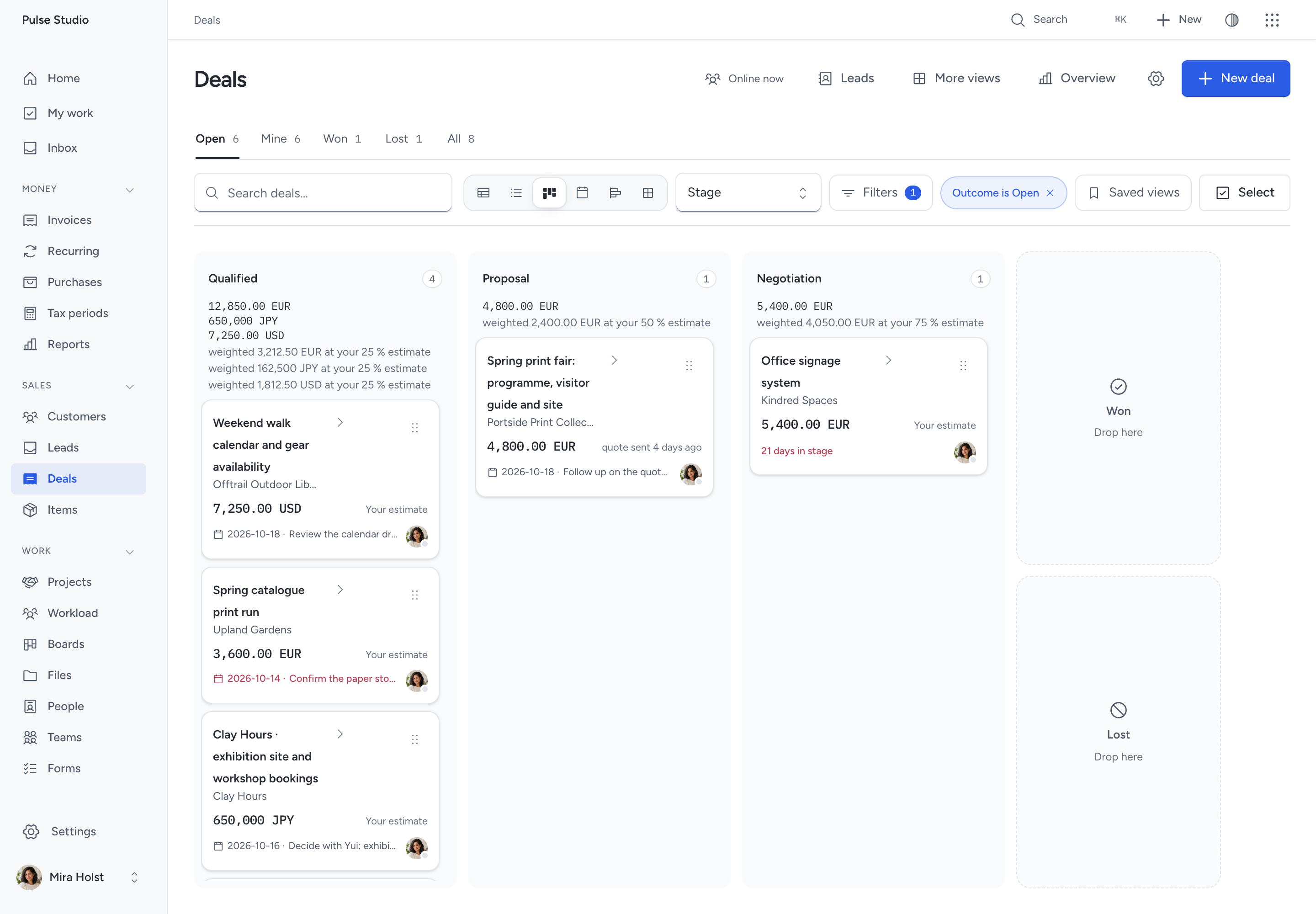
A deal is one opportunity on one customer. It carries a stage, a value, an assignee and one next step. Deals start from a qualified lead or directly on an existing customer. Won and Lost are outcomes, not stages. The quote is the deal's value as soon as one is linked.
Check your access
| Task | Needs |
|---|---|
| Read, add, move and close deals in your access | Work leads and deals |
| Prepare a quote from a deal | Work leads and deals and Manage invoices |
| See lane totals, the weighted pipeline and overview amounts | View financial summaries |
| Change stages, probabilities, idle limits and reasons | Manage stages, reasons, imports and reassignment |
| Reassign a deal to someone outside your teams, archive or restore | Manage stages, reasons, imports and reassignment |
People with the management permission see every deal. Everyone else sees the deals assigned to them or to their teams. A guest with the Sales module sees the deals of the customers in their guest scope. A deal's own value is part of the deal and visible to everyone who can open it. Totals and the overview amounts need View financial summaries; without it, those places show counts and words.
Start a deal
- Open Sales > Deals and click New deal, or press
N. - Enter the Title, for example
Website relaunch. - Choose the Customer. Only active customers you can open are offered.
- Enter Your estimate and the Currency when you have a figure. The estimate shows until a quote is linked.
- Keep the first Stage or choose another, and choose an Assignee when the deal is not yours.
- Add a next step with its date, an Expected close date and tags when you know them.
- Click New deal.
You can also click New deal on a customer record. The customer is then preset. To set the Primary contact or the Source, open the deal and click Edit.
Read the pipeline
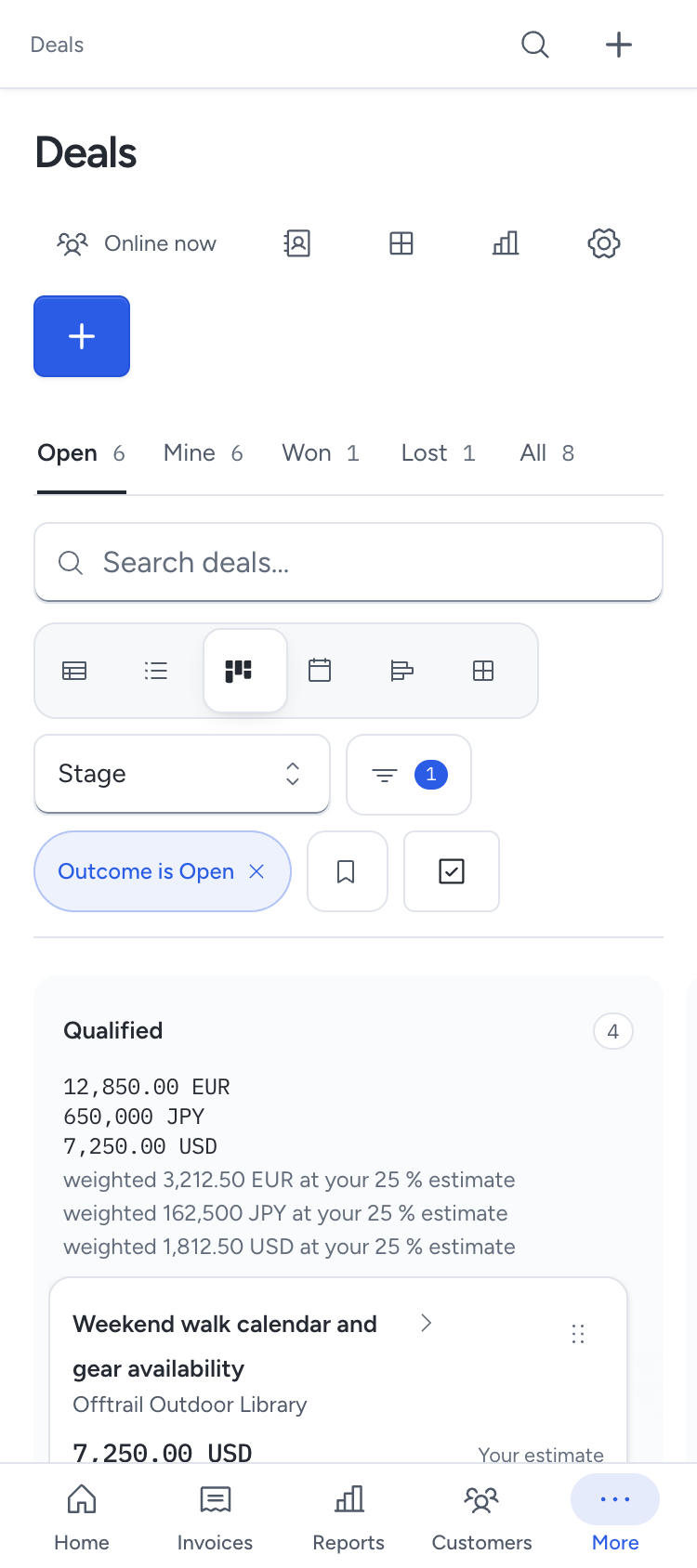
Each lane is one of your stages. The lane header gives the number of deals and your estimate for the stage, for example 50 % estimate, with a small meter. With View financial summaries, a small table follows with one row per currency: the exact Open total and the Weighted total at that estimate. Currencies are never added together. A lane that received three or more deals in the last seven days without any moving on shows a bottleneck note.
A card shows the title, the customer, the value with its basis and the quote fact, then the next step with its date, or the days in the stage. A due next step or an idle deal is marked with one coral word. The assignee's avatar sits at the end.
Use Open, Mine, Won, Lost and All to change the working set. Switch to the table, list or calendar layout with the view bar. The calendar places each deal on its next step date or its expected close date. Filters, grouping and saved views work as in Views of your records.
Click Select to change several deals: Assign, Move to stage, Add tag or Archive. One selection changes at most 100 deals.
A lane shows its first 50 deals and loads more as you scroll. A colleague's move appears on your board with their avatar.
Move a deal
Every way of moving uses the same action and the same checks.
- Drag the card to another lane, or to a position inside its lane.
- Click the arrow on the card and choose a stage under Move to.
- Select the card with the keyboard and press
M, or use the arrow keys. - Open the deal and click a stage on its stage path.
The card shows a pending state until the server confirms the move. If someone changed the deal first, Pepper refuses the move and shows the current version. Reload and move again. Moving a deal never changes a quote or an invoice.
Keep one next step
Every open deal carries one next step: what happens next and when. Open the deal and use the Next step panel. A step needs a date. When the date is today or past, the panel shows the date as a red label.
Home lists the deals that need you under Follow up, with one reason each:
| Reason | Meaning | Action offered |
|---|---|---|
| Next step due | The next step date is today or past | Add next step |
| Quote declined | The customer declined the latest quote | Prepare quote |
| Quote expired | The latest quote passed its validity date | Prepare quote |
| No next step | The deal has no next step | Add next step |
| Idle in its stage | The deal has been in its stage longer than the stage's idle limit | Move to |
A deal appears once, with its first matching reason in this order. See Home.
Work a deal
Open a deal to see its title and customer, the stage path, the value with its basis in one line and the Next step panel. The line under the title names the contact, the assignee and the source when one is known. The facts name the expected close date, the time in the current stage and the creation date. Each fact appears once; Details holds the estimate, the currency and the tags.
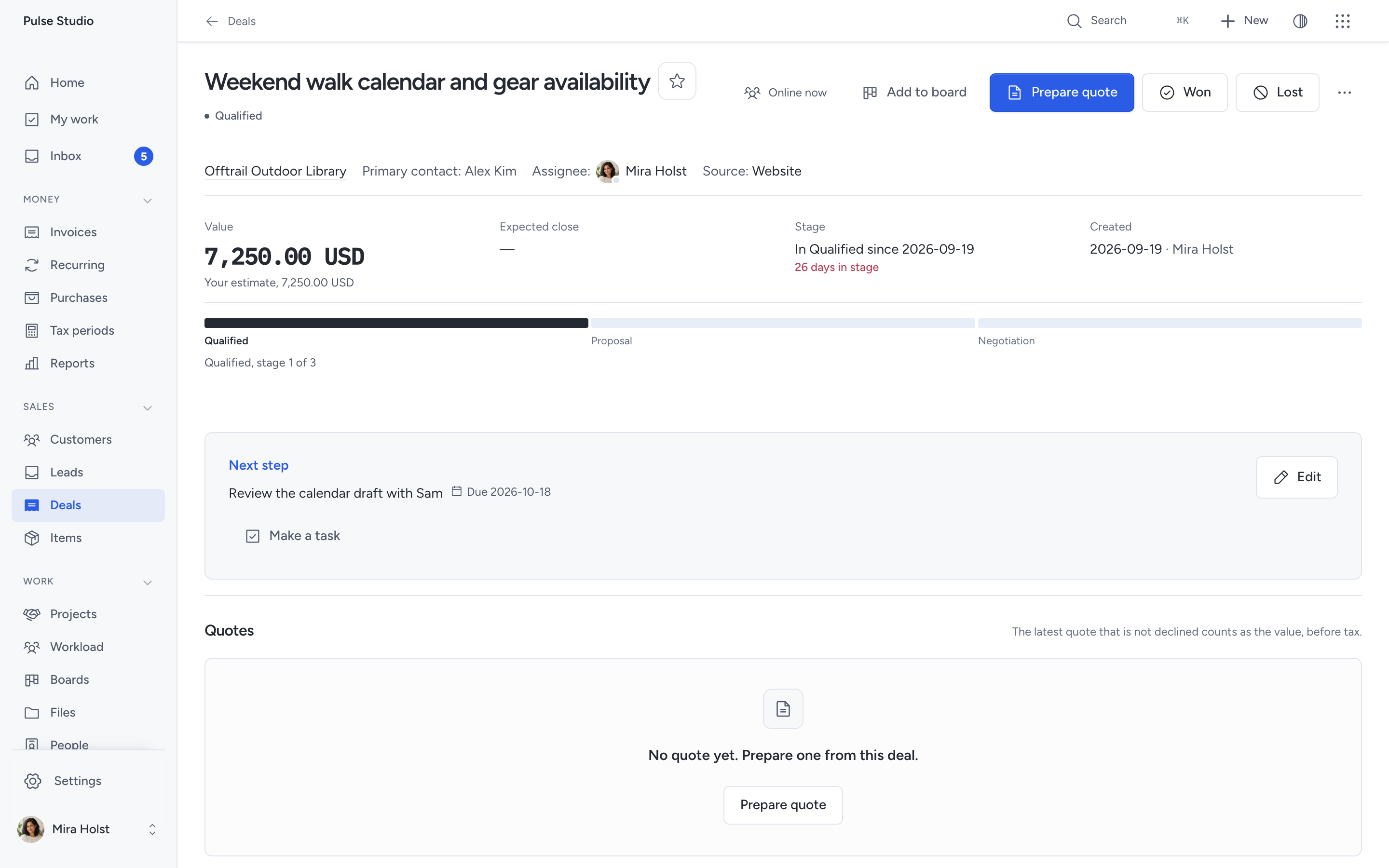
Details lists the quotes, projects, files, custom fields, linked cards and the origin lead with its form submission. Comments and Activity keep the conversation and the history.
The header offers Prepare quote, Won and Lost. The … menu adds Move to, Assign, Edit, Add tag, Add to board and Archive. Edit changes the title, your estimate, the primary contact, the expected close date, the source and the tags. On a phone, the actions sit in More, and a bar at the bottom keeps the title, the value and the next action in view. The menu shows only the actions your role allows.
Expand Where this record came from to inspect eligible First touch and Last touch sources from the linked lead. Website details identify the originating publication when you can still read its website and historical sources.
The website name opens the staff editor. See website enquiry origins for the displayed version and the 30-day summary window.
Prepare a quote
- Open the deal and click Prepare quote.
- Pepper opens a quote draft for the deal's customer, contact and currency.
- Edit the lines, issue the quote and send it as described in Quotes.
If the lead has a price-list request in the deal's currency, the draft starts with those items and quantities at current prices.
The deal compares Requested and Now unit prices before tax. The original request stays unchanged.
An unavailable requested item stops preparation. Review the requested items and catalogue before trying again.
Without a matching request, the first line uses the deal title and your estimate.
The draft is linked to the deal. From then on, the latest quote that is not declined or cancelled gives the deal its value: the quote total before tax, in the quote's currency. The estimate is kept but no longer shown as the value. The deal and its card show the quote's state as a fact: draft, issued, sent on a date, viewed by the customer, accepted by a name on a date, declined or expired.
Several quotes can link to one deal. Preparing a quote issues and sends nothing.
Record Won or Lost
Click Won when the customer agreed. Click Lost, choose a reason from the list and add a note when useful. Both actions record the outcome only. Nothing is issued, sent or settled. Reopen returns a closed deal to its stage and removes the outcome.
When the customer accepts a linked quote on its public page, or staff record the acceptance, the deal is marked Won at the same time, once. A declined or expired quote does not lose the deal. It appears under Follow up and you decide.
On the board, drag a card onto Won or Lost at the end of the lanes. Lost asks for the reason in place.
Open a project from a won deal
A won deal with an accepted quote offers Open project.
- Click Open project.
- Read the dialog. It names the customer, the currency and the quote.
- Check I confirm the customer agreed to the quote.
- Click Open project.
Pepper creates an project with the quote's lines as its first scope version and the reference "Quote …, accepted by … on …". Nothing is invoiced. Choose Import quote lines on the project to create tasks or milestones from the quote. The deal lists the project under Details. No project is created without this confirmation.
Read the overview
Click Overview at the top of Sales > Deals. Choose This month, This quarter or This year and a currency.
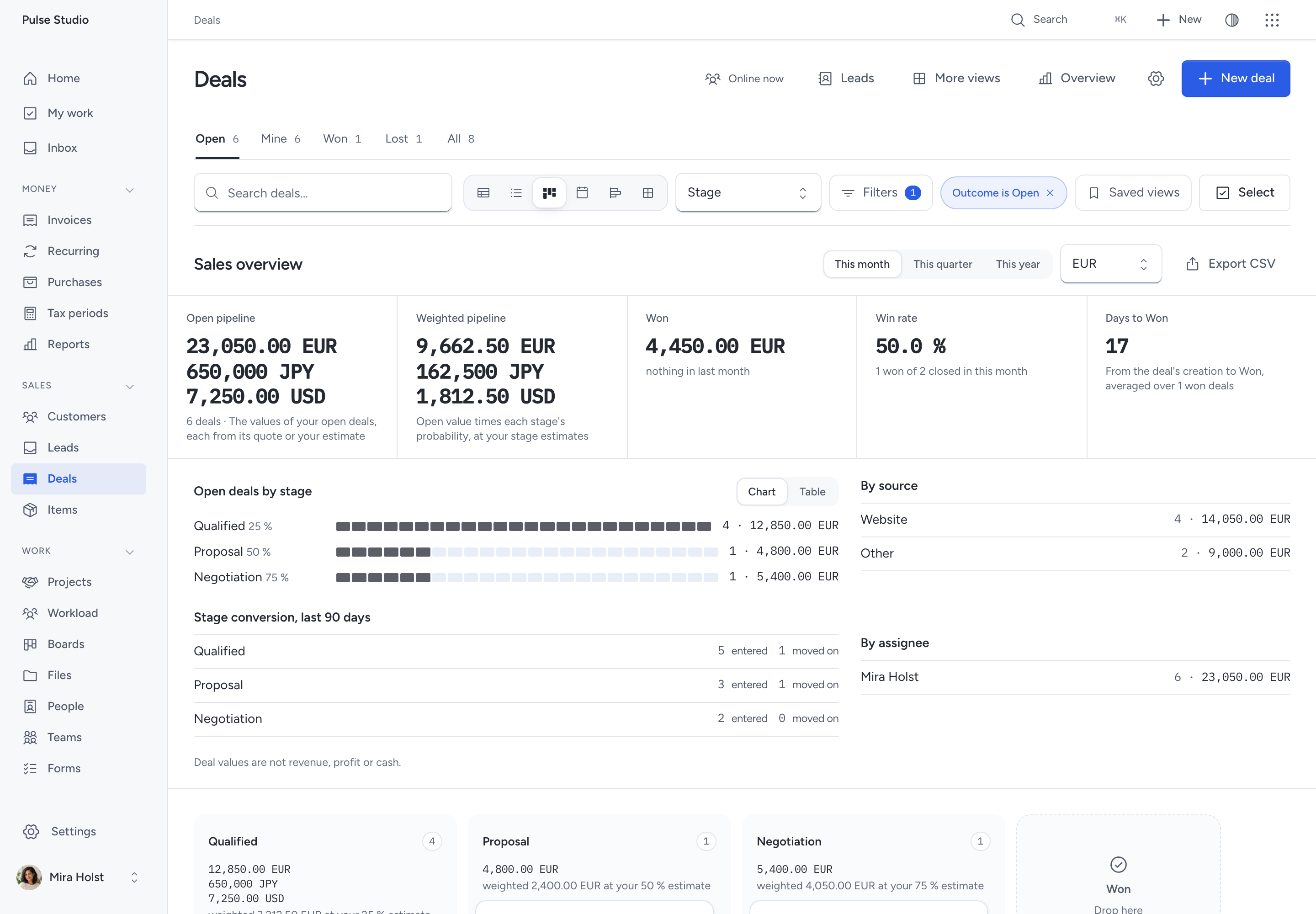
| Figure | How it is counted |
|---|---|
| Open pipeline | The values of your open deals, each from its quote or your estimate, one line per currency |
| Weighted pipeline | Each stage's open value times the stage's probability, rounded once per stage and currency, then added |
| Won | The values of deals won in the period, beside the previous period |
| Win rate | Deals won divided by deals closed in the period |
| Days to Won | The average days from a deal's creation to Won, over the deals won in the period |
| Open deals by stage | The funnel, with a count and a value per stage |
| By source, By assignee | The open deals split two ways |
| Stage conversion, last 90 days | Per stage, how many deals entered it and how many moved on to a later stage, each deal counted once |
Every figure opens the deals behind it: the open deals for the open and weighted pipeline, the deals closed in the period for the win rate, the won deals for days to Won, and the deals that entered or left a stage for the conversion. Switch between Chart and Table. Export CSV downloads the same figures. Deal values are not revenue, profit or cash. On Home, Open deals gives the number of open deals. Point at it to see the weighted pipeline.
Set up your stages
Settings > Sales needs the management permission.
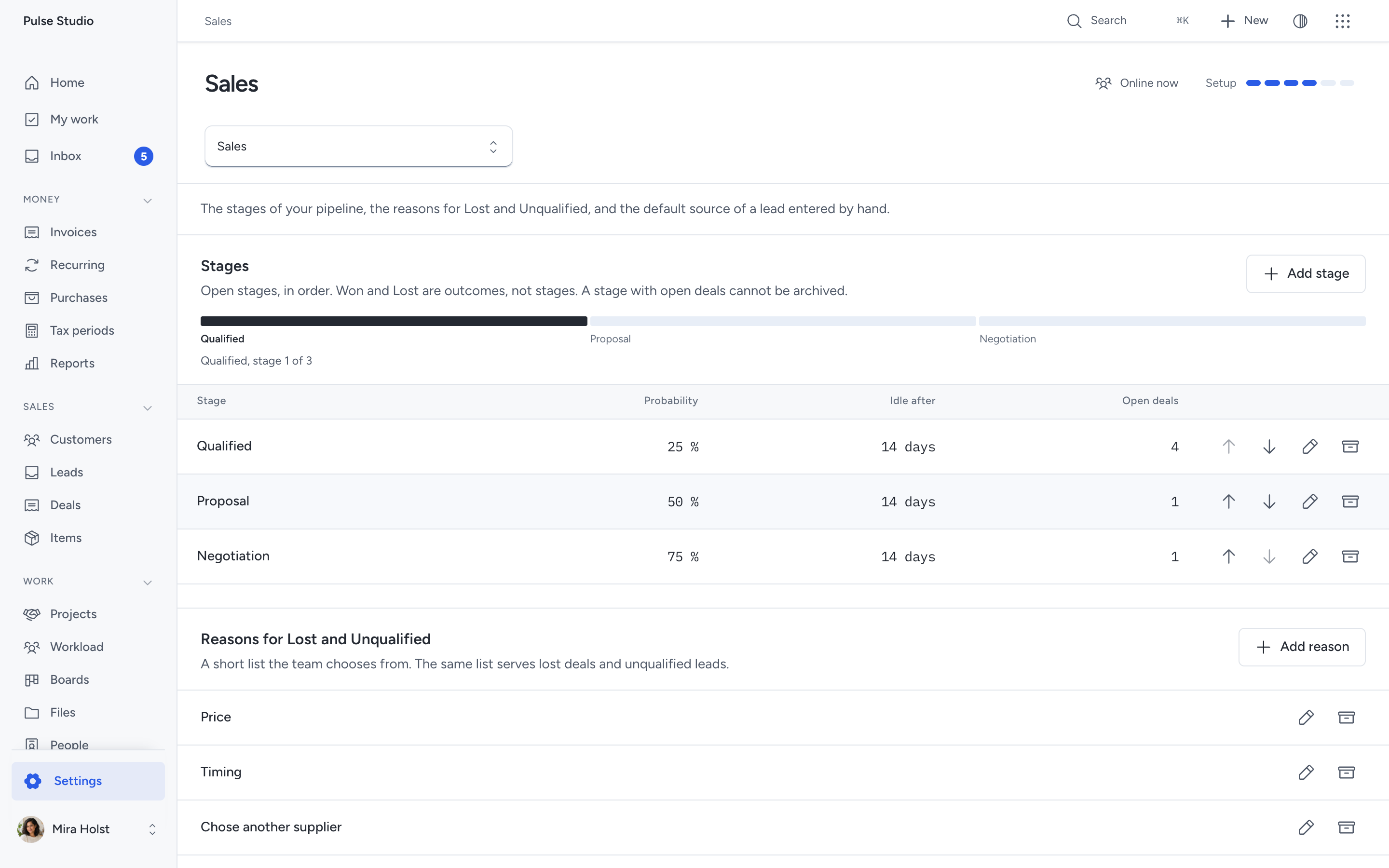
- Stages lists your open stages in order. New installations start with Qualified at 25 %, Proposal at 50 % and Negotiation at 75 %, each idle after 14 days. Click Add stage, or edit a stage's name, Probability and Idle after. Use Move up and Move down to reorder. Won and Lost are outcomes and have no row here.
- Archive stage removes a stage from the pipeline. Pepper refuses while open deals remain in it and names their count. Move them first. Keep at least one open stage. Deals that passed through an archived stage keep their history.
- Reasons for Lost and Unqualified is one short list for lost deals and unqualified leads. Add, edit or archive a reason. Keep at least one.
Every change here writes an event to the audit log.
Deals on a phone
The pipeline keeps its lanes on one horizontal track. A deal opens as a full sheet with the title, the value and the next action in the fixed bar. Drag with a long press, or use Move to.
Keyboard
| Key | Action on the pipeline |
|---|---|
N |
New deal |
E |
Edit the selected deal |
M |
Move the selected deal |
W |
Record the selected deal as won |
L |
Record the selected deal as lost |
/ |
Search |
| Arrow keys | Move between cards and lanes |
Press ? for the complete list.
What is not included
Several pipelines, lead scoring, quotas and forecast categories, products or line items on a deal, email sequences and a merge tool are not included. The quote remains the line-item document. Deal values do not enter the money figures of Home or Reports.
Related pages
Turn a next step into a task
Choose Make a task beside an open next step. The task joins the deal’s open project when one exists; otherwise it stands alone. The task keeps the next-step text, assignee, due date and link to the deal. Completing it clears that linked next step through the usual Sales permissions. Open the task to plan dates or track time.
Need help with the product?
Contact support