
Browse the manual
Sell through a shop or buy button
Publish catalogue products, verify checkout email and follow orders, payment, stock and delivery in the same records.
On this page
Your shop uses the same catalogue, orders, stock and payments as your staff. Checkout verifies the email and creates or reuses a customer account.
For: business owners publishing products and managing online sales. What you need: configured products, applicable tax, shipping for physical goods and a working payment service for paid checkout.
Start with Products and stock. Use Orders, fulfilment and returns to prepare shipping methods and learn the staff actions.
Check publishing access
Shop publishers need catalogue management and full order and invoice viewing and management permissions. Own-record access alone cannot manage online orders.
Owners and admins have this access. A custom staff role can have it too. Guests and customer-workspace accounts cannot run these shops.
Only the installation owner configures shipping methods and payment credentials. Linking booking widgets also requires booking management and access to their shared catalogue services.
Permission and publication checks continue after setup. If the publisher loses required access, the shop cannot accept another checkout.
Prepare products and payment
- Add the services, physical goods or digital goods to the shared catalogue.
- Check each product's active variants, images, prices and currency.
- Receive stock for tracked physical variants.
- Select the permitted download version for each digital variant.
- Configure shipping methods in the shop currency for physical goods.
- Configure the applicable tax rates and rules.
- Open Settings > Online payments and configure Stripe.
- Enter the matching Publishable key for payment inside the shop.
- Configure the displayed webhook and run the required scheduler through your deployment setup.
Use matching Stripe account credentials and mode. Keep test and live credentials separate. Read online payment setup before enabling live collection.
An unavailable payment service cannot confirm money received. Free orders complete without payment.
Create the shop
- Open Widgets and click New widget.
- Choose Shop and cart.
- Enter its name and title.
- Choose Shop currency.
- Choose Tax policy.
- Select the catalogue products under Choose items.
- Select the allowed Shipping methods.
- Select any linked Booking widgets.
- Configure Allowed websites, language and appearance.
- Save the widget.
- Review its preview, then publish it through Publish & share.
Changing the shop currency clears the selected products, shipping methods and booking widgets. Select matching records again before saving.
| Tax policy | What checkout uses |
|---|---|
| Catalogue tax | Each product's configured fixed rate or no-tax selection |
| Destination tax rules | Your configured rules matched against the entered destination |
For physical goods, the shipping address supplies the destination. Other purchases use the billing address. Shipping keeps its own configured tax selection.
Pepper does not determine your tax obligations from an address. Missing or ambiguous rules stop checkout; correct the configuration before asking the customer to review again.
The shop shows current names, variants, images, prices and availability. It does not expose private download originals or exact internal stock counts.
An active tracked product can accept a backorder only when the owner enabled its backorder rule. A missing or private digital original cannot be sold.
Saving an edit closes publication. Publish the changed shop again after checking its sources and allowed websites.
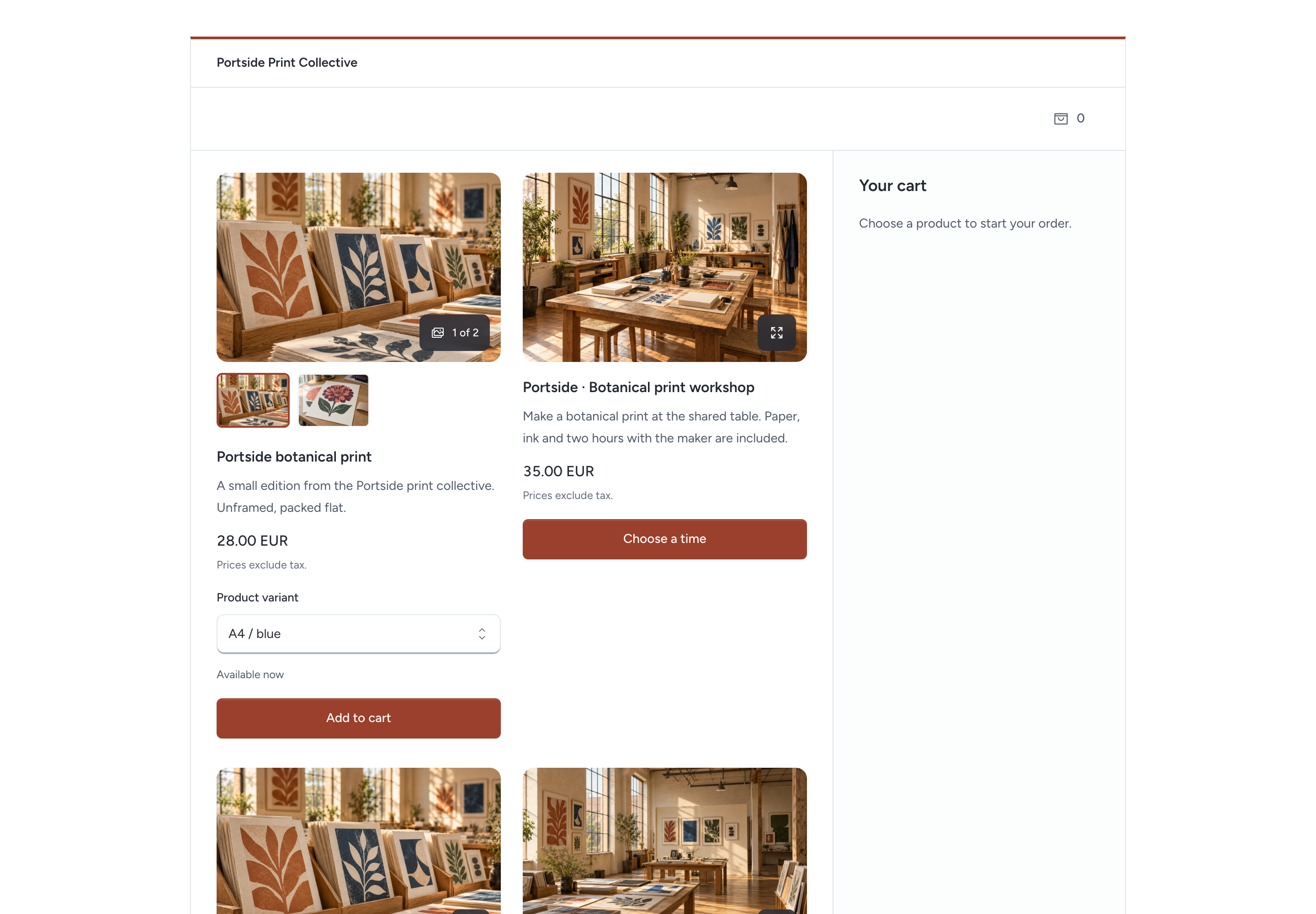
Add a buy button or website sections
A Buy button selects one product from an existing published shop.
- Create a widget with Buy button as its type.
- Choose Published shop.
- Choose Product.
- Configure its allowed websites and appearance.
- Save, inspect and publish it.
Use the widget's own page address, inline code or button presentation. Checkout and the supported payment form stay inside the Pepper frame.
For a Pepper website:
- Open the website editor and click Add section.
- Choose Shop, Product or Cart.
- Select the published shop or buy button requested by that section.
- Save the draft.
- Review and publish the website.
Shop displays the selected shop's products. Product uses a buy button. Cart provides that shop's shared cart.
Place a Cart section where customers can find it when using several product sections. Selections for the same shop reach that cart.
A standalone buy button can complete its own checkout. Different shops keep separate carts. Website and widget previews cannot place orders or take payments.
Each widget must allow the website's exact HTTPS origin, such as https://www.example.com. Publication does not bypass its source, consent or access checks.
Read website setup and widget publication for the shared controls.
Follow the customer's checkout
- Choose a product and variant.
- Set its quantity and click Add to cart or Buy now.
- Open the cart and choose Checkout.
- Enter the contact and address details.
- Choose delivery when physical goods require shipping.
- Click Review order.
- Verify the checkout email when asked, then select Continue to review.
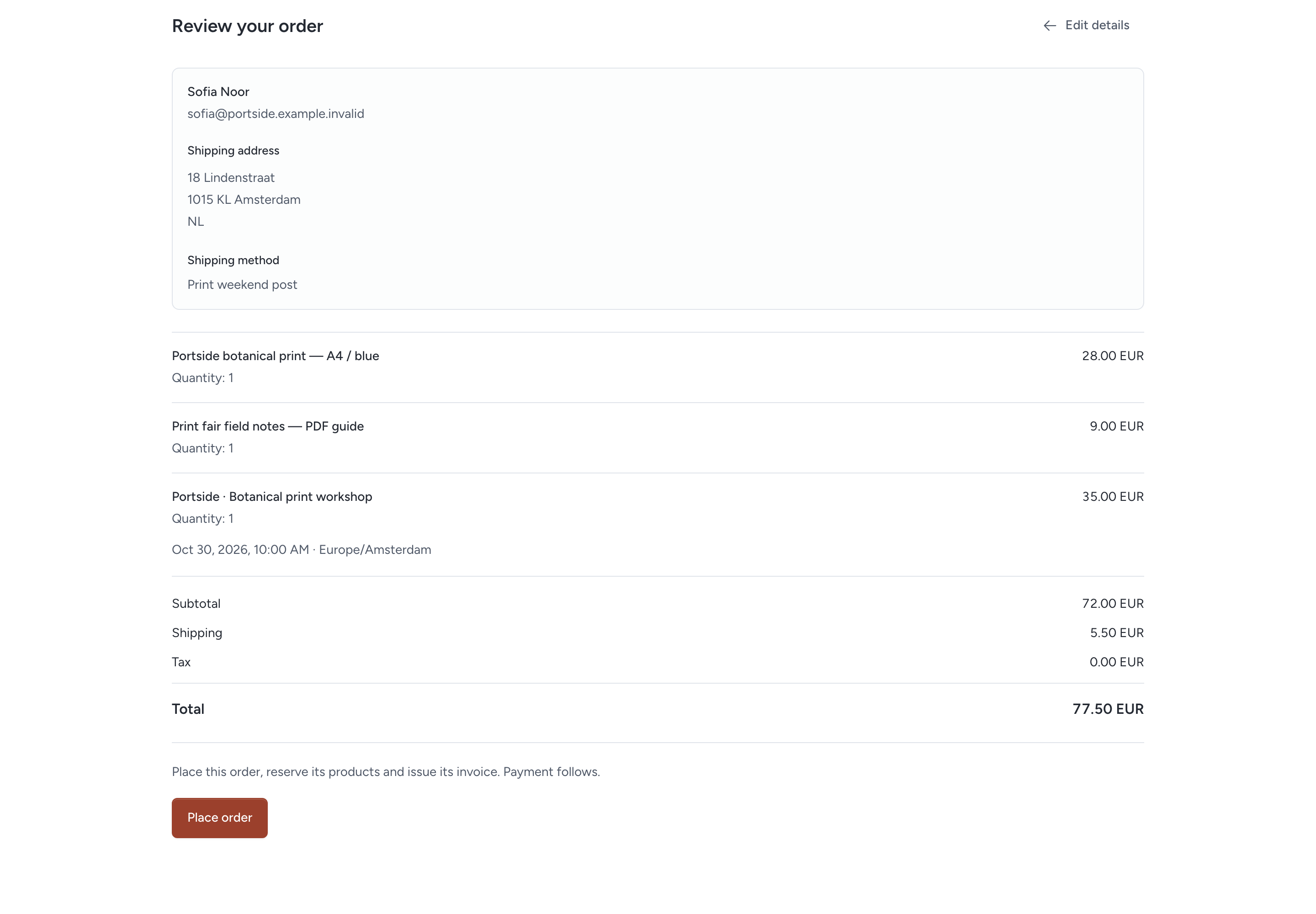
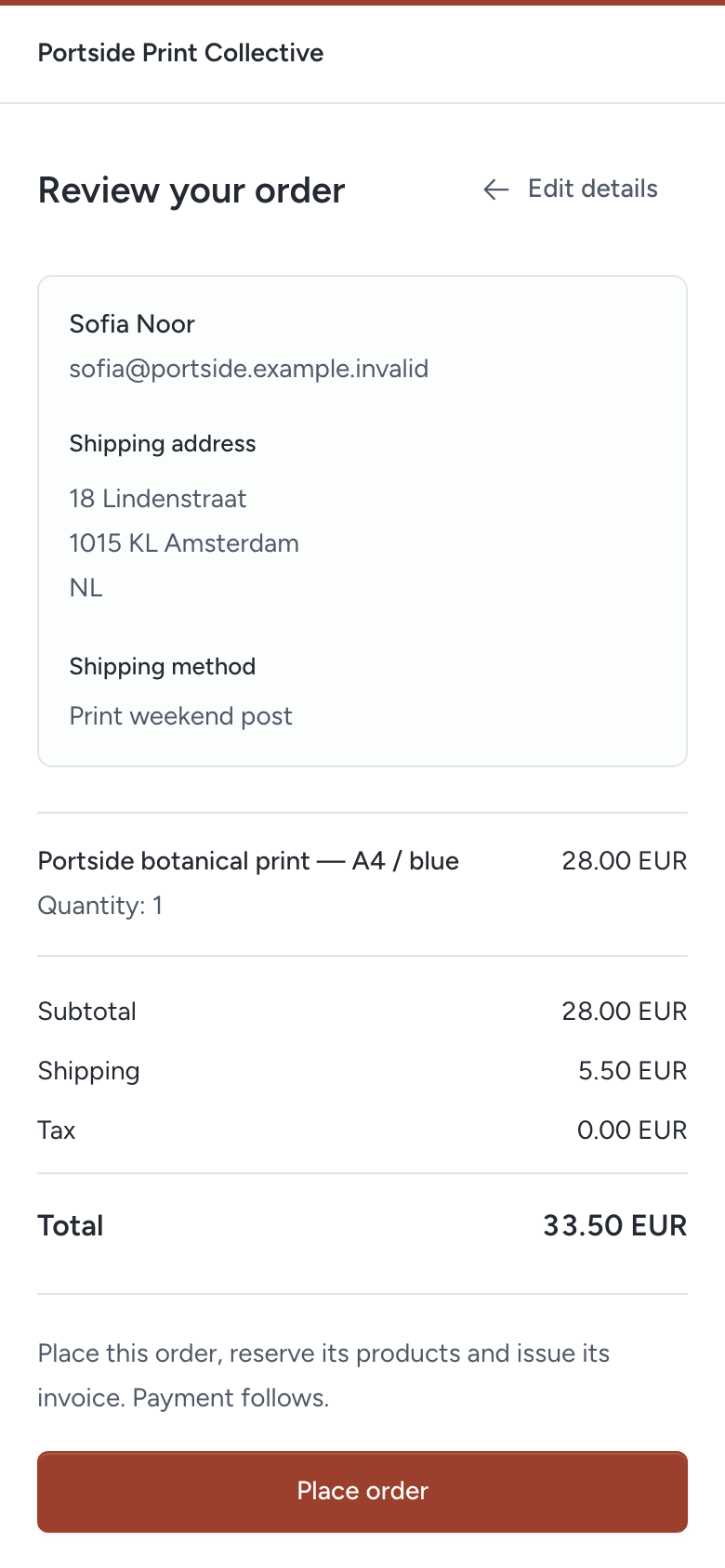
- Check the products, delivery, tax and total.
- Click Place order.
- For a paid order, continue with Pay online.
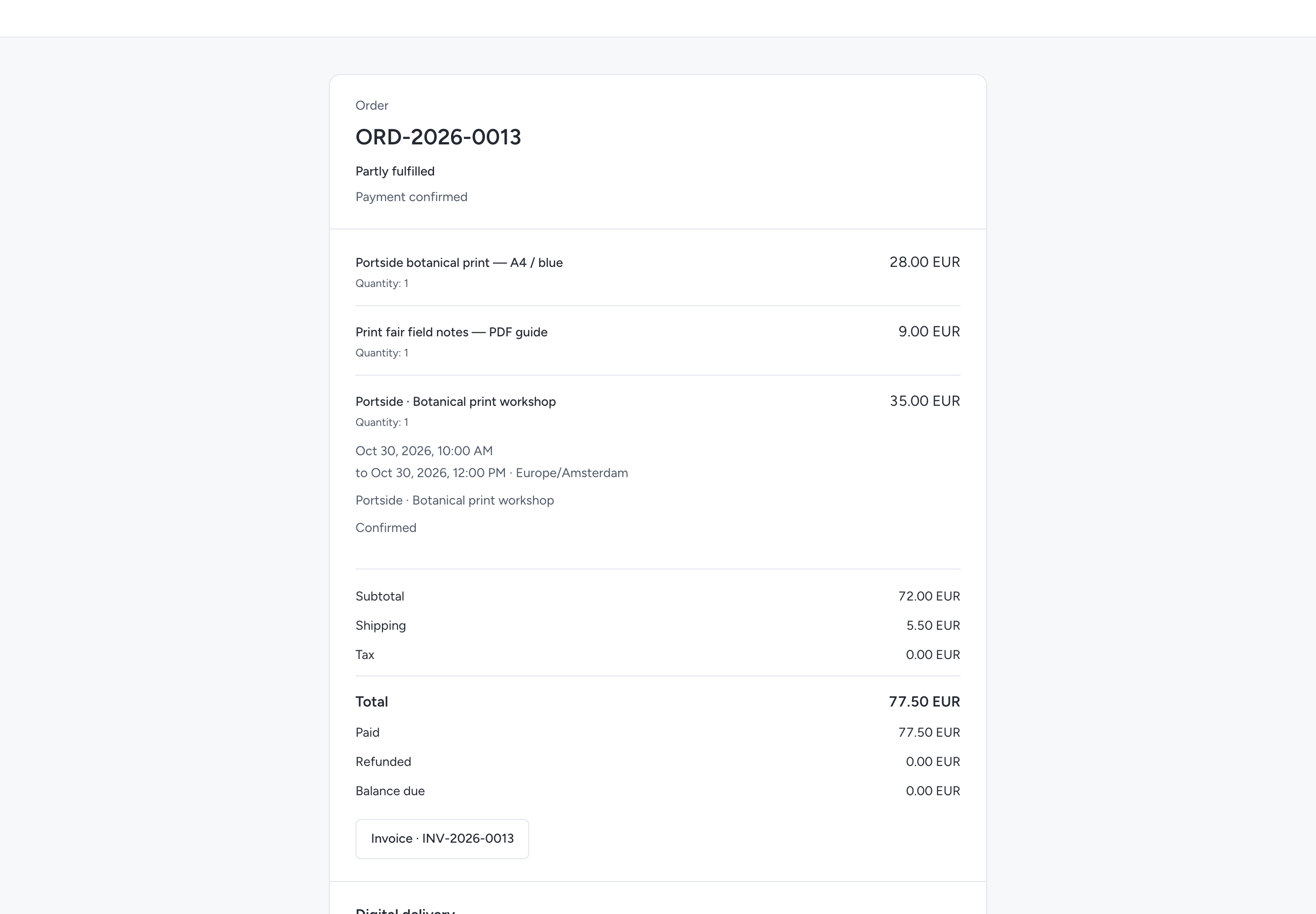
- Keep the View order and invoice link.
Adding a product creates no reservation. Place order reserves tracked stock and issues the linked invoice. Payment follows as a separate confirmed result.
The review uses the same exact calculations as the order and invoice. Merchandise subtotal, net shipping and combined tax add to one total.
For example, 2 prints at €28, a €9 PDF and €4 shipping total €69 with no tax. Delivery and returns retain those accepted amounts.
If stock, price, shipping, tax or publication changes, the customer must refresh and review the current proposal. Pepper does not silently accept an older total.
Checkout requires a verified email before placement. A matching signed-in account on the Pepper website can confirm it; other checkouts send a six-digit code.
An embedded shop uses the same code step without requiring sign-in on another website. Entering an email alone grants no account or purchase access.
Verification reuses the matching Customer and links the accepted order to the account. It does not merge Customers or rewrite earlier orders.
Sell appointments and event tickets
Use a published booking widget linked to an active Catalogue service. Select that same service and its Booking widget in the shop.
The booking widget and shop must belong to the same installation seller. Each selected catalogue service has one booking binding.
Checkout accepts linked appointments, capacity reservations and events. Resource stays use their direct booking workflow.
For example, Northwind Studio can sell a $45 workshop place alongside a printed workbook. The cart keeps one order, invoice and payment.
The customer chooses a current time or event, answers the booking questions and accepts its policy. Adding it does not hold capacity.
Placement checks capacity again and reserves it with the order. Confirmed payment completes the paid booking. A free booking needs no payment.
An unpaid cancelled checkout releases its place only when payment recovery permits cancellation. Issuing credit alone does not release a paid place.
A paid booking's place returns once after its line has full credit and the actual refund is confirmed. Repeating the result cannot release it again.
Booking changes retain the service's policy and current availability rules. Shop-linked bookings do not create another invoice through the ordinary booking invoice action.
Booking forms with file questions cannot join checkout. Use the direct booking widget or remove those file questions before linking the service.
Confirm payment and keep purchase access
Payment confirmed means Pepper received the server-confirmed provider result. A browser redirect or submitted card form does not prove payment.
If the result is pending, use Check payment status. If the response was lost, use Retry the same request.
Keep the purchase page open until the result is known. Avoid starting another order to resolve an uncertain payment.
Order acceptance queues a confirmation email. Queued, accepted for delivery, failed and unknown remain separate results. Keep the purchase link if email fails.
The signed purchase link opens only this order and its invoice. Its default validity is 30 days. Anyone holding it can use it until expiry or revocation.
Staff can use Renew customer link for 1 to 90 days after reviewing the consequence. Renewal stops older order and invoice links.
Revoke customer link stops future access. It retains business records and cannot recall downloaded files.
Purchased digital files need their own completed fulfilment and signed download grant. Payment alone does not claim that the business delivered the file.
The customer can see permitted delivery details and open the issued invoice PDF. Staff notes, private file identifiers and other customers' orders stay hidden.
Customers can also open linked purchases through their account. It provides issued invoices, available downloads and return requests for those purchases.
Earlier purchases require the original purchase link and fresh verification of the purchase email. Sharing a Customer record does not grant access.
Recover an abandoned or failed checkout
A checkout normally has 60 minutes to complete payment. An expired draft has no stock reservation to release.
For a placed unpaid order, Pepper first checks whether a provider payment can still complete. Pending or unknown outcomes retain stock and booking capacity.
Confirmed expiry or failure permits the existing cancellation action to release the remaining reservation once. Local elapsed time alone does not prove payment failed.
The scheduler recovers interrupted expiry work. Keep it running as described in the installation instructions.
Pre-purchase contact and address input is cleared after the recovery window, normally within 24 hours after expiry. Issued orders and financial history remain.
| What the customer sees | Recovery |
|---|---|
| A field needs correction | Correct the named field; entered details stay in place |
| The catalogue or checkout changed | Refresh, inspect the current products and review again |
| The response was lost | Retry the same request to recover its result |
| The payment form could not load | Retry the same checkout or check payment status |
| Payment pending or business review required | Keep the purchase link; contact the business before paying another way |
| Checkout expired | Start a new cart and enter details again; check any placed order's payment first |
| Checkout unavailable after publication or access changed | Contact the business; an existing purchase link remains separate from shop publication |
The frame can remember its cart credential in that tab. It stores no contact, address, booking answers or payment secret in browser storage.
If browser storage is unavailable, the open frame keeps the cart in memory. Keep the purchase link once an order exists.
Deliver and handle returns
Online sales appear in Orders. Use the same payment, fulfilment and return actions as staff-entered sales.
Pick, pack and ship selected physical quantities. Enter carrier and tracking details. Create digital fulfilments and their expiring purchased-version links separately.
Receive a return, inspect it and decide restocking before adding goods to stock. Issue its credit note and handle the actual refund separately.
Neither credit nor refund restocks goods. A confirmed full refund stops future purchased digital access; downloaded copies cannot be recalled.
Follow Orders, fulfilment and returns for each review, permission and correction path.
Request one stock email
For an unavailable tracked physical variant, the customer can request a back-in-stock alert. This uses the same flow as a price-list widget.
The customer verifies the email with a one-time code and explicitly accepts the displayed notice. Checkout itself does not subscribe them.
The accepted receipt provides a withdrawal link. A waiting alert expires after 180 days. A successful stock email closes it.
Withdrawal or product closure stops pending notices. An unknown email handoff needs business review; Pepper does not automatically send it again.
Read back-in-stock consent and recovery for retention and owner privacy controls.
Read shop results
You need View analytics, View all orders and permission to read the shop. Customer-workspace accounts cannot open the installation's shop report.
- Open Customer services > Analytics.
- Choose Shop.
- Select the dates and any website, shop or product filter.
- Open a figure to inspect its definition or permitted records.
Shop shown counts successful requests for a shop or buy-button frame. It does not show how many people saw a product. Collection starts off. Orders and confirmed payments still appear when request counting is off.
From checkout to payment starts with checkouts created during the selected dates. Later steps count those same checkouts before the period ends. Headline orders and payments use their own dates, so they can differ from this funnel.
Unfinished checkouts separates Not placed from Placed, not paid. Open an available order to check its payment and recovery state. No cart identity appears in analytics.
After checkout details expire, Pepper may be unable to filter the funnel by product. The report explains that limit and withholds the affected figures. Choose the whole shop to read its available checkout totals.
The product page links to the same report for the last 30 days. Its stock balance includes staff-entered orders, reservations and fulfilments. Online checkout counts cover shop orders, so they need not match the stock movement totals.
Money requires See balances and figures and access to its source records. EUR and USD amounts remain separate. Orders use their linked invoice and payment records; the report does not count revenue twice.
The report starts with one sentence about orders. It adds the step where most checkouts stopped, or else the best-selling product. It can offer one next action: Open orders waiting for payment, Check the price or photos of a product left in carts 5 or more times, or Open orders waiting to ship after more than 3 days. Click × to hide that action for the selected period.
Prepared by agents counts carts that visitors' AI agents prepared, apart from the checkout steps. Customers shows first orders, returning customers and the share of orders placed while signed in. The CSV export and the analytics read tool also group orders by website page, code, campaign and channel. Fulfilment shows the median days from paid to shipped, orders waiting to ship and the shipping methods and countries. The refund figure names both counts, such as "3 refunded of 41 paid orders". Money compares each currency with the previous period.
Owners can also inspect Waiting for stock by product. Those counts distinguish waiting, notified and closed alerts; they do not create a marketing subscription.
Read website and shop insights for comparisons, refund dates, privacy and missing measurements.
Manage the setup from an AI client
MCP and /api/v1 can save widget definitions, shop settings and placements through their ordinary actions. They can read the current safe shop catalogue.
Use widgets_save with payload_json, or POST /api/v1/widgets. An edit includes widget_id and current widget and source versions.
Use widgets_placements_save, or POST /api/v1/widget-placements, to save a placement. Each write needs its own idempotency key.
Publication and placement closure still need their separate human approvals. Current permissions apply on execution and on later receipt reads.
Payment credentials and visitor identity, consent and purchases remain with their permitted human actors. Shop setup tools cannot act as a customer.
See form and widget tools for exact inputs and the older proposal-only tools.
Clients read results through the shared analytics report, with the same access and privacy limits as the browser.
Need help with the product?
Contact support