
Browse the manual
Connect your AI
Choose what your AI app can do in Pepper and when it must ask you first.
On this page
For: people who want to use their own AI app with Pepper.
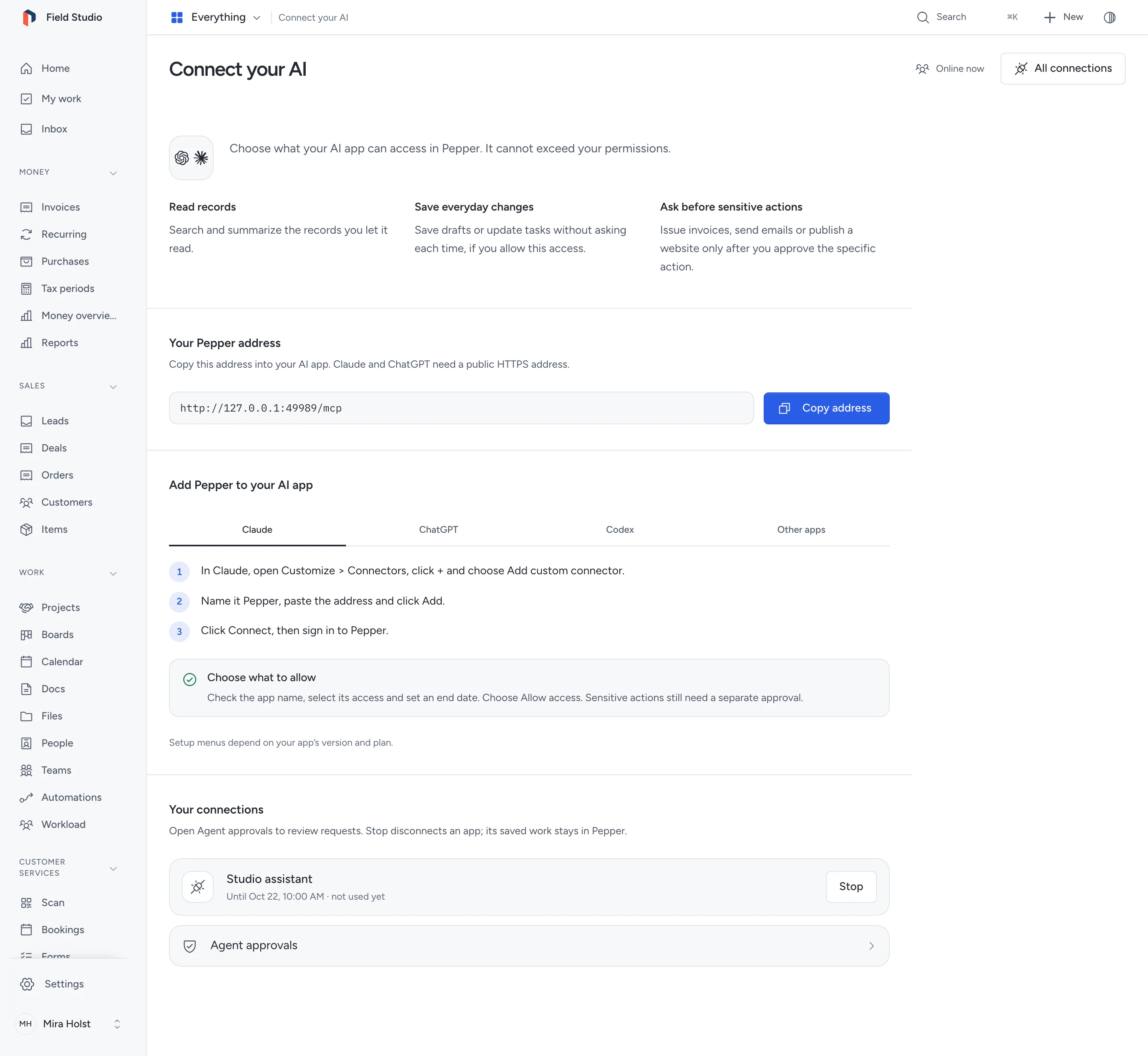
You choose its access and when sensitive actions must ask first. The app cannot exceed your permissions.
What your AI can do
| With the access you allow | What happens |
|---|---|
| Read records | It can search and summarize records you can access. |
| Make everyday changes | It can save drafts or update tasks without asking each time. |
| Run sensitive actions | It needs your decision or a matching rule you set. Unsupported actions, such as publishing a website, still ask. |
For example, your AI can prepare an invoice draft. Issuing needs your approval, either on the request or through a matching rule. Sending it by email needs a separate approval.
Available actions depend on your role, the apps enabled in Pepper and the access you select. See example requests or the complete access reference.
Connect your own AI app
You need an AI app that supports remote MCP. MCP is the connection that lets the app use Pepper's tools. Pepper must have HTTPS at the root of its domain or subdomain. Claude and ChatGPT need a public address they can reach over the internet.
- Click your name in Pepper and choose Connect your AI. On a phone, open More first.
- Choose Copy address.
- Select Claude, ChatGPT, Codex or Other apps and follow the steps shown for your app.
- When the app opens Pepper, sign in.
- Check the app's name and return address. Choose Deny if either is wrong.
- Select only the access it needs and choose an expiry of 1 to 30 days.
- Choose Allow access.
This allows the selected access for that connection. It does not approve future sensitive actions.
Menu names in your AI app can differ by version and plan. The app handles sign-in tokens; you do not need to copy a credential for this method.
If AI connections are off, ask the owner to turn them on. The owner can choose Turn on AI connections on the same screen. Turning connections on grants no app access by itself. Each person still chooses an app and its access. Guests cannot connect an app.
Set approval levels
Staff can choose Ask every time, Approve routine work or Use my rules from an approval request. The default is Ask every time. Customer workspace connections keep individual approval.
Use rules only for work with a clear scope and limit. For example, permit invoice issue for one customer and currency with a maximum amount and expiry. Sending remains a separate action. See approval levels and rules for supported actions and steps.
Review an AI request
When the app needs approval, it gives you a review link. You can also open Agent approvals from Connect your AI.
- Open the request in Pepper.
- Check the values and the consequence shown below them, including any amounts or recipients.
- Approve that action or choose Reject.
- Let the app complete the approved action, then check the result in Pepper.
Approved means allowed to run, not finished. For an invoice, check for the issued number before treating it as issued.
An expired request or changed record needs a new request and decision. Approval covers that one action. See Approve sensitive steps for the full workflow.
Connect and review a draft
Ask your AI to prepare a draft, then open the document link it returns. Check the customer, dates, lines, currency, tax and total. Correct the draft if needed.
Pepper's activity record identifies the connected app and the responsible person. This helps you see who made a change; it does not change the app's permissions.
Approve one invoice
Ask your AI to request approval for the saved invoice. Open its review link, check the exact invoice and choose Approve issue or Reject.
Issuing assigns a number and fixes the invoice's content. It does not send an email or record a payment. Each of those actions has its own approval. See the invoice approval reference for timing and status details.
Stop access
Under Your connections, check each app's expiry and last use. Choose Stop beside an app and confirm to disconnect it.
Stopping blocks new requests. A request already committed can finish. Saved work and approval history stay in Pepper. Copies already held by the AI app also remain there.
To use a stopped or expired connection again, connect the app again. Turning AI connections back on does not restore old connections.
Connect AI in a customer workspace
Connect from Connect your AI inside that business. The connection works only in that workspace, within your workspace role and plan. It cannot reach the provider's records or another business.
The provider must enable AI connections for the installation. The workspace owner must also enable AI for this account. If either is off, the screen tells you who to ask.
Review requests in that workspace's Agent approvals. The workspace owner can stop any connection there. Turning off either switch or removing a person from the workspace stops their access.
If you also work on the provider's team, use a separate connection for that team. Check Where it works when you allow access. Available workspace tools are listed in the tool reference.
When a call fails
| What you see | What to do |
|---|---|
| The app cannot connect | Check that AI connections are on and that the app can reach your HTTPS address. |
| This connection request cannot be used | Start a new connection from your AI app. |
| Access stopped or expired | Reconnect the app. Ask the owner if your permissions changed. |
| Waiting for your decision | Open Agent approvals and review the request. |
| Out of date or expired approval | Ask the app to prepare a new request. |
For a lost response, the app must retry the same request safely rather than repeat the action. Developers can use the error and retry reference.
Owner and developer settings
The owner can manage all connections, choose another person for a connection or create a credential for clients without browser sign-in. See Connection settings and access reference.
Pepper works without an AI account. Connecting an external app does not require the optional built-in Assistant.
Need help with the product?
Contact support