
Browse the manual
Leads
Collect enquiries in one inbox, work them with a next step and qualify a lead into a customer and a deal without typing anything twice.
On this page
For: owners and staff who answer enquiries and decide which ones become work.
Where: Sales > Leads. On a phone, open More when Leads is not in the bar.
A lead is one enquiry: a business or person, a contact, an email, a phone number, a message and where it came from. A lead is not a customer yet. When you qualify a lead, Pepper creates or links the customer and opens a deal. Read Deals and the pipeline for what happens next.
Check your access
| Task | Needs |
|---|---|
| Read, add and work leads | Work leads and deals |
| Assign a lead to someone outside your teams | Manage stages, reasons, imports and reassignment |
| Import leads from a CSV file | Manage stages, reasons, imports and reassignment |
| Archive or restore a lead | Manage stages, reasons, imports and reassignment |
Owners, admins and employees hold Work leads and deals. Owners and admins also hold the management permission. Accountants hold neither. A custom role can hold either.
People with the management permission see every lead. Everyone else sees the leads assigned to them or to their teams, plus the unassigned leads. A guest with the Sales module sees only the leads of the customers in their guest scope. A lead outside your access does not exist for you: its page, its row, search and pickers answer nothing.
Add a lead by hand
- Open Sales > Leads.
- Click New lead at the top right of the page. On an empty inbox, the button sits in the first-use panel beside Import leads.
- Type or paste into the field. For example,
Reedroom Jazz Nights, lena@reedroom.example, +31 20 555 0101, needs a poster series. - Review the chips. Pepper recognises the email, the phone number and a website. The words before the first recognised part become the Name. The words after the last one become the Message.
- Press Enter or click Add lead. Press Escape to close the field without saving.
The lead records that it was added by hand, by you. It has no source until you know one. Open the lead to add a contact name or a source. The field accepts 60 leads a minute per person.
Where a lead came from
A lead keeps two separate facts. Came through says how the record entered Pepper: added by hand and by whom, from a named form or widget, from a CSV import, or from a connected client. Pepper records this itself; you cannot type it. Source says how the customer found your business, for example website, referral or fair. Pepper fills it only when a form names its source tag or when you or a CSV column provide one. A lead added by hand has no source until you add one. The source also becomes a tag on the lead and, after qualification, on the customer.
Read the inbox
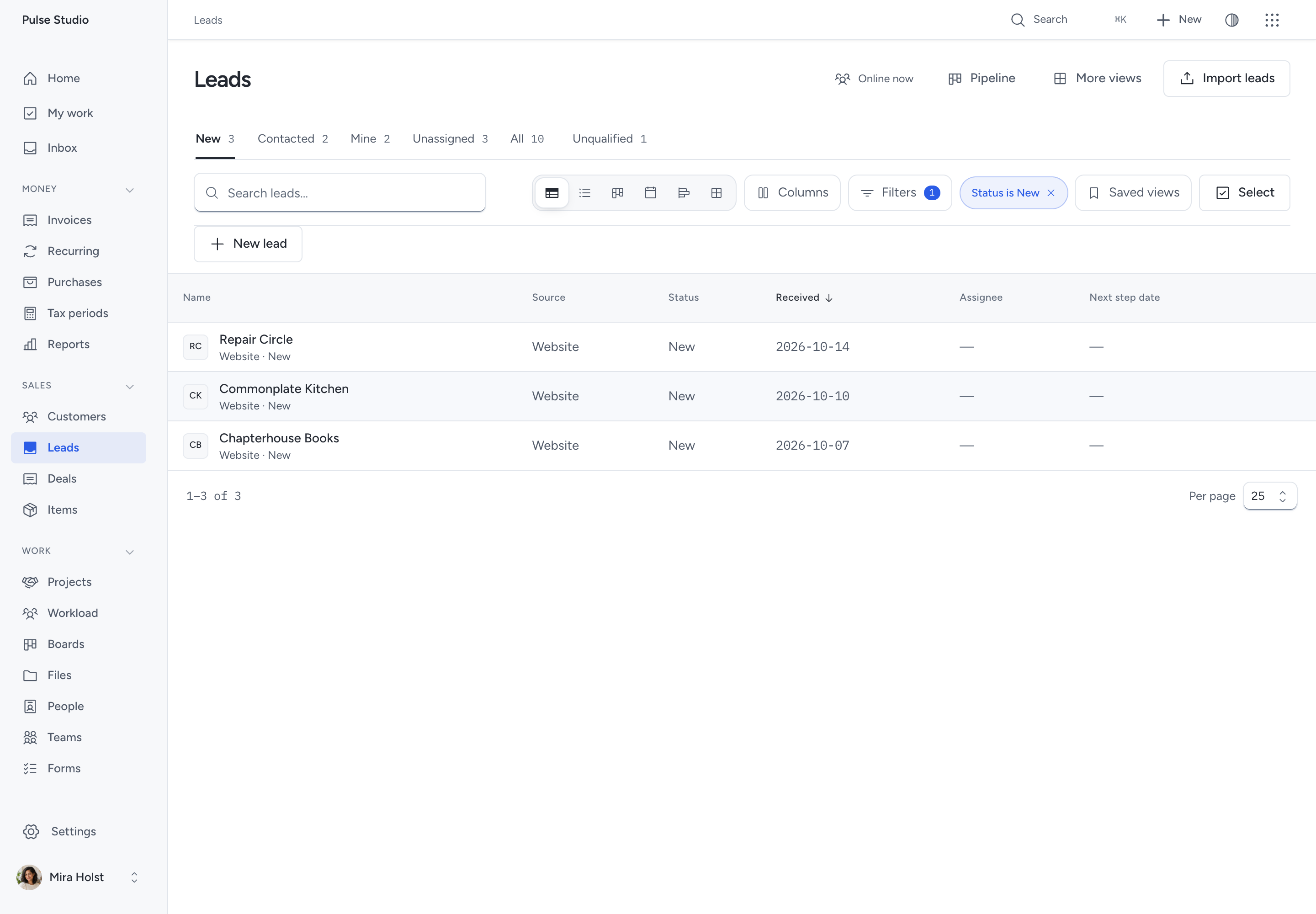
The tabs are working sets. New shows leads that nobody has answered. Contacted shows leads you have answered. Mine shows leads assigned to you or your teams. Unassigned shows leads without an assignee. All shows every open lead in your access. Unqualified shows the leads you closed without a deal.
Each row shows the name, the source, how long ago the lead arrived, the assignee and the next step. A next step with a date in the past is marked in coral.
Use Search for a name, a contact name, an email address or words in the message. Filter by source, assignee or tag, or group by source or assignee. Saved views work as on other registers; see Views of your records.
Open the … menu of a row for Open, Qualify, Mark contacted, Assign, Unqualify, Add to board, Edit and Archive. The menu shows only the actions your role allows.
Click Select to change several leads at once: Assign, Add tag, Unqualify or Archive. Each lead still goes through its own checks. One selection changes at most 100 leads.
Work a lead
Open a lead to see its stage path: New, Contacted and Qualified, or an Unqualified end with its reason. The message, the form submission, the matched customer and the deal it became sit in their own sections above the tabs. Details holds the tags, the dated status facts and the reason. Comments and Activity keep the conversation and the history. On a phone, a bar at the bottom keeps the name, the status and Qualify in view.
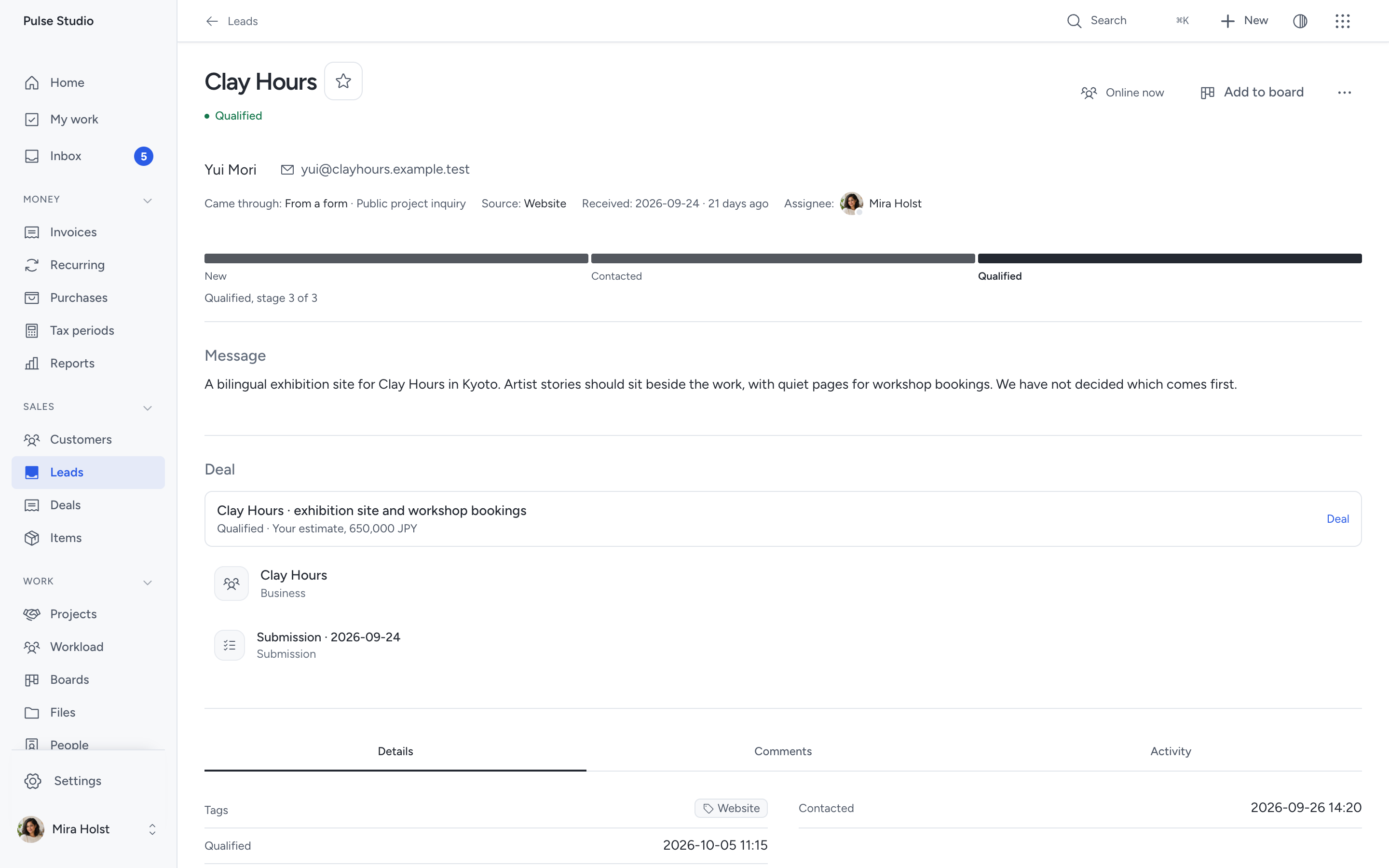
- Mark contacted records that you answered. The lead moves to Contacted.
- Assign gives the lead to a person or a team. You can assign to yourself or to your teams. Reassignment to others needs the management permission. The assignee gets an Assignments notification in the Inbox.
- Edit changes the name, the contact, the email, the phone number, the website, the message, the source and the tags.
- Unqualify closes the lead without a deal. Choose a reason from the list in Settings > Sales and add a note when useful. The lead stays searchable under Unqualified. Reopen returns it to New.
- Archive removes the lead from every list and search. Its page stays readable for history. Restore shows it again.
Add a next step
Every open lead carries one next step. Type what happens next, choose its date and click Save. A step needs a date. A step whose date is today or past appears on Home under Follow up with Add next step as its action. See Home.
Qualify a lead
Qualify when the enquiry is real work. Pepper creates or links the customer and opens the deal in one step.
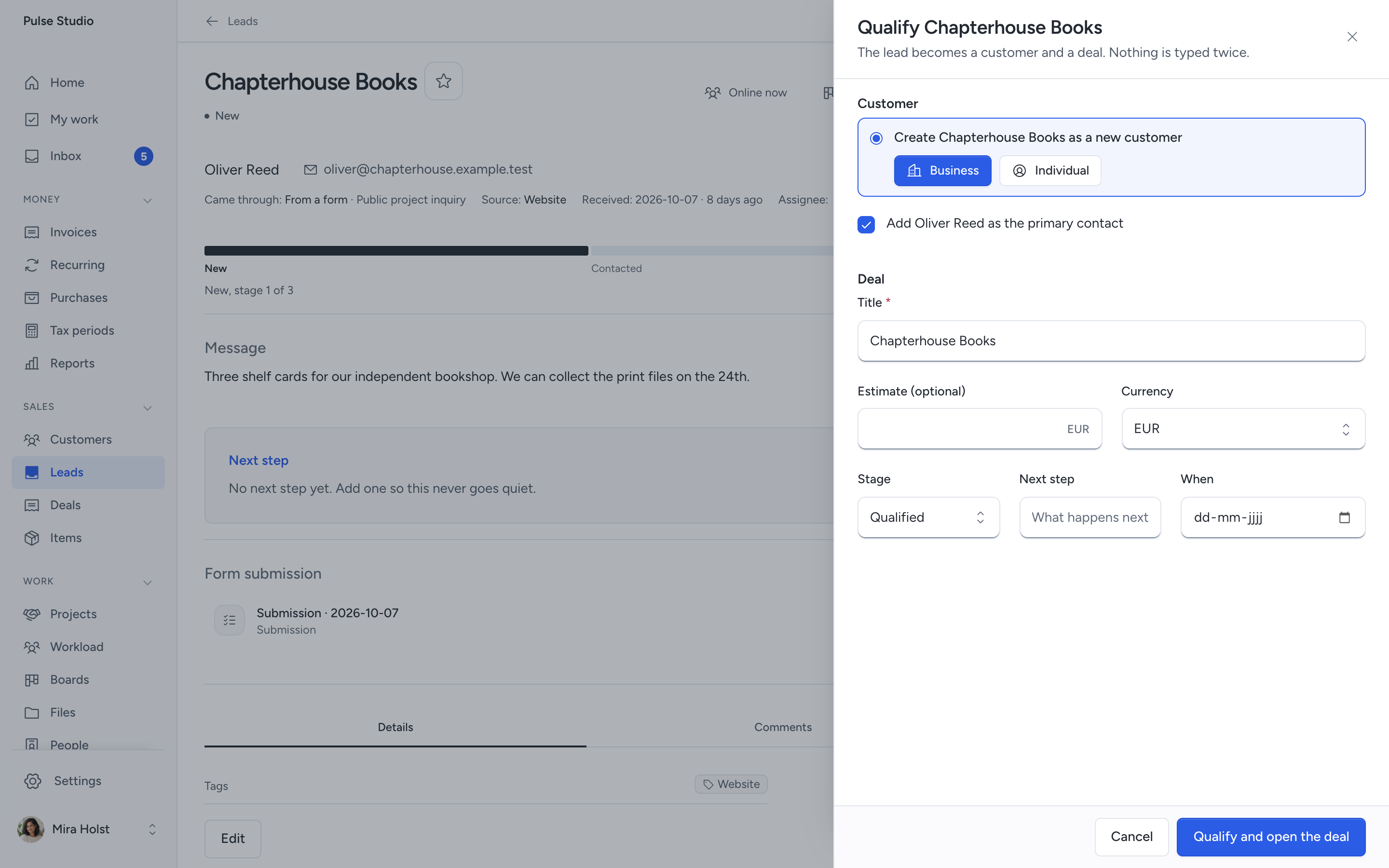
- Open the lead and click Qualify.
- Under Customer, check the matches. A customer with the Same email or a similar name is listed with a link to its record.
- Click Link beside an existing customer, or keep Create … as a new customer and choose Business or Individual.
- Keep Add … as the primary contact when the lead names a contact person and the customer has no contact with that email.
- Under Deal, check the Title, the Stage, the Estimate and the Currency. The estimate is optional. It shows as your estimate until a quote is linked.
- Add a next step when you know it.
- Click Qualify and open the deal.
The lead becomes Qualified and keeps the link to its deal and customer. The lead's tags and source go to the customer. Nothing is typed twice. When you qualify from the inbox, Pepper returns there and focuses the next lead.
A second person who qualifies the same lead at the same time receives a refusal, because the first qualification already created the deal. Pressing the button twice creates nothing twice.
Receive card messages and price requests
A business card or price list creates a request and finds or creates its lead by email.
Each request keeps its own contact details, widget, placement, channel and shown prices where applicable. Repeating one accepted request creates no duplicate.
The request reaches its intended person without changing an existing lead's owner. That person can read the request without access to the lead itself.
Open Widgets > Requests to see the requests within your access. The lead owner can also see a request linked to their lead.
Receive leads from a form or a widget
A form can create a lead for each submission. This works for public forms, internal forms and website widgets.
- Open Forms and open the form.
- Select Lead as its Target record.
- Map the Name field. Map Contact name, Email, Phone, Website and Message when the form has them.
- Enter the Source tag, for example
website. Leave it empty to usewebsite, because the form is on your website. - Choose a Default assignee when one person or team receives every new lead. Leave it empty for the unassigned inbox.
- Click Save.
Each submission creates a lead with the submission linked. The lead's Came through names the form. A submission whose email matches an unqualified or archived lead reopens that lead and appends the new message with its date. No second lead is created. A submission whose email matches a customer keeps that customer as the suggested match for qualification.
Public forms keep their limits: no account, no customer selection and no record updates. See Forms and custom fields.
A contact enquiry from a Pepper website also keeps its website, published version, page, section, language and path with the submission. This records where the request arrived; it does not require analytics setup. The form's Source tag still supplies the lead's Source.
Expand Where this record came from to inspect eligible First touch and Last touch sources. Website details use the receiving publication's name, page title, language, path and version. Current website and historical-source access controls their visibility.
Open the linked submission for its own originating website details. See website enquiry origins for the 30-day summary window and staff link.
Import leads from a CSV file
The import uses the same three steps as the customer and item imports: upload, match the columns, read the result.
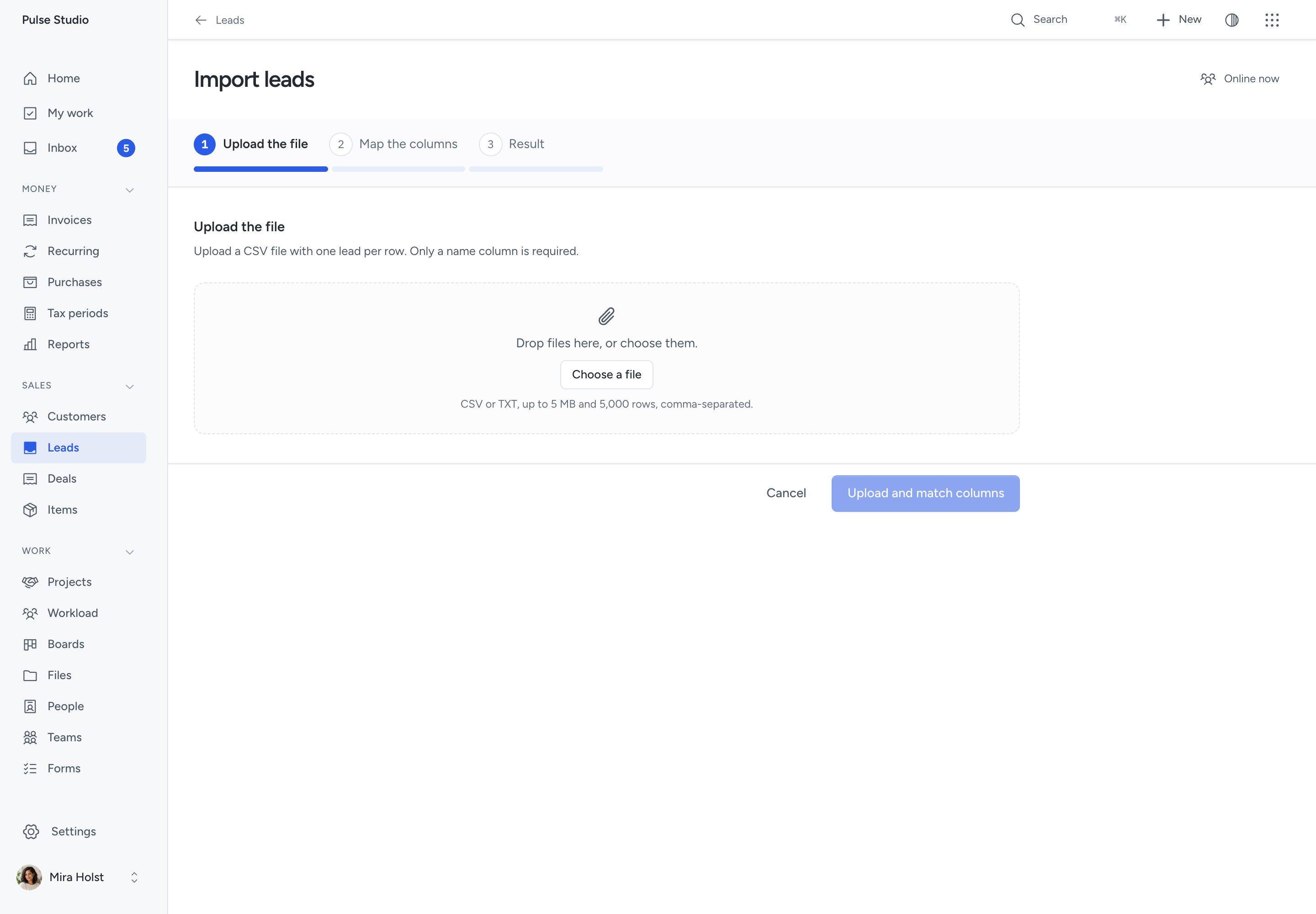
- Open Sales > Leads and click Import leads.
- Choose a CSV file with a name column. Email, contact name, phone, website, message, source, tags, next step and its date are optional.
- Click Upload and match columns.
- Check each row of the table. Pepper matches the columns it recognises, such as
CompanyorEmail. For another column, choose what it Becomes, or keep Skip this column. - Enter a tag under Tag every imported lead with when every lead of this file shares one, for example the fair it came from.
- Check the first rows as leads, then click Import leads.
The result names how many leads were imported and how many rows were skipped. Each skipped row is listed with its row number, the column and the reason, for example an email that already belongs to a lead or a customer, or a date that is not a date. To retry, put only the skipped rows in a new file, correct them and import that file. Do not import the whole file again: Pepper recognises a duplicate only by an email that already belongs to a lead or a customer, so a row without an email is created again. Imported leads record that they came through a CSV import. A source column fills the source; without one, the source stays empty. A file holds at most 5,000 rows. Cells are stored as text; nothing in a cell runs.
Notifications and history
The assignee of a new or reassigned lead receives an Assignments notification. Every change writes to the lead's Activity and to the audit log. When a colleague leaves, offboarding hands their open leads to the successor you choose.
A lead's email, phone number and message stay on the lead page. They never appear in search results of other records, in board cards, in alerts or in agent list results.
What is not included
Lead scoring, email sequences and open tracking, several pipelines, territories and a merge tool are not included. Custom fields on leads follow Forms and custom fields.
Related pages
Follow up on menu and choice requests
Catering, estimator and service-area requests create or find a lead and keep a separate request snapshot.
Open the request to read the visitor's saved choices. A later catalogue, rule or area change does not rewrite those choices.
In the Platform, qualify the lead and prepare a quote from a catering or estimator request. Review current prices and the difference from the saved estimate.
Business accounts keep their own enquiries and cannot access the Platform's quotes. See menus and catering, estimators and service areas.
Need help with the product?
Contact support