
Browse the manual
Use Assistant
Ask for a business task, review exact changes, and keep control of every action.
On this page
Assistant helps you prepare work through Pepper's existing business tools. You review every change before it runs. The owner must first set up a provider; otherwise the panel is absent.
Allow your tools
- Open Assistant from the top bar.
- Select the tool groups needed for your work.
- Choose an expiry of 1 day, 7 days or 30 days.
- Click Allow selected tools.
Your grant cannot exceed your current role or record access. Selecting a task never grants its tools. Tasks without the required tools remain unavailable in the chooser. External MCP credentials do not act as your personal Assistant grant.
Use Tool access in the conversation menu to review your grant. Withdraw access stops later tool use and discards pending confirmations. An action already started can still finish.
Ask for a task
Choose a task, enter a clear request and click Send. For example:
- Prepare an invoice for Northwind Studio for 3 days of design at €500 a day.
- Explain the current overdue balances by currency.
- Review a customer's recent work and open invoices.
- Qualify an enquiry or prepare a quote for a deal.
- Review the sales pipeline or a project's status.
- Prepare an invoice from selected unbilled time, or log time on a task.
- Create a Doc from a permitted template and linked record.
Give the customer, project, dates and intended result. If a source or tool is unavailable, use its ordinary screen. Newly registered supported tasks appear through the catalogue; model replies cannot create new permissions.
Confirm a change
Every write stops at a confirmation card, including saving a draft or logging time. Read its target, input and exact figures before clicking Confirm. Pepper calculates financial values in PHP. A model's text is not proof that an invoice was issued, sent or paid.
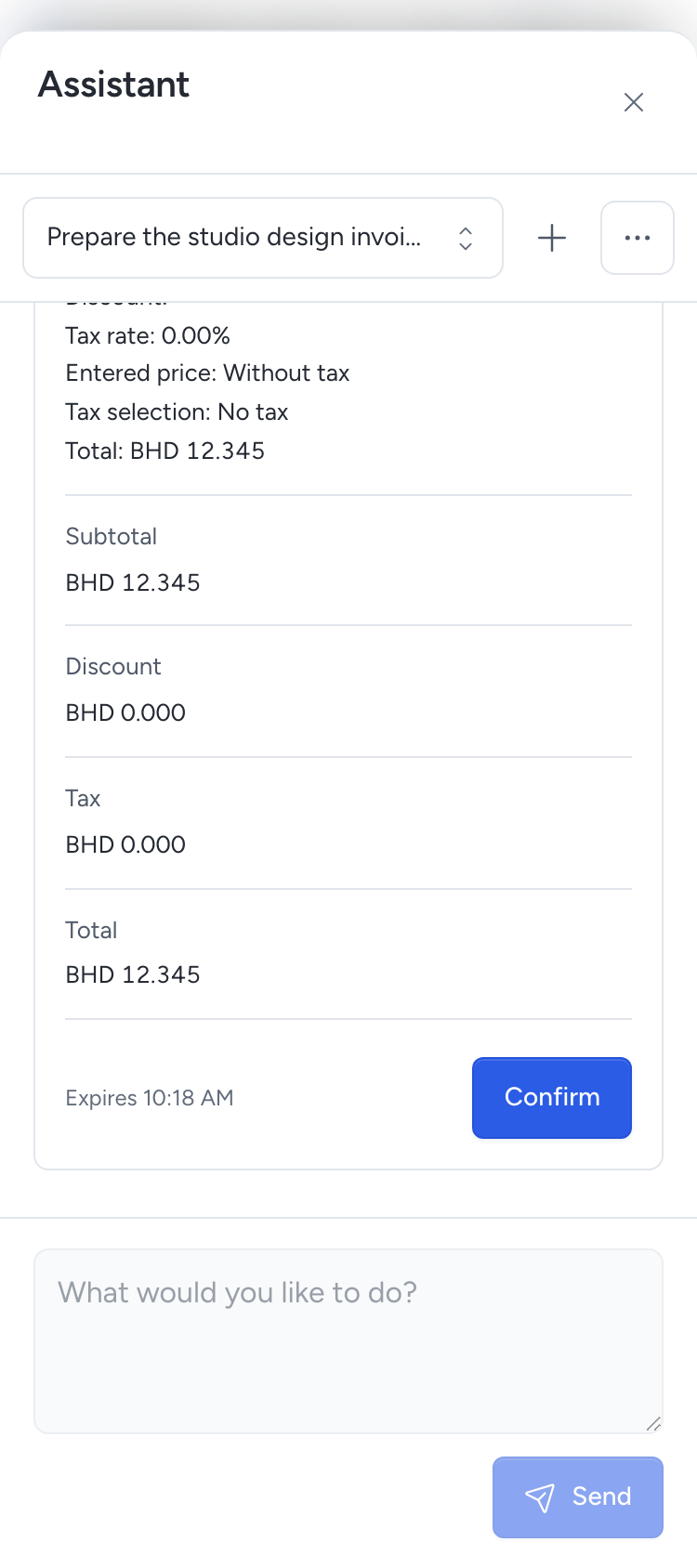
Cards expire after 5 minutes. Changed source data, settings or access require a fresh request and card. List results keep complete pages and their next-page information. A result that exceeds the size limit is refused; ask for a narrower search. Generated explanations show No changes made. Only an action receipt records a confirmed change. After success, check that receipt. Open the saved record from its ordinary page. An invoice draft has no issued number and has sent nothing.
Sensitive actions keep their separate exact human approval. Confirming preparation in chat creates an approval request; it does not approve or execute the sensitive action. Open the linked request and approve or reject it in Pepper. After approval, return to the same conversation and send a follow-up message. Review and confirm the new execution card. Chat cannot approve its own request.
Stop and return later
Stop cancels the current turn and pending proposals. It cannot recall a request already sent or undo a business action already started. Check its returned result before trying again.
Closing the panel keeps unsent text for the current page visit. Reopen it to continue. Saved conversation choices depend on the owner's history setting and your current access. A previous answer may disappear after its source access changes.
Recover without repeating an action
If a response is lost or the provider fails after a confirmed write, click Refresh first. Pepper can recover a currently authorized action receipt without running the write again. Check the source record if the outcome stays unknown.
Expired or unknown provider requests still count against the daily request limit. Pepper never retries generation automatically. If access or data changed, start a new request with current information. Ordinary screens remain available when the provider fails or the limit is reached.
Delete your history
Use Delete conversation in the panel menu for one conversation. To remove all your stored Assistant conversations, open Your profile and click Delete assistant history. Confirm the deletion. This control stays available while you have stored history, even with the provider disabled or an old grant revoked.
Deletion removes your local conversation bytes and cancels pending confirmations. It preserves business records, started-action facts and charged usage. It cannot delete copies held by your provider or in older backups. You cannot inspect or delete another person's Assistant history.
See provider setup and retention for the owner's history choices and customer data and privacy for other records.
Need help with the product?
Contact support