
Browse the manual
Views of your records
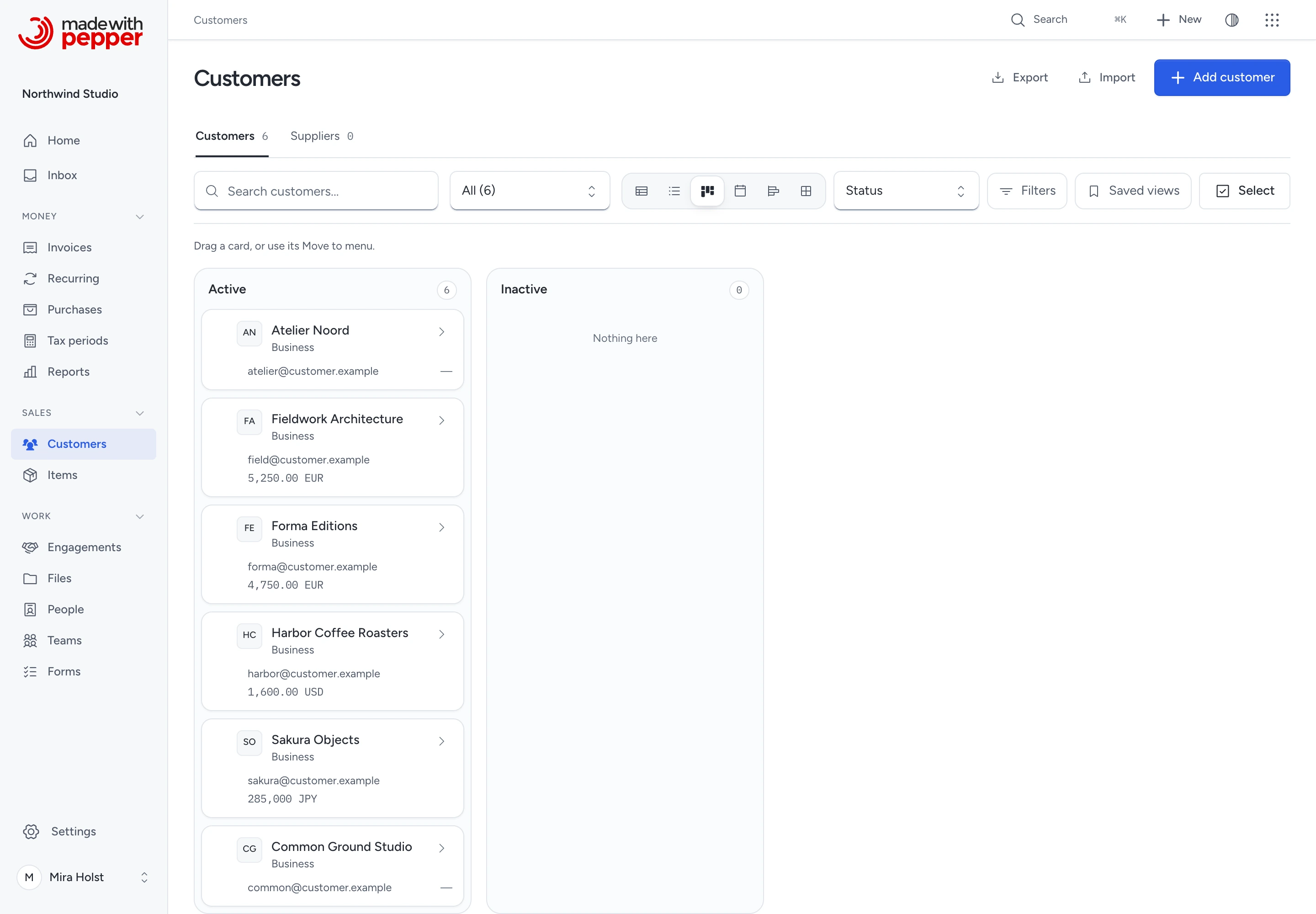
Show customers, documents, items, purchases, projects, leads and deals as a table, list, board, calendar, timeline or gallery. Filter, save and share a view, and change many records at once.
On this page
For: everyone who works with lists of customers, documents, items, purchases, projects, leads or deals. Where: the view bar on Customers, Invoices, Quotes, Credit notes and Pro formas. On Items, Purchases and Projects, click More views.
A view shows the records that you can open. It never shows a record, a count or a total from outside your access. A view that a colleague shares with you uses your own access, not theirs.
Choose a layout
The view bar sits beside the search field when there is room. On a narrow screen, it moves below. Click a layout to change it.
Group by sits below these controls on registers that offer grouping.
| Layout | What it shows | Use it to |
|---|---|---|
| Table | One row for each record, with the columns you choose | Compare records and sort by a column |
| List | One compact row for each record | Scan many records quickly |
| Board | One column for each value of a field, such as the status | See the records in each state |
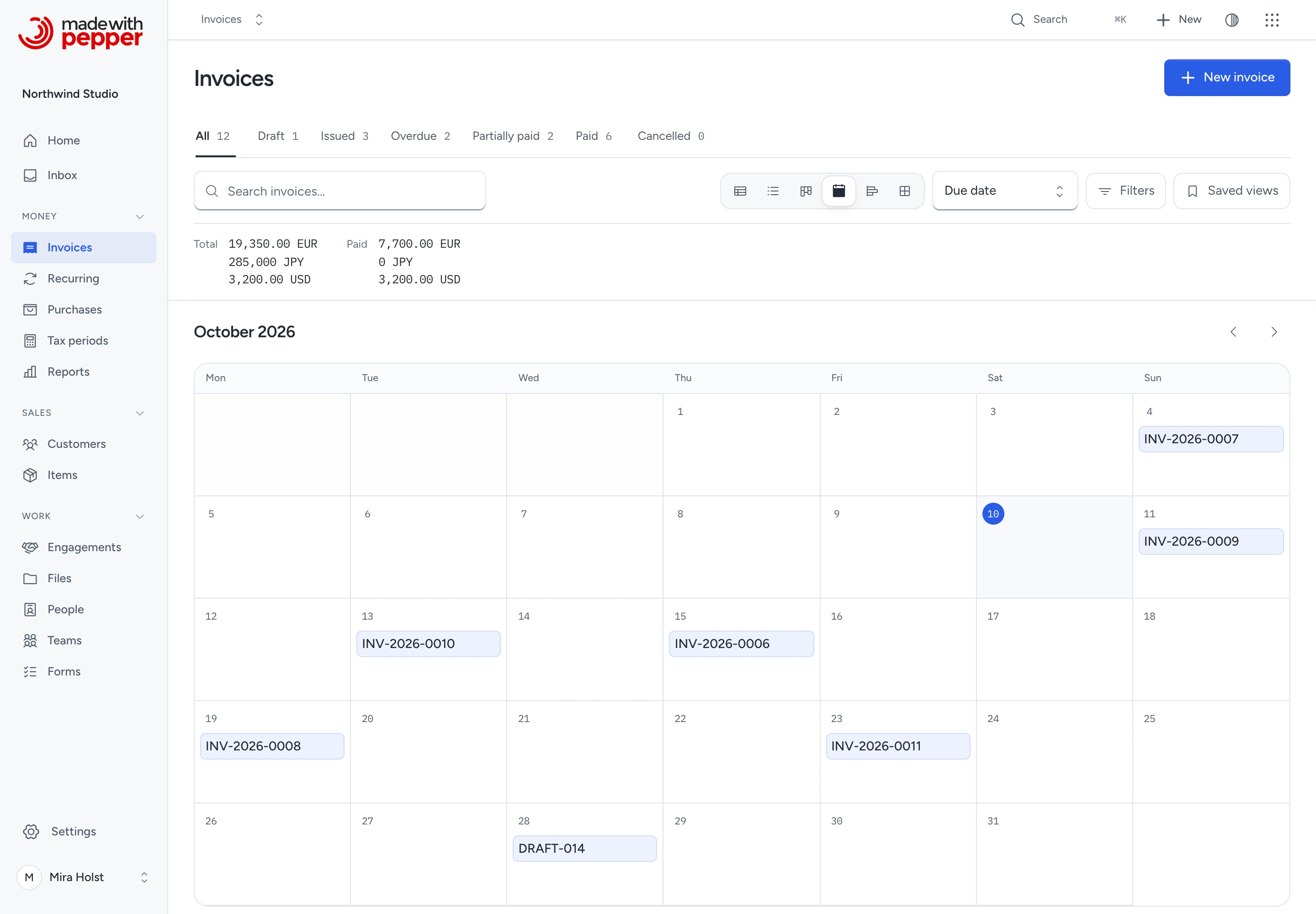
| Calendar | A month with the records on a date field, such as the due date | See what falls on which day |
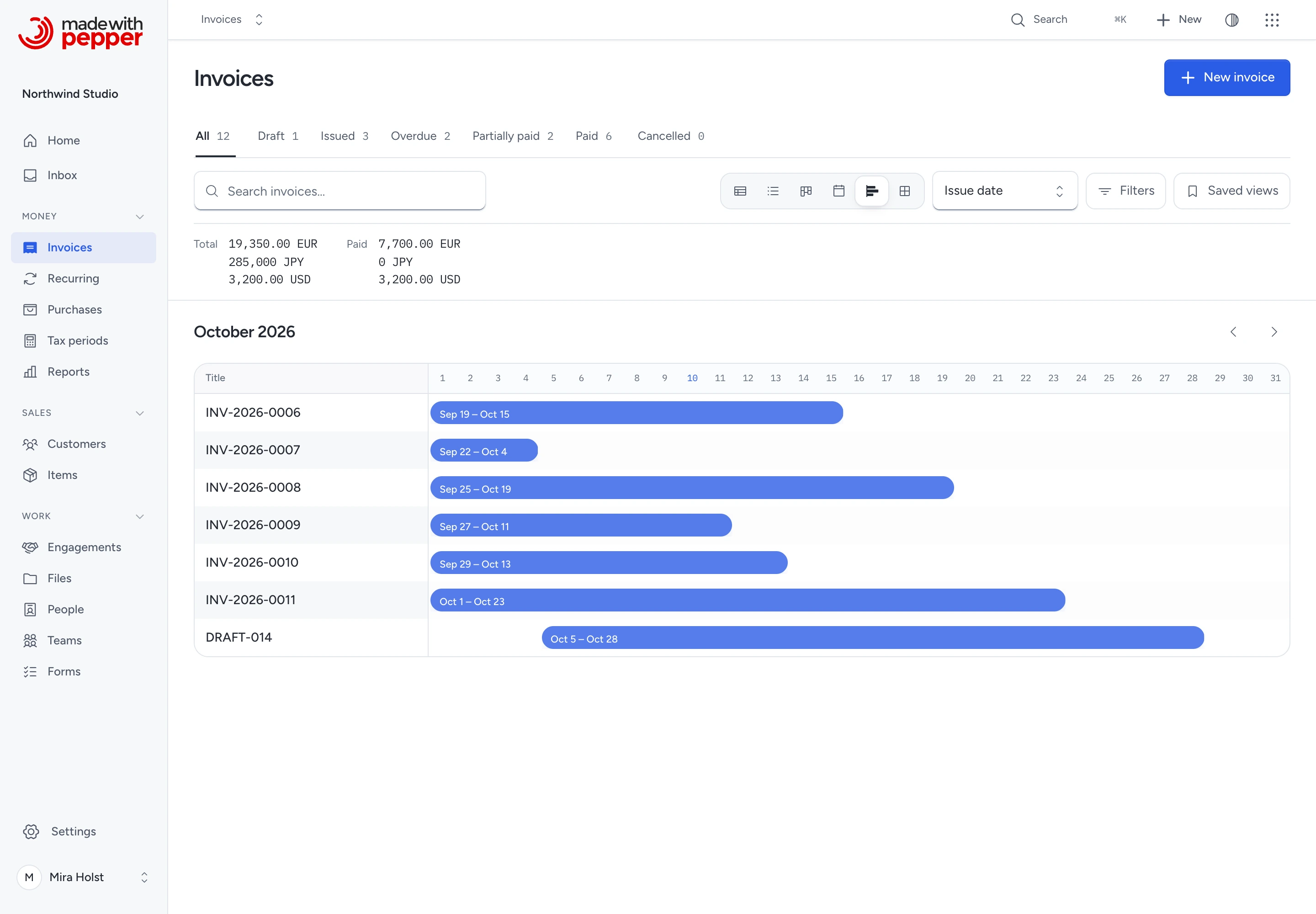
| Timeline | A bar from a start date to an end date | See how long records run and where they overlap |
| Gallery | A card for each record | Recognize records by their picture or icon |
A layout shows only when the records have the field it needs. A board needs a field with fixed values. Calendar and timeline need a date field.
The address in the browser holds the whole view: layout, search, filters, sort, grouping, columns and month. Copy the address, or click Saved views and then Copy view link, to share the view.
Sort and choose columns
- Click Table.
- Click a column heading to sort by it. Click it again to reverse the order.
- Click Columns.
- Select the columns you want. A view shows up to 12 columns.
- Close the menu. The table shows the new columns.
The first column is always the record's name or number.
Filter a view
- Click Filters.
- Select a field and a comparison.
- Enter or select a value.
- Click Apply filter.
The filter shows as a chip next to Filters. Click the chip to remove the filter. A view can have up to 10 filters.
| Field type | Comparisons | Value |
|---|---|---|
| Text | contains, is | Up to 100 characters |
| Fixed values, such as status | is, is any of | One value from the list |
| Date | on, before, after, between | A date. For between, two dates separated by a comma |
| Amount | equals, more than, less than, between | A decimal amount, such as 100.50. For between, two amounts separated by a comma |
| Tags | has tag | One tag |
An amount filter applies to every currency in its own decimals. more than 100.5 finds EUR 100.51 and JPY 101, but not JPY 100. If a value has more decimals than a currency, equals finds no amount in that currency.
For Form, search its name and choose a saved form. Then click Apply filter.
Filtering also works in demo mode. Pepper refuses a filter that it cannot apply exactly. The filter panel shows the reason.
Use custom fields
Active custom fields appear in Columns, sorting and matching filters. Their keys are custom_<key>.
Custom numbers keep up to 24 integer digits and 6 decimals. Custom money compares exact amounts in each currency's own scale.
Custom fields add no currency totals, board lanes or calendar date axes. Files and linked records show only permitted identities and have no value filters.
Retired fields leave default views and search. A saved view that uses one shows a refusal; remove that criterion to continue.
See Create forms and custom fields.
Read the totals
Above the records, a view of documents or purchases shows the total of each amount field. The total covers all records that match the view, not only the records on the page. Each currency has its own line. Pepper never adds different currencies together.
Document totals need the View financial summary permission. Purchase totals need View all purchases and their files.
Use the board
This layout groups business records by a field. For work that you arrange in your own lists, use Boards and cards. Moving work on those boards does not change an invoice’s financial state.
The board shows one column for each value. Each column shows its count and its first 50 cards. If a column has more cards, click Show all to open the table with that value as a filter.
On customers and items, you can move a card to change its status:
- Drag the card to another column. Or click the arrow on the card and select a column under Move to.
- The card shows Moving… until Pepper saves the change.
The change uses the same checks as the record's own form. You need Manage customers or Manage items. If the change fails, the card stays in its column and shows the reason.
Document, purchase and project boards only show the records. Their state changes need their own steps, such as recording a payment or voiding a purchase. A deal board moves a deal to another stage through the same action as the pipeline; the deal joins the end of that stage.
Use the calendar and the timeline
- Click Calendar or Timeline.
- Select the date field next to the layout, if the records have more than one.
- Use the arrows to go to another month. Click This month to come back.
The calendar shows up to 500 records in a month and the count of each day. The timeline shows up to 200 bars. When a month has more records, a note tells you. Add a filter, or use the table.
On the timeline, an invoice runs from its issue date to its due date. A purchase runs from its date until it is paid. A project runs from its start until it closes. A bar that fades has no end yet.
Below 640 px wide, the calendar shows a list of days. Below 768 px, the timeline shows a list with dates.
Save a view
- Arrange the view: layout, filters, sort and columns.
- Click Saved views.
- Enter a name under Save this view.
- Under Who can open it, select Only me or one of your teams.
- Click Save this view.
To open a saved view, click Saved views and select it. Your own views show under Mine. Views from your teams show under Shared with my teams.
- You can save up to 50 views for each kind of record.
- You can share a view only with a team you are a member of. Guests cannot share views.
- Only the person who saved a view can delete it. Click the bin next to the view.
- A team view opens with your access. If it filters on a field that you cannot see, such as the paid amount without the financial summary permission, it does not open for you.
Use a record's menu
Every record in a list, every board card and list, every file and every comment has a … menu. With a mouse, it shows when you point at the row or move focus to it. On a touch screen, it is always visible.
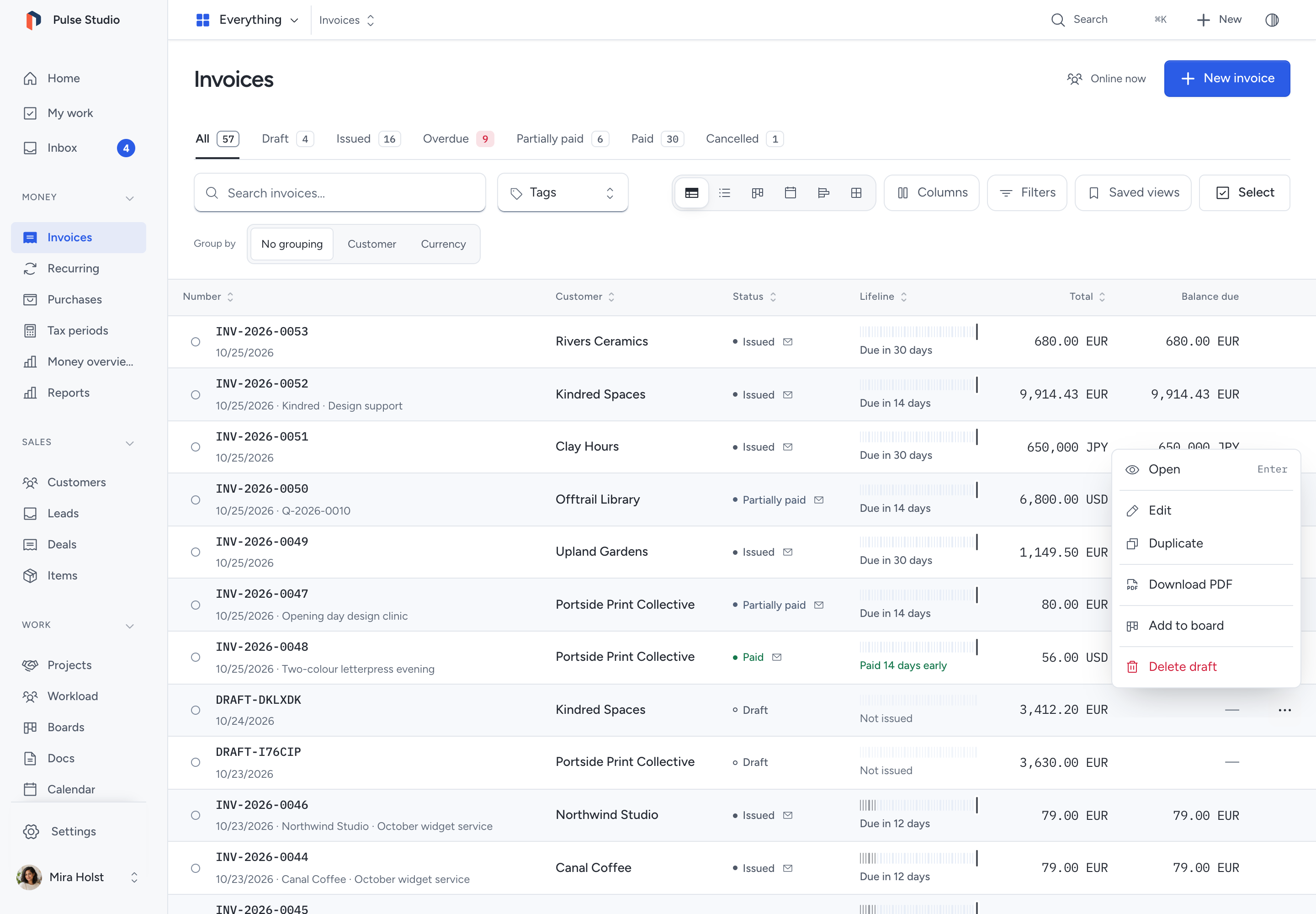
You can open the same menu at the row:
- Right-click the row.
- Move focus to the row and press the menu key, or Shift+F10.
- On a touch screen, press and hold the row.
The menu shows only the actions your role allows for that record. Their order is fixed: open first, then change, organize and share actions, then state changes, then delete. The … button, the right-click menu, the selection bar and the search panel list the same actions. On a record's own page, the search panel shows them under Actions for and the record's name.
Opening a menu changes nothing. Pepper checks each action again when you choose it. An action that asks for confirmation still asks. If Pepper refuses an action, the record stays as it was and the message says why.
In select mode, right-click a selected record to open the menu for the whole selection. Its heading shows how many records it acts on.
In a field, a text editor, a link inside a row or selected text, a right-click opens your browser's own menu.
Change many records at once
- Click Select. A check box shows in front of each record.
- Select the records, or click Select every record on this page.
- To include other pages, click Select all followed by the result count.
- This selects the records that match the current search and filters.
- In the bar at the bottom, click an action.
- If the action asks for confirmation, click it again in the dialog.
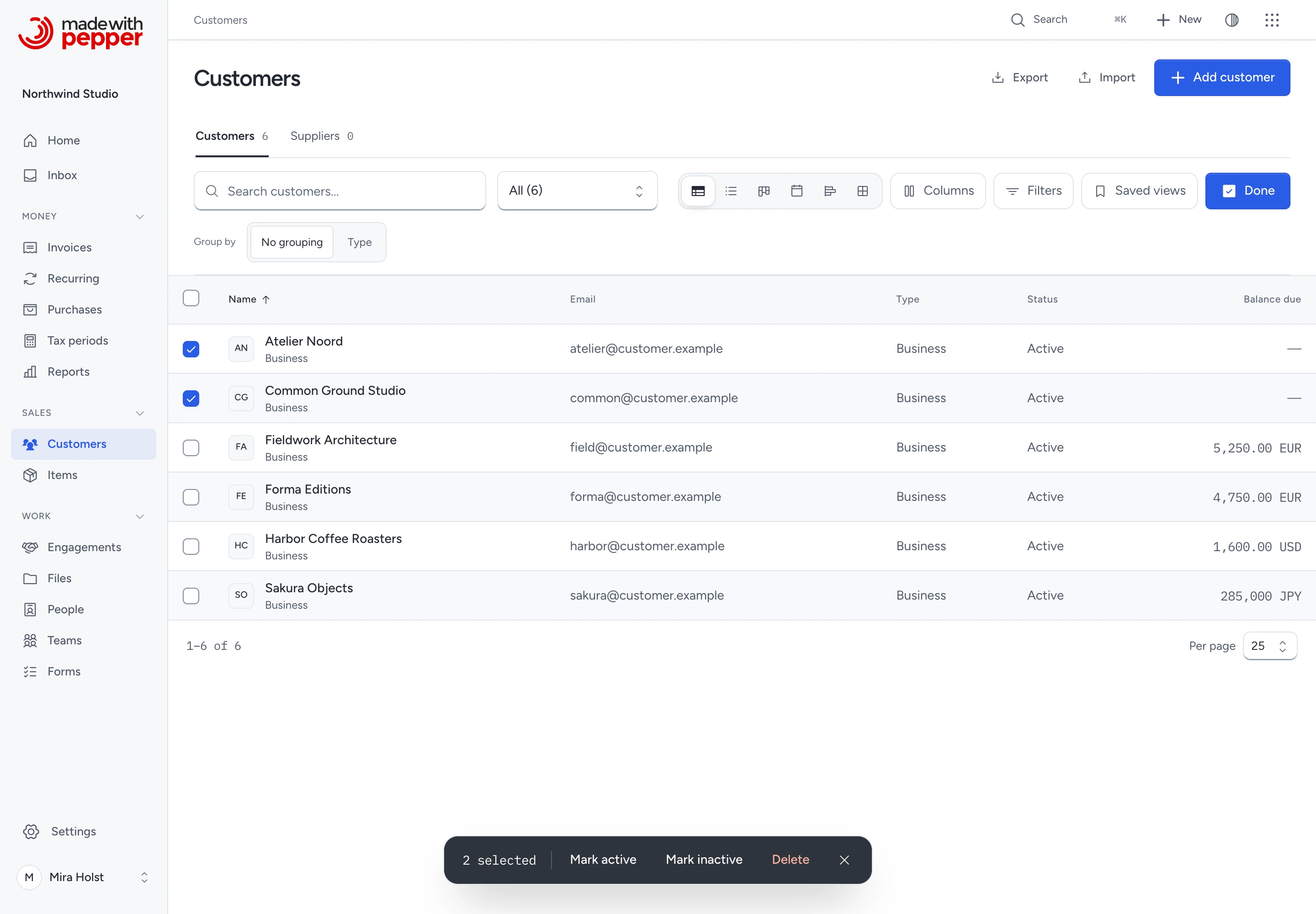
| Records | Actions | Permission |
|---|---|---|
| Customers | Mark active, Mark inactive, Delete | Manage customers |
| Items | Archive, Restore | Manage items |
| Form submissions | Archive, Restore | Manage forms and custom definitions |
| Documents | Delete drafts | Create and change documents (invoices.manage). An employee who sees only their own documents deletes only their own drafts |
The actions in the table accept up to 100 records at once. Select fewer records if these actions are disabled.
Add to board accepts the selected records across pages. Each record goes through its own checks. A record that cannot change stays as it is, and the message names it. For example, Delete drafts never deletes an issued invoice. The other records still change.
The action bar stays near the bottom of the screen while you scroll. On a phone, it sits above navigation.
Click Done, click Clear selection, or press Esc to leave select mode.
Use the keyboard
| Key | Action |
|---|---|
| Up and Down arrows | Go to the previous or next record |
| Left and Right arrows | Go to the previous or next card in the gallery |
| Enter | Open the record |
| Space | Select or clear the record in select mode |
| Menu key or Shift+F10 | Open the record's menu |
| Esc | Leave select mode, or close an open menu |
For agents
A connection with read access can read views through 16 tools, one for each register: views_document, views_customer, views_lead, views_deal, views_engagement, views_task, views_time_entry, views_purchase, views_item, views_listing, views_listing_request, views_booking, views_widget_response, views_form, views_form_record and views_form_submission. They take the same search, filters, sort, grouping and columns, and they show only what the delegated person can see. They do not change records. With prepare access, a client can also run a view's bulk action on up to 100 records, or move one card to another lane of a board layout, through the same action as the selection bar or a drag: for example views_lead_bulk or views_task_move. Saved views have their own tools, such as views_saved_save. The tool reference lists every view tool with its grant.
Related
Plan project tasks
The task register adds assignee, priority, status, start and due dates, estimate and permitted logged minutes. Use the board to move status, or choose a status from the task. Bulk actions can assign tasks, set dates, change status, add tags or archive work, with a fresh access check for each task.
The timeline spans start through due dates, shows milestone notches and draws blocked-by links. Drag a bar, open its date controls or use Alt + Left/Right on a focused bar. Add Shift to move a week. Changing one task does not reschedule its dependencies. See Plan and complete tasks.
Need help with the product?
Contact support