
Browse the manual
Track time
Run a timer, enter exact minutes, fill a weekly timesheet and correct time before billing.
On this page
For: people with Use projects who record their work. What you need: a task or project you can open. A guest needs an explicit project grant. Manage projects lets a manager record and correct another person's time.
Run a timer
- Open the task and choose Start timer.
- Continue working. The timer in the top bar shows the task and the time on every page.
- Choose Stop in the top bar, or Stop timer on the task. Pepper saves the time.
- Open the saved entry if you need to add a note or correct its minutes.
Pause and resume
Choose Pause in the top bar to take a break. Pepper saves the time so far as an entry, as Stop does. The top bar then shows Paused with the saved time.
- Choose Resume to time the same task again. Pepper starts a new entry on that task.
- Choose Done when you will not continue. The saved entry stays, and the timer leaves the top bar.
The paused timer stays after a reload, in another tab and on another device. Starting or stopping any timer clears it. If the task is archived, its project is closed or you can no longer open it, Resume refuses and the paused timer disappears.
Each person has one running timer. Starting another stops the first and starts the new one. Reloading or opening another tab keeps the server's start time. Closing your browser does not stop the timer.
A timer saves whole minutes when you stop it. A run longer than 24 hours saves 24 hours and asks you to correct the entry. Offboarding or deactivating a person stops their timer and keeps their name on the time entry. A role or guest-access change also stops the timer if the person can no longer open that entry.
Enter time by hand
- Choose Log time from a task, project, My work or the time register.
- Choose the task or project and the Date.
- Enter Duration, for example
90,1:30or1h 30m. Or choose Start and end and enter both times. - Add a Note if needed, up to 500 characters.
- Check Billable and choose Save.
An entry holds 1 minute to 24 hours. The end must follow the start. Record a period that crosses midnight as separate entries. A fixed-price project's time starts as non-billable. Hourly and mixed projects start as billable. You can change that flag before billing.
Stored minutes stay exact. Invoice preparation rounds grouped lines using the project's billing increment.
Fill the timesheet
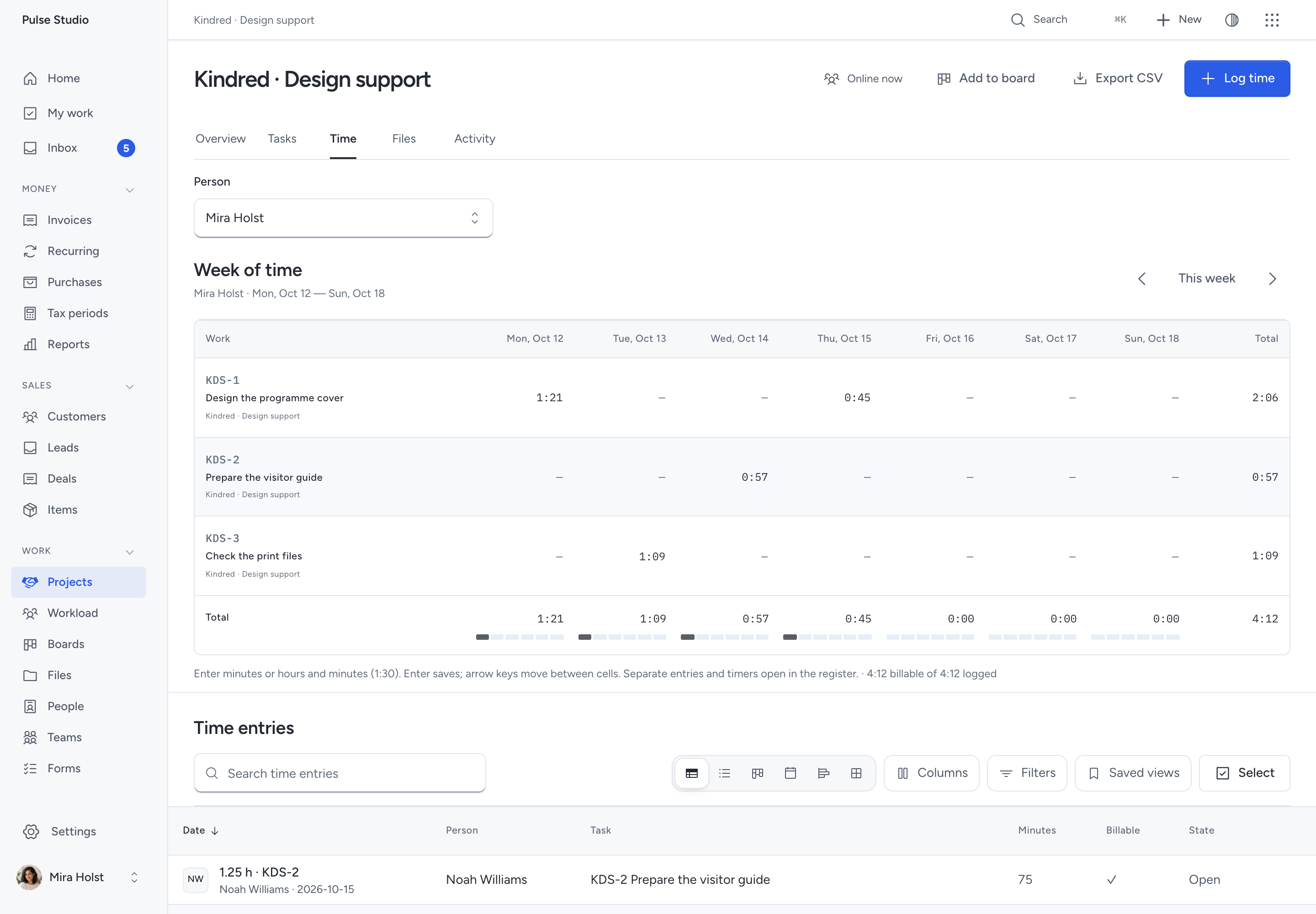
Open Time and select the week. Rows show tasks or projects; columns show days. Enter minutes or hours:minutes in an editable cell. Enter saves the cell. Arrow keys move between cells.
The day and week totals show recorded time and the billable part. The LED cells below each day’s total compare recorded time with your working hours and time off. Hours not set means availability is unknown; it does not mean zero hours.
A cell with separate entries, a timer, recorded start and end times or allocated time opens the entry register for correction. A changed cell is refused until you reload the week, so one person cannot overwrite another's update.
With Manage projects, use the person selector to inspect or enter another person's time. Other people see their own entries and notes.
Understand rates
The app chooses the billing rate in this order: an entry override, a task rate, the project rate, then the person's rate on the entry date. Manage projects permits overrides. Manage people controls the dated rates in People.
The rate must use the project's currency. The app refuses a rate in another currency; it does not convert it. A billable entry without a rate stays visible as needing one and cannot enter an invoice draft.
Changing a note or duration keeps the saved billing and cost rates. Changing the work or entry date resolves the applicable rates again. A later rate change does not rewrite old entries.
Correct or export entries
Open Time entries to search, filter, edit or delete permitted entries. Stop a running timer before editing it. Choose Export CSV to download the current permitted selection.
An entry on an invoice draft is locked. Delete that unissued draft to release its entries before changing them. Issued entries stay locked, including after a credit or cancellation. Use the invoice's financial correction process for issued work.
If a request fails, keep your input and retry. If the record changed, reload and review it first. Closed projects accept no changes; a manager must reopen the project.
Review workload
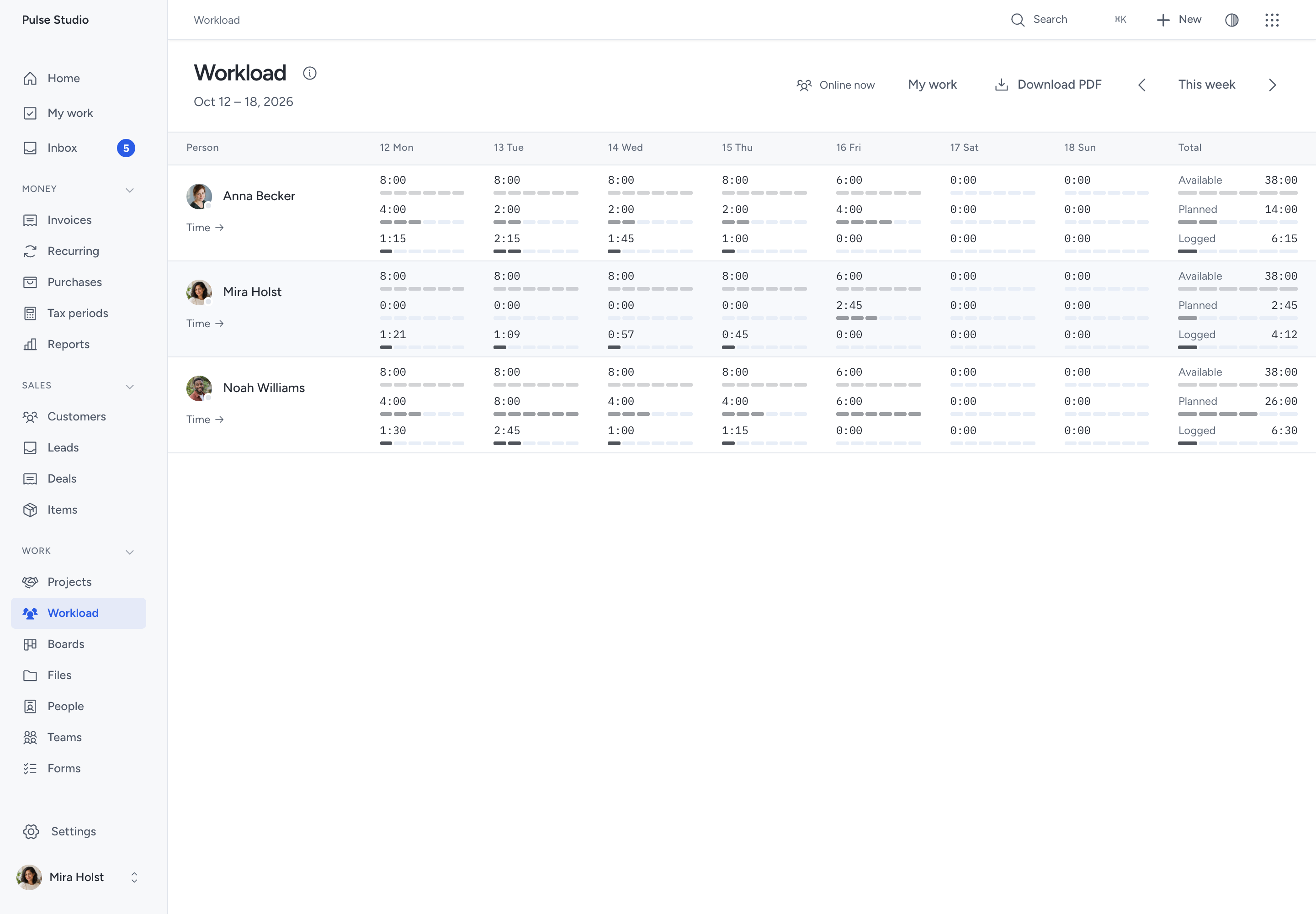
People with Manage projects can open Work > Workload for a week. The dates below the title show the selected week. Select the information icon beside Workload to read how its figures are calculated.
Available time comes from working hours minus time off. Planned time comes from estimates on tasks due that week. A team task appears for each team member. Logged time comes from saved entries. The view states when hours are unknown.
Select Time below a person to open their timesheet for the same week. Choose My work to open your own tasks, where you can start a timer. The dot on an avatar shows online status. It does not change available hours.
Choose Download PDF to save the selected week. The report includes the business name, dates, daily figures, totals and calculation notes. It keeps unknown hours visible and shows durations in hours and minutes. It contains only people and figures you can view; live presence and private task notes are omitted.
Each person can see their own weekly figures in My work. Workload does not move task dates or enforce a booking limit.
Need help with the product?
Contact support