
Browse the manual
Connection settings and access reference
Owner setup, credentials, access grants, invoice approval and connection recovery.
On this page
For: owners who manage connections and developers who configure MCP or HTTP clients.
A connection can use only its selected access within the person's current permissions. Sensitive actions need approval of the specific request, from your decision or a matching rule with limits.
To connect your own app, start with Connect your AI. This reference covers delegation, credentials and exact access rules.
Connect through browser sign-in
AI is optional. Pepper works without an AI account. You choose each connection's access, and you confirm invoice and quote issuance.
The owner can also connect a client from the console and choose another person for it to act as.
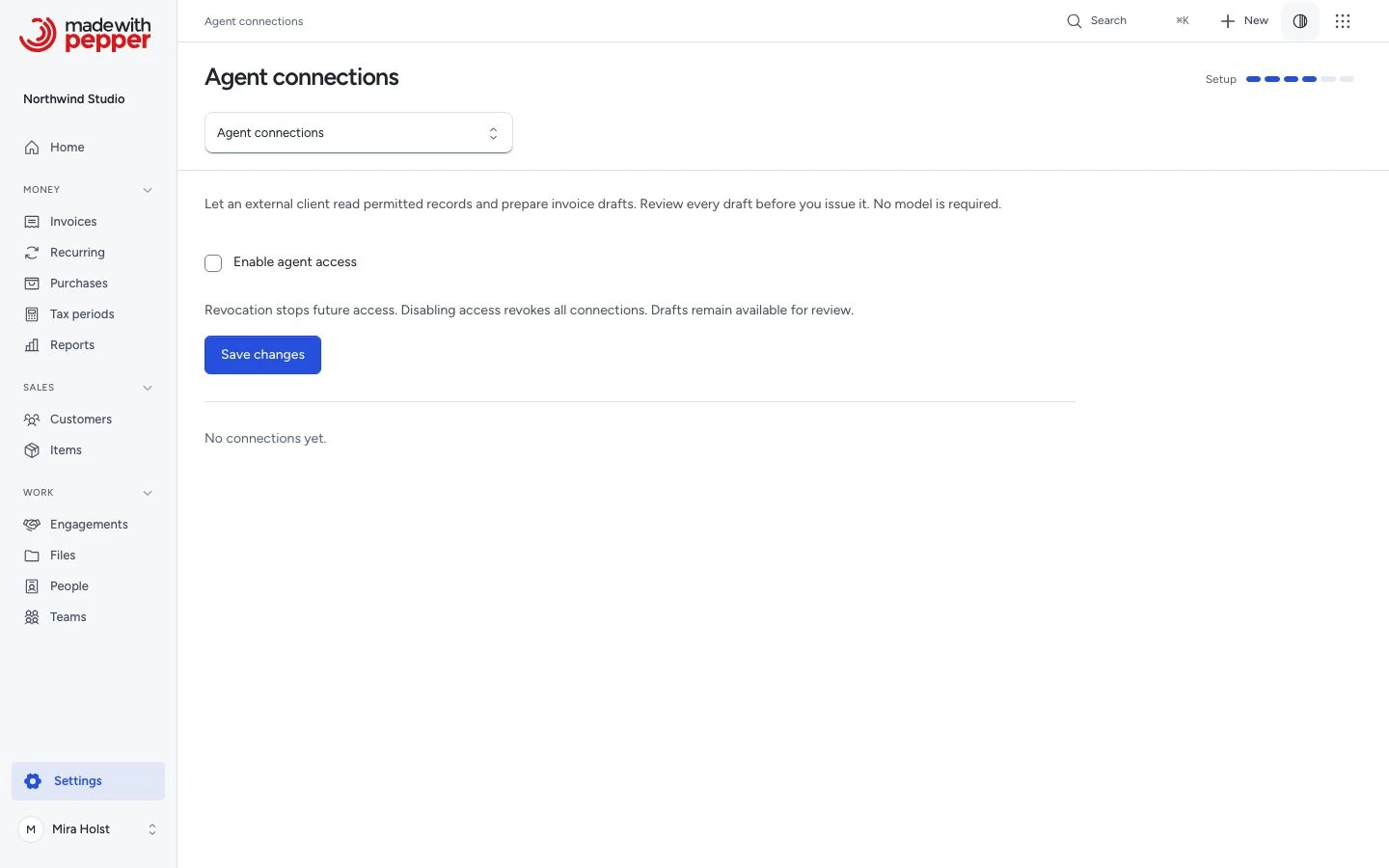
- Open Settings > Agent connections as the owner.
- Click Enable client connections if access is off.
- Click Copy address and add that address as a remote MCP server in your client.
- Start the connection from your client.
- Sign in to Pepper as the owner.
- Check the client name and the browser's return address.
- Clear any Permitted access the client does not need.
- Choose an active staff member in Delegate as user and set the expiry.
- Click Allow access.
Enabling connections allows browser sign-in. It grants no client access on its own. A connection lasts between 1 and 30 days.
Click Deny if the client or return address is wrong. Allow a return to your own computer only for a connection you started.
The browser returns to the client. The client manages access tokens and refreshes them within the connection's expiry.
Browser sign-in needs HTTPS at the root of your domain or subdomain. It does not support an installation in a subfolder.
An unregistered client or return address shows This connection request cannot be used. Start a new connection from the client.
See Use Pepper from your AI client for tested clients and example requests.
Connect AI in a customer workspace
A workspace connection can use only that business’s records, within the person’s workspace role, shop access and plan. It cannot reach the provider’s records or another workspace.
Supported work includes the business’s website, shop, stock, widgets, bookings, listings, analytics, people, team and catalogue. Shop actions use that business’s orders, invoices, credit notes, refunds and Stripe account. The AI cannot read or enter Stripe keys.
Both installation access and the workspace’s AI for this account switch must be on. Each person connects their own app. A person who also works on the provider’s team needs a separate connection for that team. Check Where it works on the consent page.
The connection’s person reviews requests in that workspace’s Agent approvals. The workspace owner can stop any connection there. Turning off either switch or removing the person from the workspace stops access. See the workspace tool list.
Create a pasted-credential connection
Use this method for a client that supports bearer authentication. The credential works with both MCP and HTTP.
- Open Advanced connection options on the Agent connections page.
- Enable agent access and save if it is off.
- Enter a Connection name and Purpose.
- Choose an active staff member in Delegate as user.
- Set Expires after (days, 1–30).
- Select the Permitted access the client needs.
- Click Create connection.
- Copy the credential into your client's secret store, then click Close.
The credential appears once. Keep it out of URLs, browser storage, source code and logs. If you lose it, revoke the connection and create another.
For MCP, use the address at the top of the page and the client's bearer-credential setting. For HTTP, use the API address under Advanced connection options and send Authorization: Bearer <credential>.
Use a server or command-line client for direct HTTP calls. Browser JavaScript requests with an Origin header fail.
See what a client can do
Jobs gives example requests and the access each job needs. Apps and access shows the tools for each installed app. Expand an app to read its tool list. Actions without an agent tool stay in Pepper.
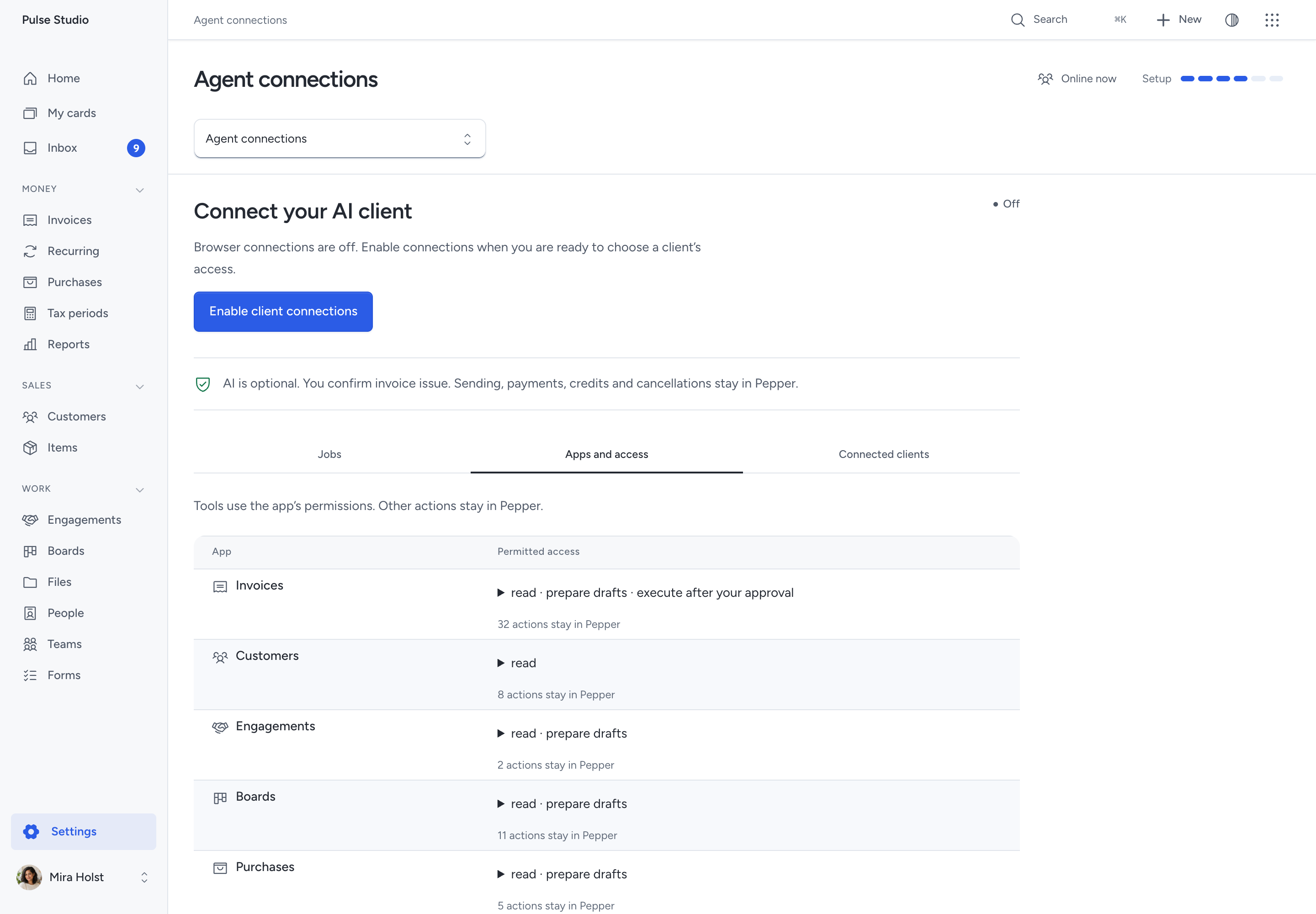
Connected clients shows who each connection acts for, its expiry and its last use. Expand a connection to see its permitted tools, saved drafts and recent approval states.
Limit the permitted work
A connection acts within the delegated user's current permissions and record access. It cannot add a permission that user lacks.
Active staff with a built-in or custom role can be delegates. Guests cannot hold agent connections.
| Permitted access | Grant | What the client can request |
|---|---|---|
| Invoices · read | invoices:read |
List and read permitted documents, totals, PDFs, XML, messages, email previews, recurring schedules and online payments |
| Invoices · financial summaries | invoices:finance-summary |
Read current overdue balances by currency and permitted invoice links; needs the financial-summary permission |
| Invoices · make changes | invoices:prepare |
Create and change document drafts, start credit notes, duplicate, add notes and cancel an approval request |
| Invoices · execute after your approval | invoices:execute |
Issue, send, cancel and delete documents, record payments and refunds, convert quotes and pro formas and change recurring and online payments after your approval |
| Customers · read | customers:read |
Search permitted customers; read customer context, workspaces and views. In a customer workspace: read the account, its team, collected people, billing, records and catalogue |
| Customers · make changes | customers:prepare |
In a customer workspace: change the account details and save catalogue items at once |
| Customers · execute after your approval | customers:execute |
Add, change and delete customers and contacts, import and export customers and manage hosted workspaces after your approval. In a customer workspace: invite or remove staff, export people, handle data requests and download billing and record files after your approval |
| Sales · read | crm:read |
List and read leads, deals, the pipeline, matches, history and the sales overview |
| Sales · make changes | crm:prepare |
Add, change, assign, tag, move, close, reopen and archive leads and deals at once; prepare a quote draft |
| Sales · execute after your approval | crm:execute |
Change pipeline stages and lost reasons, import leads and export sales data after your approval |
| Projects · read | engagements:read |
Read projects, tasks, time, milestones, figures, workload, customer decision pages and My work |
| Projects · make changes | engagements:prepare |
Save projects, milestones, tasks, time and project invoice drafts at once; prepare proof and job pages for review |
| Projects · execute after your approval | engagements:execute |
Move and close customer jobs, ask questions, change work settings and export project data after your approval |
| Boards · read | boards:read |
Find and read boards, lists and cards, and the cards that link a record |
| Boards · make changes | boards:prepare |
Change boards, lists, labels and cards at once, with a short undo; copy, import and attach files |
| Boards · execute after your approval | boards:execute |
Change who can open a board, change members, export or delete a board after your approval |
| Docs · read | docs:read |
Read permitted Docs, history, templates and stored PDF transfers |
| Docs · make changes | docs:prepare |
Create and save drafts and folders, manage editing sessions, restore or export permitted content and revoke recipient links at once |
| Docs · execute after your approval | docs:execute |
Approve editions, create recipient links, change Doc access or ownership and end editing sessions after your approval |
| Signatures · read | signatures:read |
Read permitted signature requests, ordered signer states and verified PDF downloads |
| Signatures · make changes | signatures:prepare |
Freeze Docs or sent quotes, save signature drafts and private role templates, and void unfinished requests |
| Signatures · execute after your approval | signatures:execute |
Send signature requests and reissue a current signer’s link after your approval |
| Calendar · read | calendar:read |
Read permitted calendars, events, work dates, lookups and subscription metadata |
| Calendar · make changes | calendar:prepare |
Create, change and cancel calendars or events, import ICS files and revoke owned feeds at once |
| Calendar · execute after your approval | calendar:execute |
Export calendar views, create subscription feeds and send or retry invitations after your approval |
| Automations · read | automations:read |
Read permitted rules, trigger and action choices, runs, endpoints and webhook delivery state |
| Automations · make changes | automations:prepare |
Create, edit, activate and stop rules, retry runs and manage webhook endpoints at once |
| Automations · execute after your approval | automations:execute |
Prepare webhook recovery, then send or retry reviewed webhooks after your approval |
| Purchases · read | purchases:read |
Read permitted purchases, suppliers, categories, receipts and tax periods |
| Purchases · make changes | purchases:prepare |
Record and change unpaid purchases and attach receipts at once |
| Purchases · execute after your approval | purchases:execute |
Record purchase payments, void purchases, manage categories and export a tax period after your approval |
| Items · read | items:read |
Read permitted catalogue items, variants, exact stock history, stock alerts, choices, categories and menu item details |
| Items · make changes | items:prepare |
Add and change catalogue items, variants and pinned files at once, including archive and restore; prepare menu item details for review |
| Items · execute after your approval | items:execute |
Change stock or backorder rules, delete, import, export and handle owner stock-alert privacy or email recovery after exact approval |
| Orders · read | orders:read |
Read permitted orders, exact saved and reviewed totals, state views and shipping methods |
| Orders · make changes | orders:prepare |
Create and change order drafts at once |
| Orders · execute after your approval | orders:execute |
Place, cancel, record payment, fulfil, handle returns, issue return credits, manage purchase and delivery links, export packing slips and save owner shipping after exact approval |
| Websites · read | websites:read |
Read website drafts, templates, blocks, versions and publication reviews |
| Websites · make changes | websites:prepare |
Create and edit unpublished website drafts at once |
| Websites · execute after your approval | websites:execute |
Publish, withdraw, restore or roll back a website after your approval |
| Offers · read | offers:read |
Read offer records, stamp cards, claims, counter codes and counter activity |
| Offers · execute after your approval | offers:execute |
Stamp, redeem or correct at the counter after your approval |
| Listings · read | listings:read |
Read listings and listing requests and download request files |
| Listings · make changes | listings:prepare |
Set listing availability at once; prepare a listing for review |
| Listings · execute after your approval | listings:execute |
Publish or withdraw listings, follow up enquiries and handle listing-alert data requests after your approval |
| Bookings · read | bookings:read |
Read booking definitions, bookings, settings, change prices and booking files |
| Bookings · make changes | bookings:prepare |
Save booking services, catalogue bindings, schedules, blocked dates and calendar feeds at once; prepare booking changes and draft a booking invoice |
| Bookings · execute after your approval | bookings:execute |
Reschedule, cancel or complete a booking and send a failed booking email again after your approval |
| Content · read | content:read |
Read content records and download content media |
| Content · make changes | content:prepare |
Prepare a recipient request for review and revoke a request link |
| Content · execute after your approval | content:execute |
Send content requests and handle subscriber data requests after your approval |
| Analytics · read | analytics:read |
Read widget analytics, live counts, goals, views and settings |
| Analytics · make changes | analytics:prepare |
Prepare analytics settings or targets for review; archive goals, delete targets and save views at once |
| Analytics · execute after your approval | analytics:execute |
Add websites, pages and campaigns and export analytics after your approval |
| Reports · read | reports:read |
Read the money overview, aging, tax report, customer statements, reports overview and business view |
| Reports · execute after your approval | reports:execute |
Export reports after your approval |
| Files · read | files:read |
List and read files and folders, read text files and share links, and download files |
| Files · make changes | files:prepare |
Upload, rename, move, attach, delete and restore files and folders at once; turn off a share link; prepare a text version |
| Files · execute after your approval | files:execute |
Make a share link after your approval |
| People · read | people:read |
Read the permitted staff directory, teams, accounts, offboarding previews, photos, your profile and your desks |
| People · make changes | people:prepare |
Change a person’s details, set a profile photo, change your display name and choose your start desk at once |
| People · execute after your approval | people:execute |
Invite, change, deactivate, offboard and delete people, assign desks, and manage teams, rates and time off after your approval |
| Collaboration · read | collaboration:read |
Read comments on permitted records, the inbox, notification choices and record activity |
| Collaboration · make changes | collaboration:prepare |
Write, edit and remove comments, mark the inbox and change notification and online-status choices at once |
| Forms · read | forms:read |
Read forms, submissions, custom fields, merge previews, widgets, launcher choices, placements, requests and responses |
| Forms · make changes | forms:prepare |
Submit internal forms, set custom fields and save widget and placement drafts at once; prepare locations and requests for review |
| Forms · execute after your approval | forms:execute |
Save, publish or remove launchers, publish forms and widgets, close placements, send response requests, moderate testimonials and export submissions after your approval |
| Settings · read | settings:read |
Read your context, search records, desks, company settings, roles, templates, bank accounts with masked numbers, backups, audit events and installation health |
| Settings · make changes | settings:prepare |
Pin records and save views at once |
| Settings · execute after your approval | settings:execute |
Arrange desks and change settings, number sequences, roles, tax rates, templates, bank accounts, backups, AI settings and audit retention after your approval |
The table lists every grant. A grant that reads make changes saves at once; the tool reference names the few tools that only prepare a proposal for review. The tool reference lists each tool with its grant and permission, and Steps that stay with people lists the steps that have no tool. The connection's grants and the user's permissions decide which tools it can call.
Preview and draft writes need invoices.manage. Customer search needs customers.view. Invoice approval needs invoices.finalize and access to that invoice.
Execution also needs invoices.manage. Keep both invoice permissions in a custom role that can approve and issue.
Preparing a project invoice reserves approved work and saves a draft. You still confirm issuance. With Projects · make changes, a client can record a project scope with its agreement reference and approve a completed milestone as its person, with confirmed: true. The project shows that the connection made the change.
People reads exclude private contact details, rates, time-off records and sign-in settings. Directory reads can include the person's work email.
See Roles and permissions and Modules.
Connect and review a draft
- Ask the client to find a permitted customer.
- Ask it to preview the invoice's exact totals.
- Save the draft with a new idempotency key.
- Open the returned document link in Pepper.
- Check the customer, dates, lines, tax selection, currency and total.
- Edit the draft if it needs a correction.
For EUR, a minor-unit price of "10001" with quantity "1.25" produces EUR 125.01 before tax. USD gives USD 125.01.
The draft shows Prepared through an agent connection, its connection name and the responsible user. Human edits keep that history.
You can use Review and issue in the app. A client that has execute access can request the separate approval below.
Approve one invoice
Approval permits the client to issue one document: an invoice, a quote, a pro forma or a credit note. Execution is a separate step. The same steps apply to a quote prepared for a deal.
flowchart TD
    accTitle: Approval and execution are separate
    accDescr: The client prepares a request. The delegated person approves or rejects it. Approval permits execution within the approval window. Only successful execution confirms issuance. Expired or stale requests need a new request and decision.
    request["`Client prepares
request`"] --> review{"`Delegated person
reviews`"}
    review -->|Reject| rejected["Rejected"]
    review -->|Approve issue| approved["`Approved
still unissued`"]
    approved --> execute["`Client executes
Pepper checks`"]
    execute -->|Checks pass| issued["`Issued number
confirmed`"]
Preparation and approval issue nothing. Respect a rejection. The client must execute within the approval window (10 minutes from preparation unless the owner changes it). Execution checks the request, draft and current access again. A refused execution does not issue the document.
The connection must have Invoices · execute after your approval. The delegated user must have permission to issue the document.
- Ask the client to prepare an issue request for the saved draft.
- Open the returned review link as the delegated user.
- Check the connection name, customer, dates, tax and exact total.
- Open Draft if you need to inspect its lines.
- Return to the approval page.
- Click Approve issue if the document is correct.
Click Reject to refuse the request. Approving gives the client permission to issue this document. It does not issue the document itself.
The page shows Approved; the agent can issue it now. The client must execute the approved request within its window. The owner sets the window in Settings > Agents, under Advanced > Approval window in minutes, from 5 to 1440 minutes.
The window starts when the client prepares the request. Approval does not restart it.
Issuing assigns the next number for the document type and freezes the document. It sends no email and records no payment.
After execution, the approval shows Issued. Check the document's assigned number before treating it as issued.
Approval rechecks the draft and connection. A failed check shows Out of date: the draft or the connection changed. Prepare a new request.
An Expired request also needs a new request and a new decision. A saved draft or an approved request does not prove issuance.
Stop access
To disconnect your AI app, open Connect your AI and click Stop beside it. The owner can stop any connection:
- Open Settings > Agent connections.
- Open Connected clients and find the named connection.
- Click Revoke connection.
- Read the consequence.
- Confirm Revoke connection.
Open Advanced connection options to change the access switches. To stop all connections, clear Enable agent access. Click Save changes. Enabling access again does not restore revoked credentials.
To stop browser connections, clear Let MCP clients sign in through the browser. Click its Save changes button.
That switch revokes browser connections and their tokens. Pasted-credential connections stay active until their own expiry or revocation.
Expiry, user deactivation, permission changes that end their sessions or a changed application URL can stop access. An owner transfer stops every connection that acts as the former owner or the new owner. It also stops the connections and pasted credentials that the former owner made for other people. A connection that another person made for themself continues.
A request committed before revocation can finish. Later requests fail. Drafts, issued originals, approval history and request receipts remain.
When a call fails
A validation refusal names the fields to correct. Keep your input. A version conflict needs the latest draft before another update.
Use the same payload and key to retry an uncertain write. A successful identical retry returns its original result without another write.
For refused credentials, check expiry, revocation, the delegated user and the owner. Check HTTPS and host configuration if access is forbidden.
For a pending approval, wait for the person's decision. Do not treat Approved as Issued. Read the result after execution.
The client receives only granted tools. Its access may shrink after a role or module change. See the error reference.
Pepper keeps connection metadata, credential hashes, draft attribution and approval evidence on your server. Revocation does not erase that history.
A client can keep copies of records it read. Revocation cannot remove those copies. See Customer data and privacy.
Need help with the product?
Contact support