
Browse the manual
Connect events to the next action
Create rules from work events or schedules, check each run and approve sensitive actions before they happen.
On this page
For: owners and staff who want an event or a schedule to start the next piece of work. What you need: Automations access, permission to manage your rules and access to each source and destination.
Open Work > Automations to connect an event to a task, project or reviewed action. Saving leaves the rule inactive. Activate it after checking its steps.
Every run uses its creator's current permissions. Issuing, sending and webhooks each wait for a person to approve the exact action.
Check access and hosting
| Permission | What it allows |
|---|---|
| Read own rules and runs | Open your rules and their permitted run history |
| Manage own rules and endpoints | Create, change, activate and stop your rules; manage your webhook endpoints |
Management also needs read access. Guests cannot use Automations. An administrator does not gain access to another person's private rules or runs.
Source apps must be available. You need their ordinary action permissions and current access to each selected record. An automation grants no extra access.
Your operator must configure the hosting scheduler. It processes automation work every minute. No AI account, connected client or separate queue worker is required.
Create a follow-up rule
This example creates a follow-up task after someone completes a task whose title contains review.
- Choose New rule.
- Enter a Rule name.
- Choose Add trigger.
- Select When a task is completed, then choose Add step.
- Choose Add condition.
- Select Source title, then choose Add step.
- Set Comparison to Contains and Value to
review. - Choose Add action.
- Select Create a task, then choose Add step.
- Enter
Confirm the next stepunder Title. - For Project · Value source, choose Project of the source task.
- Open the trigger and set Next step to the condition.
- Open the condition and set If yes to Create a task.
- Keep If no set to End this path.
- Choose Save rule.
- Review the saved rule, then choose Activate rule and confirm.
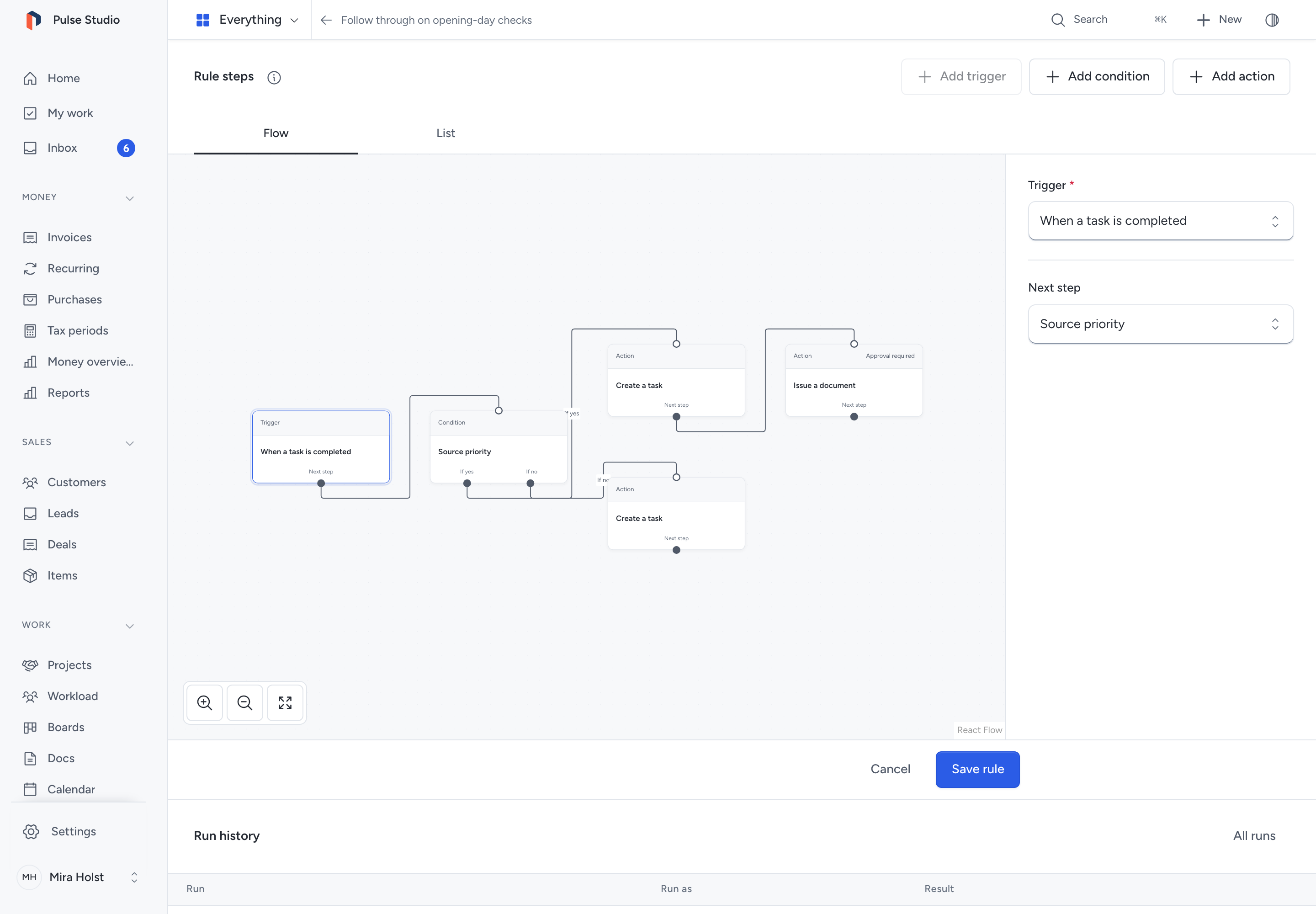
Use List for the same fields and connections without canvas gestures. On a phone, List opens first. Flow lets you select, move and connect steps on the canvas.
Each ordinary step has one Next step. A condition has separate If yes and If no paths. An empty connection ends that path.
Rules accept 2–32 steps, including exactly 1 trigger, and up to 64 connections. Every step must connect to the trigger. Loops and merging paths are refused.
The complete encoded rule graph must fit 131,072 bytes. Rule names accept 120 characters; optional descriptions accept 2,000 characters.
Remove step also removes its connections. You cannot remove the trigger through that control. Select another trigger in its fields when needed.
Choose values from records
Use Fixed value to enter a value. Where offered, choose a source value or a Result from an earlier connected action.
Only compatible values appear. A project field can use the source task's project. A later record field can use a compatible earlier action's result.
Current access still applies when the step runs. Selecting a record now does not reserve future permission to use it.
Choose an event or schedule
| Trigger | When it starts work |
|---|---|
| When a task is created | A permitted task is created |
| When a task is completed | A permitted task is completed |
| When a deal is won | A permitted deal becomes Won |
| When a document is issued | A permitted financial document is issued |
| When a calendar event is created | A permitted calendar event is created |
| When a Doc edition is approved | A permitted Doc receives an approved frozen edition |
| When a form is submitted | A permitted form receives a submission |
| On a schedule | The selected local date and time becomes due |
The choices follow available apps and your access. Activation starts from new events; it does not run old event history.
Conditions compare Source title with Is, Is not or Contains. Task triggers also offer Source priority comparisons with values from 1 to 4.
Priority 1 means Urgent, 2 High, 3 Normal and 4 Low. Comparisons use those numbers, so a greater number means lower priority.
Set a schedule
- Choose On a schedule as the trigger.
- Set Start date, Local time and Time zone.
- Choose Daily, Weekly or Monthly under Cadence.
- Set Every from 1 to 365 periods.
- Add a Last date when the schedule must end.
- Save the rule, review it and activate it.
Weekly schedules keep the start date's weekday. The last date includes an occurrence on that date.
Monthly schedules keep their original day. A schedule on 30 January uses 28 February in a non-leap year, then 30 March. A month-end start stays at month end.
A skipped daylight-saving time uses the first valid instant after the gap. A repeated time uses the earlier instant. A wholly skipped local date creates no occurrence.
Later occurrences keep the original cadence. A delayed scheduler catches up one due occurrence per rule per pass. Check the dates before activating an old start date.
Choose the action
| Action | What to set and check |
|---|---|
| Create a task | Title, optional project, dates and priority. Check the created task in the run result |
| Open a project from a won deal | Select a permitted won deal. Pepper uses the ordinary project-opening action |
| Issue a document | Select the draft financial document. Review its exact number, figures and current version before approving |
| Send an issued document | Select the issued document, email template, subject, message and permitted recipients. Review the exact send before approving |
| Send a signed webhook | Select your endpoint and enter the exact JSON object. Review its destination, body and retry policy before approving |
Issuing sends no email. Sending follows the normal document outbox and its delivery result. A Doc approval triggers work; it never becomes financial-document issuance by itself.
Financial calculations stay in Pepper's ordinary actions. EUR, USD and other supported currencies keep their exact figures and separate balances.
Choose document recipients
For Send an issued document, choose Billing recipient to use the current eligible primary recipient. If none is primary, Pepper uses the first offered recipient.
For a fixed document, choose Choose recipients to select permitted names and email addresses. Add copy recipients when needed.
When the document comes from a source binding, use Billing recipient. Pepper resolves that document's recipient when it prepares the action.
Check the exact addresses in the approval. A changed recipient after preparation requires a new review. The rule grants no permission to send without that confirmation.
Save, activate and stop
| Control | Result |
|---|---|
| Save rule | Save the rule inactive. Changing an existing rule cancels its unfinished runs |
| Activate rule | Admit new events and due scheduled occurrences for the saved version |
| Deactivate rule | Turn off the rule and cancel unfinished runs |
| Stop rule | Turn off the rule, cancel unfinished runs and block activation |
| Clear stop | Remove the stop. The rule remains inactive until you activate it |
Review the confirmation before changing operation. Completed effects stay recorded. Stopping cannot recall a request already accepted by an outside receiver.
If another session saves first, choose Reload latest version. Review the current rule with your retained proposal before saving again.
If a response is uncertain, retry the same proposal. Changing the input creates a new request.
Check a run and recover
- Open the rule.
- Choose All runs under Run history, or choose Run history from the rule's … menu.
- Open a run.
- Check its source, Inputs, step results and any error.
- Open a created record to check the work itself.
| State | What to do |
|---|---|
| Queued or Running | Let the scheduler continue, then check again |
| Waiting for approval | Open Review exact action and check the full proposal |
| Finished | Check each action result. For a webhook, also check its current delivery state |
| Failed | Correct the cause. Use Retry run when offered |
| Needs attention | Review changed access, rule input or source records before preparing work again |
| Cancelled or Skipped | Read the retained result. These states do not confirm an action happened |
Retry run keeps completed steps and retries eligible ordinary work. It does not resend an uncertain sensitive action.
Each sensitive action needs a fresh exact approval when the run reaches it. Approval is for that action alone. An expired, changed or rejected proposal cannot authorize it.
Account deactivation, changed permissions, unavailable apps or lost record access can block a run. A changed source version also requires review.
Rule details unavailable hides the saved steps and targets while your access is insufficient. Stop rule remains available for your owned rule.
Restore the necessary access, reopen the rule and review it. Do not replace hidden steps with an empty rule. History also follows current record access.
Connect a webhook receiver
A webhook sends a JSON message to an outside service. Configure the receiver to check Pepper's signature and prevent duplicate processing before approving a send.
- Open a rule and choose Webhook endpoints.
- Choose Add endpoint.
- Enter an Endpoint name and the receiver's HTTPS address.
- Choose Save endpoint.
- Copy Signing secret before closing the dialog.
- Store the secret at your receiver.
- Add Send a signed webhook to the rule.
- Select the endpoint and enter Exact JSON body.
- Save and activate the rule after reviewing its steps.
The endpoint name accepts 120 characters. The browser address field accepts 2,000 characters. The body must be a JSON object of at most 262,144 bytes.
Only public HTTPS destinations on port 443 are allowed. Private, local and reserved addresses, embedded credentials and fragments are refused. Redirects are refused.
Pepper checks DNS again for each attempt. A saved endpoint can still fail when its current destination is unsuitable.
The secret appears once. If you lose it or miss the response, choose Rotate signing secret from that endpoint's … menu.
Update the receiver before approving another send. Rotation makes unexecuted preparations for the old secret stale.
See the receiver reference for exact headers and signature verification.
Read the delivery result
| Delivery state | Meaning |
|---|---|
| Queued or Sending | No confirmed acceptance yet |
| Waiting for another attempt | A known retryable failure has another scheduled attempt |
| HTTP accepted | The receiver returned HTTP 2xx. This does not prove it processed the contents |
| Refused | The destination, response or retry limit stopped delivery |
| Outcome unknown | An attempt may have reached the receiver. Pepper does not resend it automatically |
One approval allows at most 5 attempts. Known retryable failures wait 1 minute, 5 minutes, 30 minutes and 2 hours.
A timeout, interrupted worker or oversized response can leave an unknown outcome. Check the receiver before requesting another attempt; it may already have processed the message.
For an eligible rule delivery, choose Review another attempt in its run. Review the new request and its duplicate warning before approving.
Recovery keeps the same delivery ID and exact body. It allows up to 5 more attempts. Your receiver must prevent processing that ID twice.
A delivery first requested by a connected app needs recovery through that original connection. See connected-client recovery.
Hand rules to a successor
Offboarding lists Owned automation rules for an eligible successor with permission to read owned rules.
The rules move stopped and inactive. Old pending work and approvals do not transfer authority. Earlier runs keep their original actor; the successor gains no access to that history.
To continue a rule, the successor also needs management permission. They must review permitted steps and targets, clear the stop, then activate it. Webhook endpoints remain with their creator.
Review work after recovery
Full exports keep rules, run history, endpoints and encrypted delivery data. Follow the backup and recovery guide to preserve the required keys.
Before enabling the replacement's scheduler, review active rules and current delivery states. Run only one installation against the business's outside receivers.
Imported pending approvals no longer authorize their actions. Review the current records before preparing another exact request. Keep unknown delivery outcomes until you check the receiver.
Review sample rules
With fresh-install sample data enabled, these rules start inactive:
| Sample | Work it proposes |
|---|---|
| Weekly planning task | Create a planning task on a weekly schedule |
| Follow up after a completed task | Create a follow-up in the source task's project |
| Open work after a won deal | Open a project from the won deal |
Review the dates, values and access before activating a sample. Samples send no webhook and issue no invoice.
Need help with the product?
Contact support