
Browse the manual
Edit a Web App
Give visitors a small app for one task. Choose a starter for a club, an interest form or a game.
On this page
A Web App is a small page or set of pages where visitors can do something. They open it in their browser from a link, a printed QR code or your website.
For example, put your club rules and an approved stamp-card offer behind one QR code at the counter. Or ask which workshop people would join. Review their replies in Pepper.
For: the installation owner or a client business owner. What you need: an active account and permission to edit app source. A client plan must include Web Apps.
Source access is separate from visitor data, exports, publication and native business records. A role permission alone does not open another app. Open a client-owned app from that business account. Staff access needs the client owner’s explicit app grant, even when the same person belongs to both accounts.
When to use a Web App
Use a website for the pages that describe your whole business. Use a widget when a ready-made service, such as booking an appointment, fits the job. Choose a Web App when you want to design the pages and what visitors do on them.
Start with Club for a club and its offer, Interest form to ask what people would join, or Play for a small game. Choose Blank to build your own pages. Change a starter's text and colours with Content and Design. Use Code to change how the app works.
Try the draft with example data before you share it. When you change a published app, visitors keep seeing the published version until you publish again.
Create your draft
- Open Web Apps.
- Click New Web App.
- Choose Club, Interest form, Play or Blank.
- Enter an App name, such as
Northwind Club. For a Club, Add visit feedback adds a private visit question. For Play, Let players send a result adds a proposal for private entries and public results. - Read Preview limits beside the example-data choice. Select the choice to run the starter.
- Click Create draft.
The Club draft includes 2 pages, styles, JavaScript, a manifest and JSON files for content and example data. Creation keeps the source private and opens a rendered example preview. If its response is lost, retry Run preview; Pepper keeps the same request. A concurrent source change needs a separate review before it can run.
Visit feedback adds a collection proposal. It does not enable real submissions. In Data, review and apply the proposed rules before publication. Feedback asks for one rating, keeps it private and uses a 30-day retention period. It asks for no name or email. Example feedback persists nothing.
The Interest form asks what someone would join next, with an optional note of up to 1,000 characters. It asks for no name or email and creates no subscription. Its collection proposal keeps replies private for 30 days. Review and apply it in Data before publication. Those owner-managed rules govern real submissions. If a reply is unconfirmed, keep the page open and use Retry the same reply.
Blank starts with a name, headline and introduction. It has no collection or native connection. The starters include Quiet and Bright treatments, editable colours and local source files.
Existing drafts keep their original source. Pepper does not replace their files with a newer starter design.
The editor uses your Pepper interface language. Starter pages include English example text. To publish in another language, edit that text and set the language in pepper.app.json: choose a default_locale from locales. Set the matching lang and, for right-to-left text, dir="rtl" in the app's HTML. Preview the pages and check the wording before you publish. Pepper does not translate text you write.
Set up a Play game
Choose Play to start with a trail game. Play, Rules and Community results are separate pages. Use Content to change the name and instructions. Open trail.js in Code to change the Harbour or Headland map. Each map has one start S and one goal G. A dot marks an open path. # marks a blocked square.
In Play, choose a trail and click Start trail. Use the arrow keys on the map or the four direction buttons. The text under the map gives your position and open paths. Pause stops the clock. Sound starts off. You can keep playing if the connection drops. If you reload the page, you can lose the round or an unsent result.
If you chose Let players send a result, review and apply the proposed collection rules in Data. The private claim contains a generated trail name, the chosen trail, moves and a time range. It asks for no name or email. Preview sends store nothing. If a player cannot confirm a live send, they can keep the page open and click Retry the same result after they reconnect.
To share a result, open Data, choose Private trail claims and select Review public result from the row menu. Review the trail name, trail and claimed score. Click Share result to add it to Community results. The public page shows those details and the approval date. To hide it from subsequent public reads, open Community results in Data and remove its approval. The game does not verify scores or give rewards.
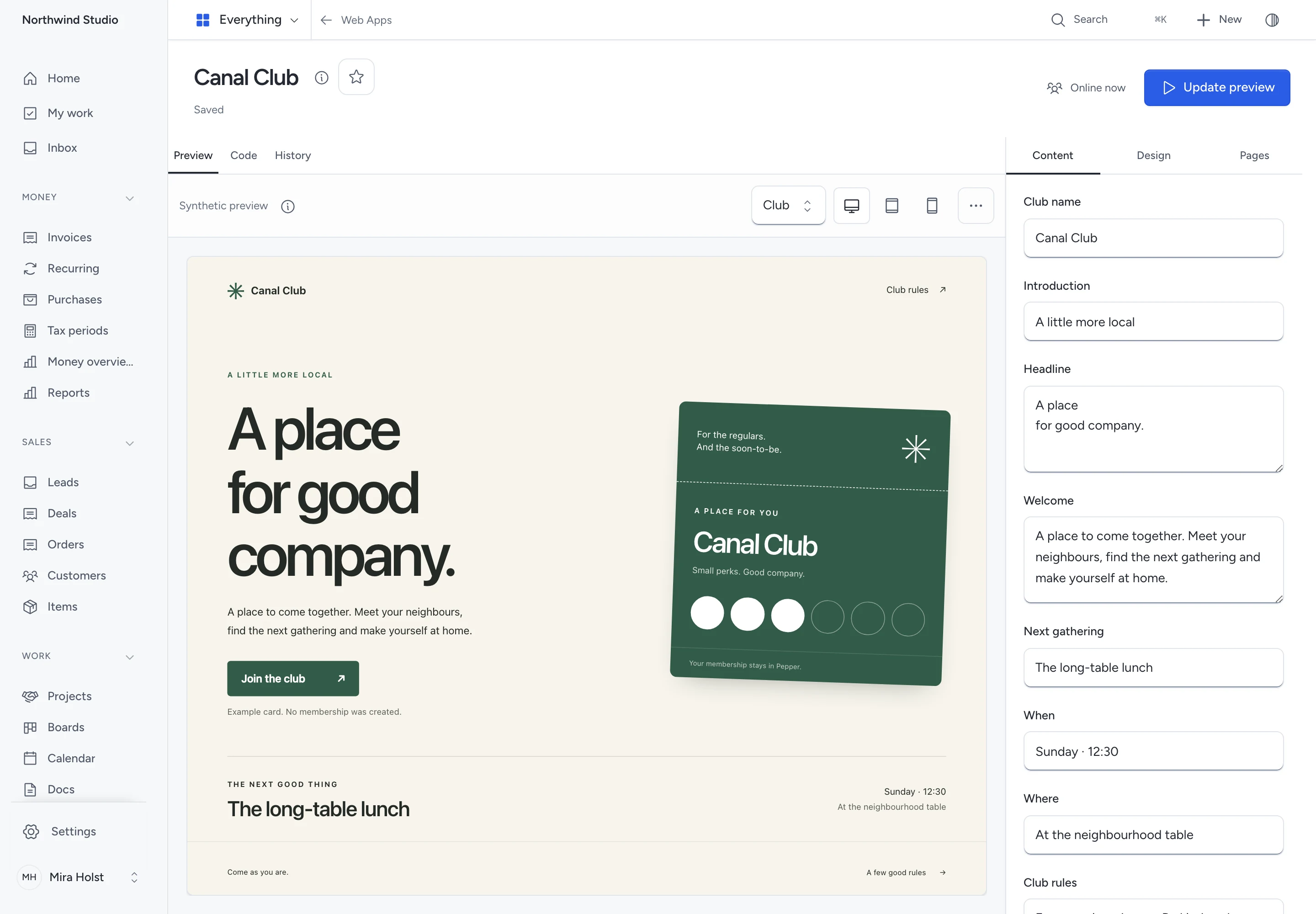
Change content and design
- Open your app.
- Choose Content beside the preview.
- Change the club name, headline, welcome or gathering details.
- Choose Design to change colours or the typeface.
- Wait for Saved in the header.
On a phone or tablet, open Details to find these controls. Close the sheet to return to the preview.
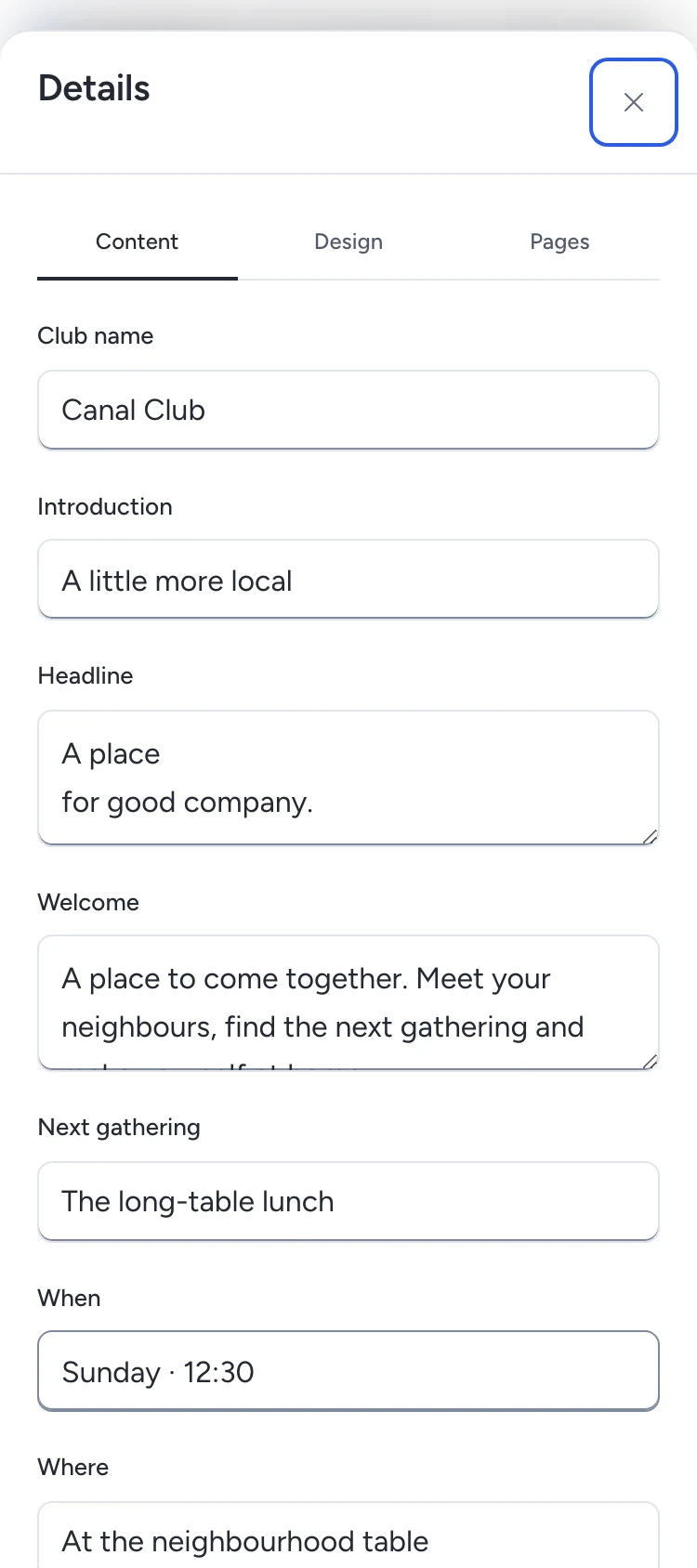
The controls edit the declared JSON source. They use the same save and history rules as Code.
An app without declared controls shows Files. Choose a file to open Code. The help beside Files explains how declared controls work.
Try your saved draft
Use example data. App code can read entered values and may send them outside Pepper, including through self-navigation or WebRTC.
- Wait for Saved.
- Click Try app.
- Read the limits.
- Select the confirmation.
- Click Run preview.
If Pepper says the preview is already being prepared, wait a moment and click Run preview again.
The preview runs the reviewed, saved source. Native business actions remain off. Join the club shows an example card without creating a membership. The Club preview uses example offer details and terms. It does not read the connected live offer.
For a new Club, Design includes Treatment: choose Quiet or Bright. These choices change the card shape and type weight in local source files.
A published Club reads the public name, reward and terms from its approved offer connection. Club rules includes the current native offer terms. Loading or failed reads keep Join the club unavailable; use Try again after a failed read. These reads create no membership and show no private member progress.
Use the page choice to open Club rules. The device buttons set desktop, tablet and phone widths before or after you run the preview.
Click mapped text in the preview to focus its content control. Changes save automatically; click Update preview to run the newer saved version.
More contains Open preview, Reload preview and Revoke preview link. A shared preview link expires after 1 hour.
If the revocation response is lost, click Retry revocation. Pepper retries the same link and request.
A script error shows a source file and line when available. Click that reference to open Code at the reported line.
A failed refresh keeps the previous preview. Correct the draft and try again. Pepper cannot guarantee confidential processing or keep a tab responsive.
Edit a file
- Open your app.
- Open Code.
- Select a file under Files. On a phone, use the file choice above the editor.
- Edit its source.
- Wait for Saved in the header.
Storage includes app controls, collaborators, files and retained packages. Source history has its own limit. A storage refusal keeps existing source and earlier accepted results.
Text saves after you pause. Each save permits up to 50 file changes and 1 MiB of new text. If a batch is too large, keep your local edits and reduce the batch before retrying. Save source also saves the current batch. Use Ctrl+S on Windows or Linux, or Command+S on macOS.
The editor keeps leading spaces, trailing spaces and empty files. It provides syntax colours, search, replace, folding and undo. Long files scroll inside the editor.
New Club source has line breaks and indentation. Existing files keep their bytes. Choose Format document to format the current HTML, CSS, JavaScript, JSON or Markdown file. Formatting runs in your browser and uses the normal save rules. Undo in the editor reverses the format. If you edit while formatting runs, Pepper keeps your newer edit. A formatting failure leaves the source unchanged.
Word wrap changes how long lines appear. It does not insert line breaks into the file.
Choose Use plain text for a standard text area, including on phones. Use code editor returns to syntax editing.
Use New file to add a file. Each file has an actions menu with Open file, Copy path, Rename file and Remove file. Right-click a file, or press Shift+F10, for the same actions. The menu above the code acts on the current file.
Read-only access permits opening code and copying paths. If copying is blocked, Pepper shows the selected path for manual copying. Renaming another file keeps the current document open.
Removing a draft file keeps earlier saved source in history.
Paths are relative, such as pages/about.html. Do not use .., hidden path segments or reserved directories such as vendor and node_modules.
Text files use HTML, CSS, JavaScript, JSON, plain text or Markdown. An unfinished JSON draft can be saved before it parses.
Find text in saved files
Open Code, then choose Find in saved files beside the file actions. Enter the text to find. Uppercase and lowercase are different. Results show the file path, line and nearby text. Choose a result to open that line in Code.
Search uses the last saved revision. It skips images, fonts and unsaved edits. If the file has unsaved changes, save it and search again before you open its match.
Keep images and fonts with the source
Upload a local file, then use its path in your app. Uploading changes the draft. Your published app keeps its current files until you publish again.
- Save any code edits.
- Open Code, then Upload file. On a small screen, use the … menu above the file.
- Choose or drop a file.
- Check the proposed local path and click Upload file.
- Wait for Saved. Use the displayed path in your HTML or CSS.
Pepper accepts PNG, JPEG, WebP, simple shapes-only SVG and WOFF2 fonts. SVG scripts and external resources are refused. Each file can be up to 10 MiB; lower PHP and operator limits apply. The file choice shows your current limit. An app permits 250 files, 5 MiB of text and 25 MiB of source assets. Packaged assets also stay within 25 MiB.
The file actions menu can copy the path, rename the file or remove it from the draft. Earlier saved versions retain the original bytes. Rename or removal does not repair references in your code. Correct those references before you try or publish the app.
Images and fonts show their path, type and size under Code. They do not open as editable text.
New Club drafts have a Logo choice under Design. Choose an uploaded image, use Add image, or keep Club mark. The club name stays visible. A missing or invalid image path must be corrected before preview or publication. Older starter versions keep their source; they do not gain this control automatically.
If a response is lost, keep the page open and retry the same change. Closing the file dialog keeps the pending file; Check file change returns to it. Pepper checks the original request and preserves any newer saved source. A stale revision, expired upload or lost permission prevents completion. Check current source lets you compare with the saved result before starting another change.
Uploads reserve validation space before receiving bytes. That space counts against history, app, business and installation limits until completion or cleanup. Near a limit, a file can be refused even when its size is below the per-file maximum.
Share editing access
Open App access in the editor. Only the owner can change these grants.
- Click Add a person and choose a team member.
- Choose whether they can read source, edit source or publish the app. The person's role still limits what they can do.
- Click Review access, check the change and click Save access.
To change or withdraw access, open the menu beside the person's name. Review the change before you confirm. Withdrawal ends that grant. It does not take the published app offline or change another grant.
An app grant gives no access to records, exports or native connections.
Set native connections
Choose which published native records this app may use. Only the app owner can configure or approve connections.
Source collaborators cannot approve connections, including collaborators allowed to publish source.
- Open Connections in the app header.
- Click Add connection.
- Choose a published widget by its name, icon and type. You can search by name or type.
- Check Name in code against the binding name in
pepper.app.json. - Select the permitted actions under This app may.
- Click Review connections.
- Check the selected records and actions.
- Click Activate connections.
A private selection does not change the active settings. Closing the review keeps its saved private draft.
Supported records are vouchers, deals, coupons, stamp cards and public forms without uploads. Keep the native widget published and its source available. Native connections also need the selected widget’s current plan features. Offers require Counter.
If no record is available, open Widgets, publish a supported record, then reload the connections.
Connection approval saves native settings only. It does not publish an app, create a membership, submit a form, add stamps or redeem a claim. The synthetic preview still uses example data.
If the activation response is lost, click Retry the same change. Pepper confirms the original decision without moving the active settings again.
If a native record changes, review its current connections again. Pepper can save a fresh candidate with the same selected widget. If a review was refused, click Reload saved connections first.
Open Connection history for earlier decisions. Its row actions menu and right-click menu both offer Remove from history when permitted. Pepper keeps current settings and at least 30 days of history.
Each retained set uses 64 KiB of app storage. A set permits up to 32 named connections within 32 KiB of settings. Connection settings do not use source-history capacity.
An expired client plan permits owner reads but stops configuration changes. Suspension also stops external AI connections. Human owner reads remain available for recovery.
Recover a refused save
Keep the editor open if a save fails. Your local buffer remains on the page.
Retry save continues the same request after an uncertain response. It does not start a second save.
If someone saved newer source, Pepper opens Review the newer source. Compare each changed file with your local buffer.
Choose Keep my edits to use the newer revision as your base. Your edited or removed files replace those files in the next save. Unchanged files use the newer source.
Choose Cancel to keep reviewing. Your local buffer stays unchanged.
If edit access was withdrawn, your readable draft remains on the page. Ask the owner to restore access, then click Check access.
If source-read access was withdrawn, Pepper clears the source and preview from the screen. Reopen the app after access returns.
Source storage errors require the owner to check free space or recover missing files.
Compare earlier source
- Open History.
- Click Compare source beside a saved revision.
- Select a file.
- Compare that revision with your local buffer.
This comparison does not change the draft. Refresh loads current history. Load earlier revisions opens the next group.
Export the saved source
Open History, then click Export source. Check the saved revision and file count. Click Download ZIP.
The ZIP keeps the files you can edit, including local images and fonts. It includes the file hashes and runtime requirements. It does not include records, people’s access, native connections or publication. Check the source for private text before you share it. To copy record values separately, use Export records under Data.
Import source into a new draft
- Open Web Apps and click Import source.
- Name the new app and choose a Pepper source ZIP.
- Click Review archive and check the file count.
- Click Create imported draft.
The new draft keeps the editable files. Pepper checks the ZIP, file hashes and runtime requirements before it creates the draft. The original app stays unchanged. Set up native connections, collection rules and publication separately in the new draft.
If Pepper cannot confirm the import, leave the dialog open and click Check import result. This checks the same request, so you do not create a second copy.
Review presentation changes
Publication changes the presentation. It does not restore old visitor data, connection permissions or accepted business records.
- Save your source changes.
- Open Publication.
- Click Review publication.
- Check the public file count, pages and Connections.
- Open App data limits and read the disclosure.
- Select the confirmation checkbox.
- Click Publish app.
Every file in a release is public, including JSON. Keep credentials and private records out of source.
Click Open app to visit the current presentation in a new tab. Copy its address to return to it. The page picker and app links use declared routes, so refresh and the browser’s Back button keep their usual behavior. Draft edits leave that presentation unchanged.
A disabled app or expired business plan stops delivery and hides Open app. The owner keeps presentation history. Club confirmation opens a separate Pepper page. The visitor verifies their email and accepts the current terms there.
New presentations keep their Pepper SDK with the app files. Rollback keeps that implementation. A changed SDK during preparation requires a new review.
If the reply is lost, click Retry the same change. Refreshing and reopening the app in the same browser tab keeps that request. A retry recovers its receipt; it does not replace a newer presentation. Keep the tab open while the result is uncertain.
In Publication history, open a row's … menu or press Shift+F10. Restore this presentation reviews a retained artifact before activation. Pepper verifies its files again. Withdraw app clears the active presentation.
Remove from history names one eligible receipt. The latest accepted state and at least 30 days of history stay protected. An unreferenced old artifact can then be collected. This does not remove app data or accepted business records.
Publication needs an explicit publish grant as well as the role permission. It grants no visitor-data or connection-administration access. A publisher can make the chosen files public; that grant cannot keep the published source confidential from them.
Each retained publication request or receipt uses 16 KiB of app storage, outside source history. An app permits 1,000 such rows. An expired, unaccepted request keeps its history charge until it is eligible for removal. Its transient package reservation is released separately.
Share a printed code
In Publication, open Links and codes. Create a code, choose a published app and select one of its pages. The code belongs to the app where you create it. It can open another published app in the same business.
Use the shared QR style controls to choose its appearance. Download SVG or PNG for your own layout, or a PDF for printing. Check the printed code before distribution.
Show an app on an existing website
- In Publication, open Links and codes. Create a code or edit one. Choose the published app and page to show.
- Open Show this app on a website. Enter each website origin on a separate line, up to three. Enter
https://example.comwithout a path or wildcard. Include the port if the site uses one. - Save the code. Open its row menu and choose Get embed code. Copy the HTML into a page on one of those websites and publish that page.
- Visit the page. Check that the app loads and that its standalone link works. If the browser or site blocks the frame, visitors can still use the link.
For a Club or Form confirmation, the app asks the visitor to continue in a new tab on Pepper. They confirm there even when their browser blocks third-party cookies. Remove an origin to stop new frames loading on that website. The stable link and QR code keep working while the destination is live.
Retargeting keeps the printed address. Closing a code sends visitors to its owning app. Closing does not remove accepted offers or cards. You need current publish access to both apps when you create or retarget a code.
Point a widget's printed code to an app
In the widget editor, open Publish & share. Edit an existing code or add a code. Choose A Web App page, then choose a published page in the same business. Save and check the printed code. You need access to edit the widget and publish the selected app.
The address stays the same. If you close this code, it goes back to the original widget. A withdrawn app makes an open code unavailable until you choose a live destination. Earlier confirmations keep the code name they received. For App Store or Google Play links, choose An app instead.
Add a website launcher
A launcher puts several services behind one button on your website. It can contain published apps, widgets, or both. You do not need a widget to use a launcher for apps.
- In Publication, open Links and codes, then Website launchers. Click Create launcher.
- Enter the button text and choose the website. To enter an address, use its exact origin, such as
https://example.com, without a path or wildcard. - Under Services, choose a published app and click Add service. Repeat for up to 12 choices. Use the arrows to put them in order. Open Choice options to enter a different label or select an app code that allows this website.
- Save. Open Publish & share and try the preview. An app in the preview opens its published page in a new tab.
- Click Publish launcher. Copy the HTML for a button or a floating button into the selected website. Check it there. Use the standalone address where you cannot add HTML.
To change a published launcher, save your edits and publish it again. Saving closes the current launcher. If a choice is no longer available, remove it or choose another code. The owner can select Remove unavailable choices to clear choices that Pepper cannot show. Close launcher stops delivery and keeps the settings. The apps, codes and accepted records stay in place.
Club confirmation opens in a separate Pepper tab. When the launcher choice has no selected code, Insights names the launcher on confirmed records. When the choice uses a code, the record names that code. A visitor who has not confirmed must open a current link after you change or close the launcher. A visitor who already confirmed can still recover their receipt through Pepper.
Confirm a Club action
The app can ask Pepper to open an approved offer or stamp card. It cannot verify an email, accept terms or add a card on the visitor's behalf.
- In the Club, click Join the club.
- Click Continue in Pepper.
- Enter your email, then the code sent to that inbox.
- Read the current terms and select the consent checkbox.
- Confirm the offer or card.
The receipt stays in Pepper. When opened from an app-owned code, it also names that code. App source receives only a confirmation status. It receives no email, verification code or receipt details.
If a reply is uncertain, click Check confirmation. Keep the same browser tab and request until Pepper confirms the result. Reloading the same tab keeps that request; it does not create another card.
A restore or changed connection can make an unfinished confirmation unavailable. Click Open app again to return through the same printed address and start from the current app. My offers and cards, or the member link in your confirmation email, recovers accepted records independently. Restoring a presentation does not undo an accepted offer or card.
Answer a connected Form
A connected public Form opens in Pepper. Enter your answers there, then click Submit. App code receives only the confirmation status. It receives no answers or internal record link.
The Form keeps its usual anonymous behavior. It does not require an offer membership or email code. File uploads and private or record-link fields are unavailable in Web App connections.
If a reply is lost, your answers stay in the tab and editing pauses. Click Check confirmation. If Pepper confirms that nothing was received, use Send the same answers. A repeated request recovers the same accepted response. The trusted receipt remains available for 24 hours in the same browser, while its cookie remains available.
If the app or connection becomes unavailable, copy any answers you need from the retained form. Closing the tab loses unsent answers. An accepted response stays in its native Form records; withdrawing an app or rolling back its presentation does not remove it.
See audience and confirmed records
App owners can inspect confirmed results in Insights.
Open Insights from the app editor. Audience shows direct page opens, code arrivals, inline opens and launcher opens. It reports eligible opens in the last 90 days. A printed code counts when its app page opens. The redirect and later confirmation add no extra arrival.
Inline and launcher opens require consent from the website that hosts them. Pepper respects browser privacy signals. If Analytics is off or unavailable, the report says that opens are not measured. These figures count opens, so one person can account for more than one.
Confirmed records shows accepted business records you can open. Choose a row to open its original. A record reached through a code keeps the code name it received at confirmation.
The report starts with this month in the business time zone. Change From and To, then click Refresh results. Choose up to 366 calendar days. More records loads the next group of 50.
You need app analytics authority, Analytics access and permission to read the underlying record. A source-only grant gives no result access. If access is removed, Pepper clears the returned records. An unavailable report does not mean no one used the app.
Presentation rollback and withdrawal preserve accepted records. Audience opens and confirmed records are reported separately.
Keep app records
Use Data for an app's own records. Native Form responses, memberships and business records stay in their usual screens.
- Open Data in the app editor.
- Choose Use app collections for rules declared in source, or start with a blank collection.
- Set the fields, access and retention. Fields start private.
- Click Review changes. Read the public fields and retention, then click Apply collection changes.
- Choose a collection in Records. Click New record to add an entry.
The row's … menu opens, edits or erases that record. Right-click or press Shift+F10 for the same actions. Erasure shows the selected name and ID before confirmation.
Filter records uses declared indexes. Money and decimal values keep their exact amounts. Storage and history shows records, charged storage, collection versions and saved request receipts.
App data needs its own access. A source-only collaborator cannot read or change these records. Current owners control collection rules.
Choose what visitors can do
Visitor submissions can write only the fields selected for that purpose. Public reads return only selected public fields. Private fields stay out of those replies.
Moderated entries stay out of public reads until an owner approves them.
- Open the record’s … menu and choose Edit record.
- Review its public values, then select Approved. Read the consequence beside Save.
- Click Save.
For an already live app, the confirmed save can change public visibility immediately. Clear Approved and save again to hide the record from subsequent public reads. Other private values stay out of public replies. This does not publish or change source.
Unique indexes require owner-only submissions. An older collection with both settings keeps its records, but visitor submissions stop. Choose Use owner-only submissions to repair it.
Keep real private values out of source and preview files. Authored code can read entered values and may send them outside Pepper.
Compare earlier collection rules
Open Data, then Collections. Click Collection history. The list marks the rules in use now. Click Compare rules beside an earlier version to see what changed. The comparison changes no rules or records.
Export selected records
- Open Data, then Records. Choose a collection.
- Click Export records. Choose the fields you need. Private fields start unselected.
- Click Review export. Check the record count and which private fields the file includes.
- Click Download JSON. If there are more records, choose Next page and review it separately.
The file keeps the selected values and exact amounts. It excludes erased and expired records. Native Form responses and other business records stay in their usual screens. If the collection changes, review again. Keep private exports where only the people you choose can read them.
Import records into an unpublished app
- Apply the same collection rules in the destination app. Keep the app unpublished.
- Open Data, then Records. Click Import records and choose one JSON file from Export records. Each file can contain up to 100 records and 2 MiB.
- Click Review import. Check the destination collection, fields and count. Pepper copies only the selected values and fills any defaults from the destination rules.
- Click Add records. Pepper gives the copies new IDs and keeps the records already in the app. If Pepper cannot confirm the reply, keep the editor open and click Check import result.
References between records in the same file follow the copies. If a reference cannot be resolved, export the related records together or leave out the field if the rules allow it. Pepper refuses the whole file if a record has expired or conflicts with a unique value. Import does not extend expiry or copy native records or access grants.
Keep work through a refusal
A validation summary links to the field that needs attention. Your input stays in the editor.
For a changed record, click Compare saved version. Choose which conflicting values to keep. Use reviewed values prepares your draft; save the record to confirm it.
For changed collection rules, click Compare saved rules. Your draft stays available beside the saved rules. Continue with your draft, then review and confirm it again. Saved fields and indexes must stay.
After an uncertain reply, click Check saved result. Pepper checks the original request before repeating it. Leave the page open until the result is confirmed.
If access ends, Pepper clears private source and data from the screen. Use Check access after restored membership, or Sign in again after an ended session.
An app permits 10,000 stored records and 100 MiB for managed data and its retained history. Storage includes values, indexes, collection versions, receipts and erased identities. Erasure keeps a small identity so an old retry cannot recreate its values. Shorter retention also applies to existing records. Longer retention does not extend their saved expiry.
Share opening hours with visitor agents
An app owner can give visitors and their AI apps a read-only way to check opening hours. Each Web App starts with this access closed.
- Open the app, then open Connections and expand Consumer agents.
- Select Offer published opening hours to visitor agents. Enter a time zone such as
Europe/Amsterdam. - Expand a day and add its opening periods. A day with no periods is closed. Add a date override for a holiday or a special event. An override replaces the usual hours for that date. Leave the override empty to close that day.
- Save the hours to the draft. This step does not change the live hours or open access.
- In Publication, review the opening hours and publish the saved revision. The installation's Visitor door must also be on.
Use Open public tool list in Consumer agents to get the link to share. Visitors can ask about one date at a time. They receive the published time zone and hours. They cannot see private records, book a visit or make a purchase with this tool.
Use Turn off public access in Consumer agents to stop those reads without taking the app offline. Rolling back cannot reopen closed access. Restore also closes it. Review and publish again to reopen.
Source limits
A source snapshot permits 250 files. The raw pepper.app.json manifest permits 16 KiB. Each text file permits 256 KiB, with 5 MiB of text across the snapshot.
Source history has a 100 MiB ceiling and permits 1,000 unpinned revisions. Recent source remains protected for at least 30 days.
All retained app files share a 250 MiB app ceiling. The owner pool has 512 MiB; the installation has 1 GiB.
History shows charged usage, including pending saves and metadata. These figures are application charges, not filesystem allocation measurements.
A full history refuses new saves. Pepper does not remove protected source to make a save fit. Keep your buffer while the owner checks storage.
Read app activity and browser diagnostics
Open Insights and choose a date range. App activity counts eligible page changes, app opens with an interaction and events declared in the app's source. For example, Play can count a completed trail. This does not submit a result or verify a score.
Open Browser diagnostics for reports of a script error, missing source or an app that did not become ready. Pepper keeps these totals for up to 14 days. The timing figures come from a sample and stay for up to 30 days. They describe when the app became ready in those browsers. They do not measure uptime.
An app still works when analytics is off or a visitor blocks measurement. See Confirmed records separately for actual form responses, offers and stamp cards you can access.
Check an app that needs attention
In Web Apps, use Draft, Live or Needs attention to find an app. Live means that the app has a current release. It does not mean that its code worked on every visitor's device.
Open the app, then select History and App health. Check the storage charges, pending reservations and last cleanup check. If the scheduler is late or has not checked in, ask the installation administrator to check the minute scheduler. If the host disk reserve is low, free space before you retry. Keep an unsaved draft open.
Scheduled cleanup removes expired previews, abandoned saves and expired private values in batches. It does not remove the current draft, active release or accepted native records. Open Publication from App health to review retained releases and recovery choices.
Use a connected AI app
The builder API and MCP use these same source actions and access checks. See Web App source tools.
When you give Pepper's optional Assistant Web Apps read access, it can check an app's name and publication status. The Assistant sends those facts to the provider you set up. It cannot read saved files or visitor records through that grant. Open Publication to review and publish an app yourself.
To follow up after a publication, create an automation with the Web App published trigger. For example, add an action to create a task called “Check the printed Club code.” Save and turn on the rule before you publish. The trigger runs after a publication succeeds. Use the rule's run history to check what happened.
See also Files, Websites and errors and retries.
Need help with the product?
Contact support